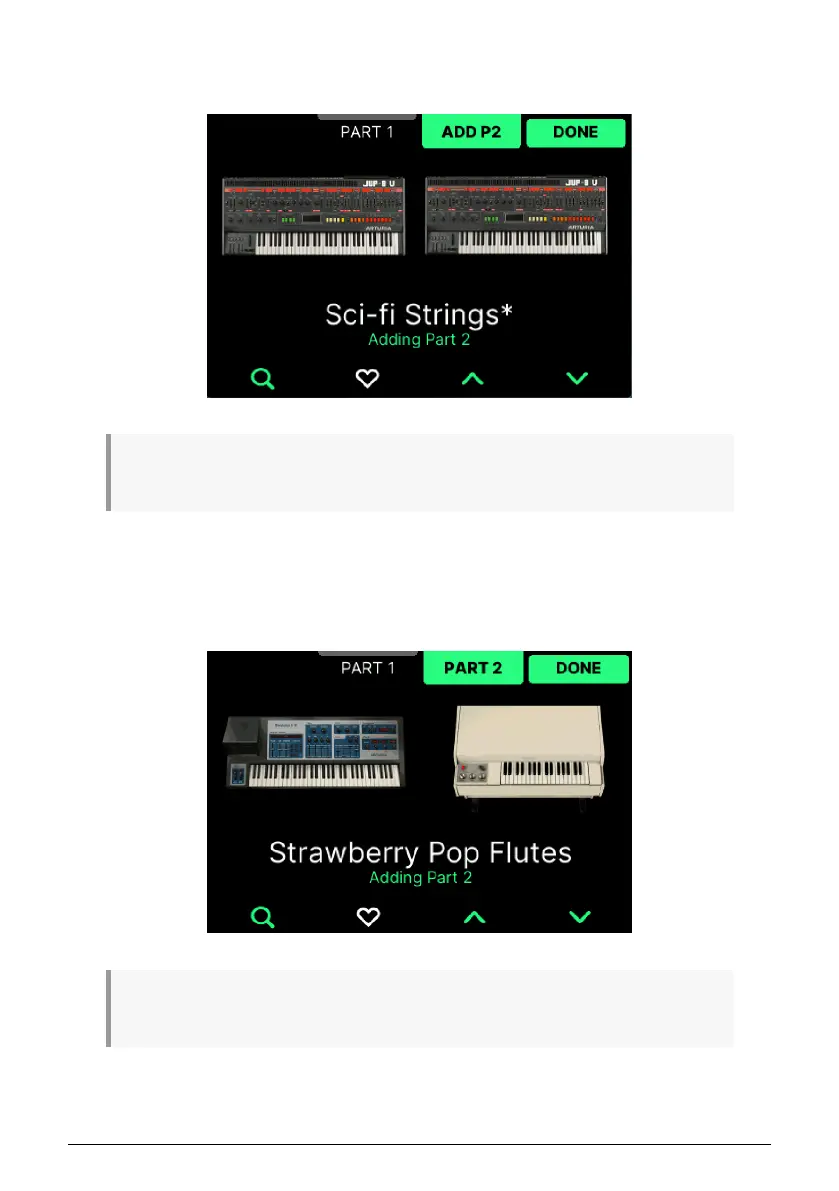
Next, press the ••• button and then go to Add Part 2. Here you can add a second Part, thus
turning a Single Preset into a Multi Preset. You will see a second, identical Instrument next
to the first one.
♪ All editing is identical to Parts 1 and 2 hereafter, so everything described here is applicable to any
Part.
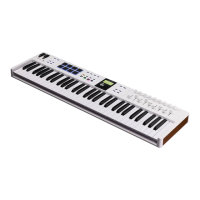
Press Part 1 (or 2). You can now rotate the Main Encoder to select another Instrument for
this Part. Click on Main Encoder to confirm. You may also use the Up and Down Arrows to
locate and try out other Instruments. The Filters will probably make your search easier.
When you've decided on a suitable combo, press Done to confirm. This will take you back to
the previous page, which now also includes a Split or Layer button.
♪ When editing a Multi Preset, screen text, contextual buttons and the Transpose and Octave buttons
will change color depending on what Part you're editing – orange for Part 1 and green for Part 2.
41 Arturia - User Manual KeyLab mk3 - Arturia Program



 To Next Page