PDS • User’s Guide 97
6. Upgrading Firmware
Upgrading Firmware Using the USB Port
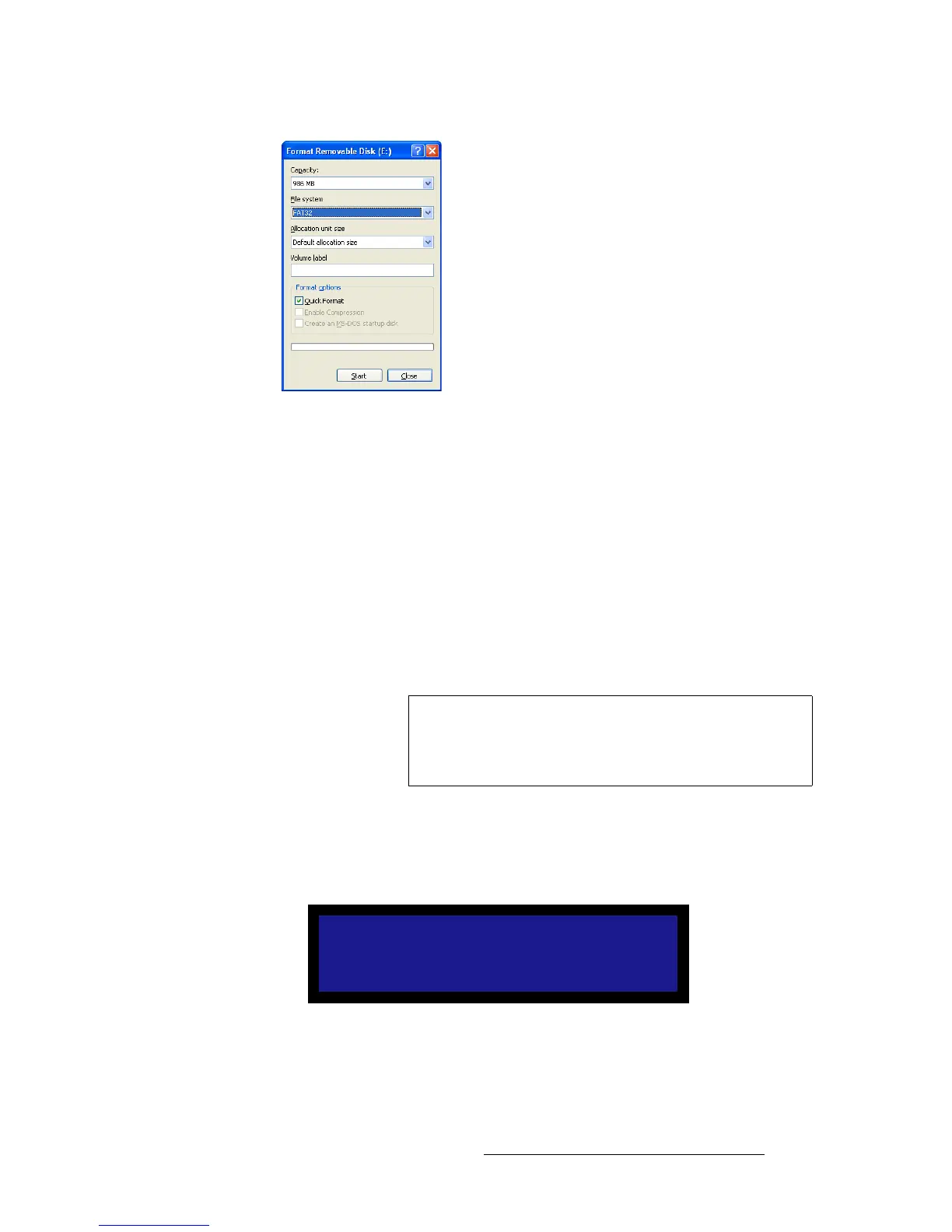
Figure 6-1. Format Removable Disk Window
6. Then click Start. A message appears, warning that data will be erased during the
formatting process.
~ Click OK to continue.
~ Click Cancel to halt the process.
7. If you click OK, a confirmation message appears after a few seconds. The flash
drive is now ready to use.
If you click Cancel, you can delete data or download it to the computer, then retry
the formatting operation.
mÉêÑçêãáåÖ=íÜÉ=cáêãï~êÉ=réÖê~ÇÉ=rëáåÖ=íÜÉ=rp_=mçêí
To upgrade the PDS firmware via the USB port, use the following procedure:
1. Insert the USB Flash drive into the PDS’s USB port.
2. Select Firmware Upgrade from the Setup Menu. The Firmware Upgrade
Submenu appears.
Figure 6-2. Code Upgrade Submenu
Important
After unzipping the firmware upgrade downloaded from the
Barco Web Site or FTP site, make sure the PDS_##_##.tar.gz
file is in a directory named "PDS" before inserting the USB
Flash drive into the PDS's USB port.
FIRMWARE UPGRADE
> USB Upgrade >>
Web Upgrade >>


 To Next Page