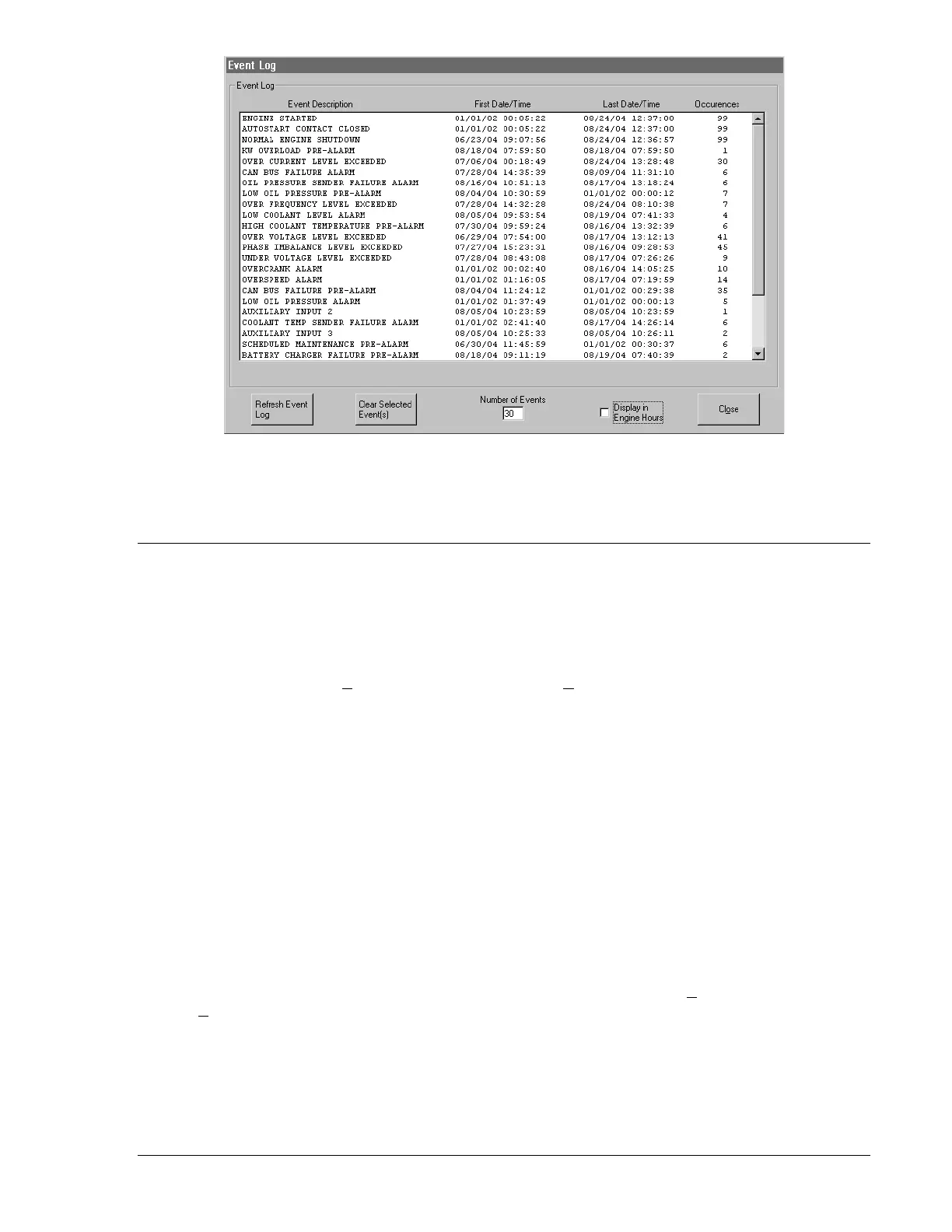
Figure 4-25. Event Log Screen
Display in Engine Hours. Placing a check in this checkbox causes the Event Log screen to display events
time-stamped with elapsed engine hours. An empty checkbox causes the Event Log screen to display
events time-stamped with real-time clock data.
SETTINGS FILES
BESTCOMS software enables you to print a list of DGC-500 settings, save DGC-500 settings to a file,
and open a settings file and upload those settings to a DGC-500.
Printing Settings Files
A printout of DGC-500 settings can be useful for record keeping or comparison purposes. Click the Print
Settings File button or click File on the menu bar and click Print to access the Print DGC-500 Settings
screen. This print screen contains a print-preview pane and settings for selecting the printer, content of
the printout, and printout orientation. DGC-500 settings are divided into three print sections: General
Settings, Programmable I/O Settings, and Input Sender Settings. Any combination of sections can be
selected for printing.
New Settings File
Clicking this button resets the settings displayed in BESTCOMS to the factory-default values. If changes
to settings have not been saved, you will be given the opportunity to save the changes in a DGC-500
settings file.
Saving Settings Files
Saving DGC-500 settings to a file for uploading to other DGC-500 units saves setup time when
configuring multiple units to the same configuration. A settings file can also be created in BESTCOMS
without being connected to a DGC-500. The settings of the desired screens can be changed and these
settings can then be saved to a file.
A settings file is created by clicking the Save Settings File button or clicking File on the menu bar and
clicking Save. A file properties box appears and allows you to enter generator information and other
pertinent notes about the settings. Next, a Save As dialog box prompts you to select the name and
location of the settings file. All DGC-500 settings files are automatically given a DG5 file extension by
BESTCOMS.
9355400990 Rev H DGC-500 BESTCOMS Software 4-23


 To Next Page