89000046-014 KSN 780/8XX/900 AeroNav AML STC Installation Manual for Helicopters
Rev 0 Page 10-5
© Honeywell International Inc. Do not copy without express permission of Honeywell.
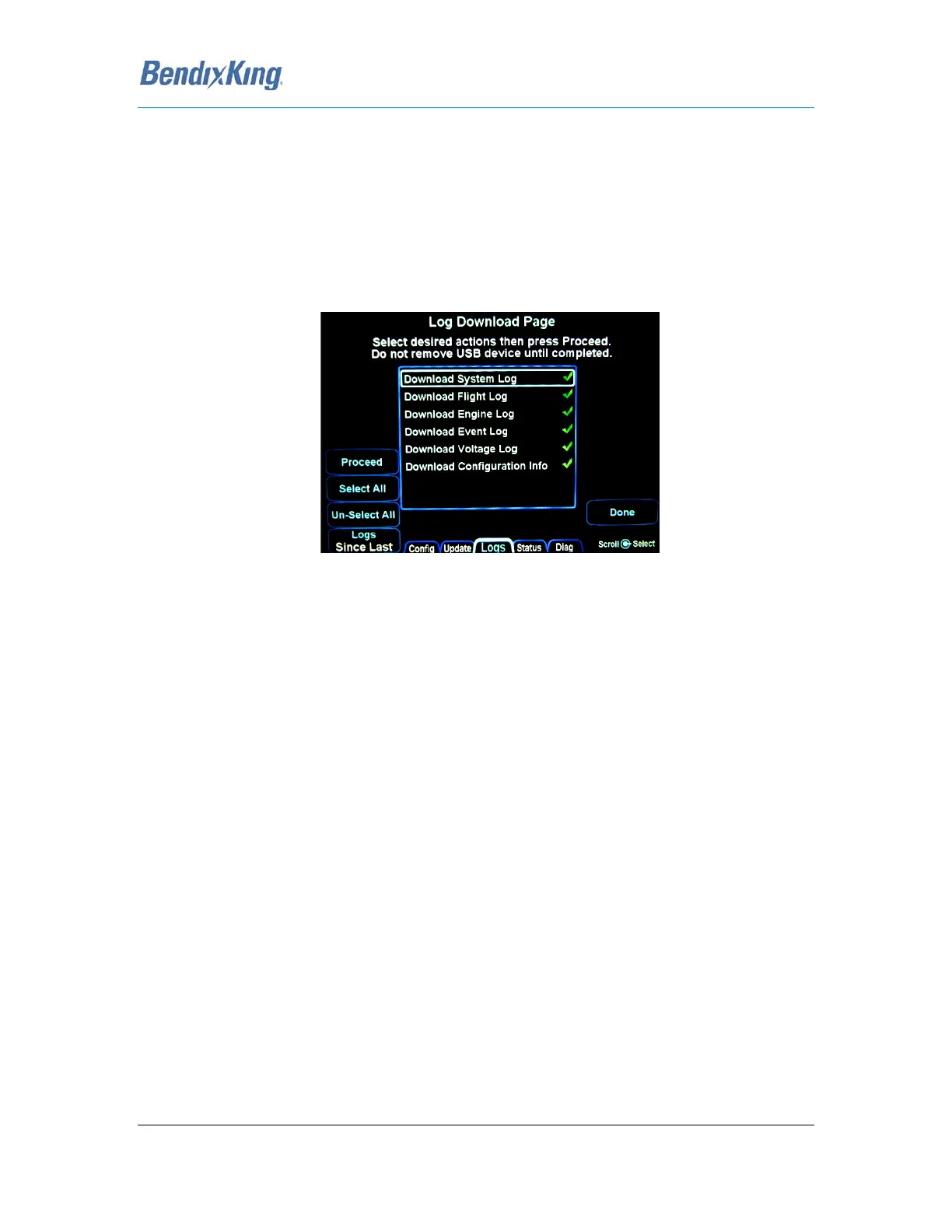
• Download Configuration Info - This log contains the system
configuration for the unit.
• GPS Log - This log contains detailed internal state data for the GPS.
The “Download Logs” LSK is presented when “Software” is selected on the SYS tab and the system is
not in-air. When the “Download Logs” LSK is pressed, a pair of Confirm/Cancel LSKs are presented.
Selecting Confirm will launch the Maintenance Mode of the AeroNav XXX. From Maintenance Mode,
press the right side of the AUX page function key to select the “Logs” tab. Ensure a USB fob is
inserted in the AeroNav front bezel USB port and then use a combination of the left side LSKs and the
bottom right AeroNav knob to select the desired combination of logs and type of action to perform.
Figure 41 Datalogs Download Page
Pressing the “Proceed” LSK will immediately start downloading all logs listed in the center of the page
with green check marks adjacent to them. If only a subset of the logs are to be downloaded, use the
“Un-Select All” LSK to deselect all logs and then use the bottom right AeroNav knob to highlight the
desired log and push in to generated a green check mark.
The “Logs” LSK on that Maintenance Mode page provides two options for downloading this data via
dedicated LSKs. The first option (“Full”) allows a download of all data logs onto the USB fob. The
second option (“Since Last”) downloads the data logged since the last time a download was
completed. Since the logs contain a large amount of data, the second option will be a quicker option
in almost every case.
Download times are highly dependent on the number and types of logs being downloaded and how
it’s been since the last download. Times can range from a few seconds to more than 15 minutes. The
more often logs are downloaded, the shorter the download times will be.
In order to provide an indication of download progress, a progress bar will be presented with both a
symbolic aircraft indicating download in progress and a % complete estimate. The files to be
downloaded can have one of several states – “OK”, “In progress…”, “Pending”, “Skipped”, “Active”,
“Failed”.
When downloaded to the USB fob, the data logs will be saved in .csv files. This can be imported into
newer versions of Microsoft Excel into a table format. The data can then be plotted or analyzed by
several 3rd party tools. Note that files can easily contain 50MB or more of data.


 To Next Page