34
Starting and stopping presentations
This section will guide you on how to start and stop a presentation using the product.
Getting ready
Make sure that all the connected devices have been powered on and ready for the
presentation.
As the product could work with different projectors, IFPs, TVs, or monitors with standard
HDMI ports, the steps required to start a presentation may vary according to the actual
environment and your display specifications. Follow the procedures below and refer to the
specified sections for details.
1. To start a presentation, see Starting presentation on page 34 for details.
2. To stop a presentation, see Idle presentation on page 35 for details.
3. To start a split-screen presentation, see Split screen presentations on page 36 for
details.
4. To start a presentation with a mobile device, see Touch back on page 38 for details.
5. To control presentations via a touchscreen displays or mouse/keyboard see Touch back
on page 38 for details.
Starting presentation
1. Make sure power is supplied to the Host. See Connecting the HDMI cable and power on
page 21 for more information.
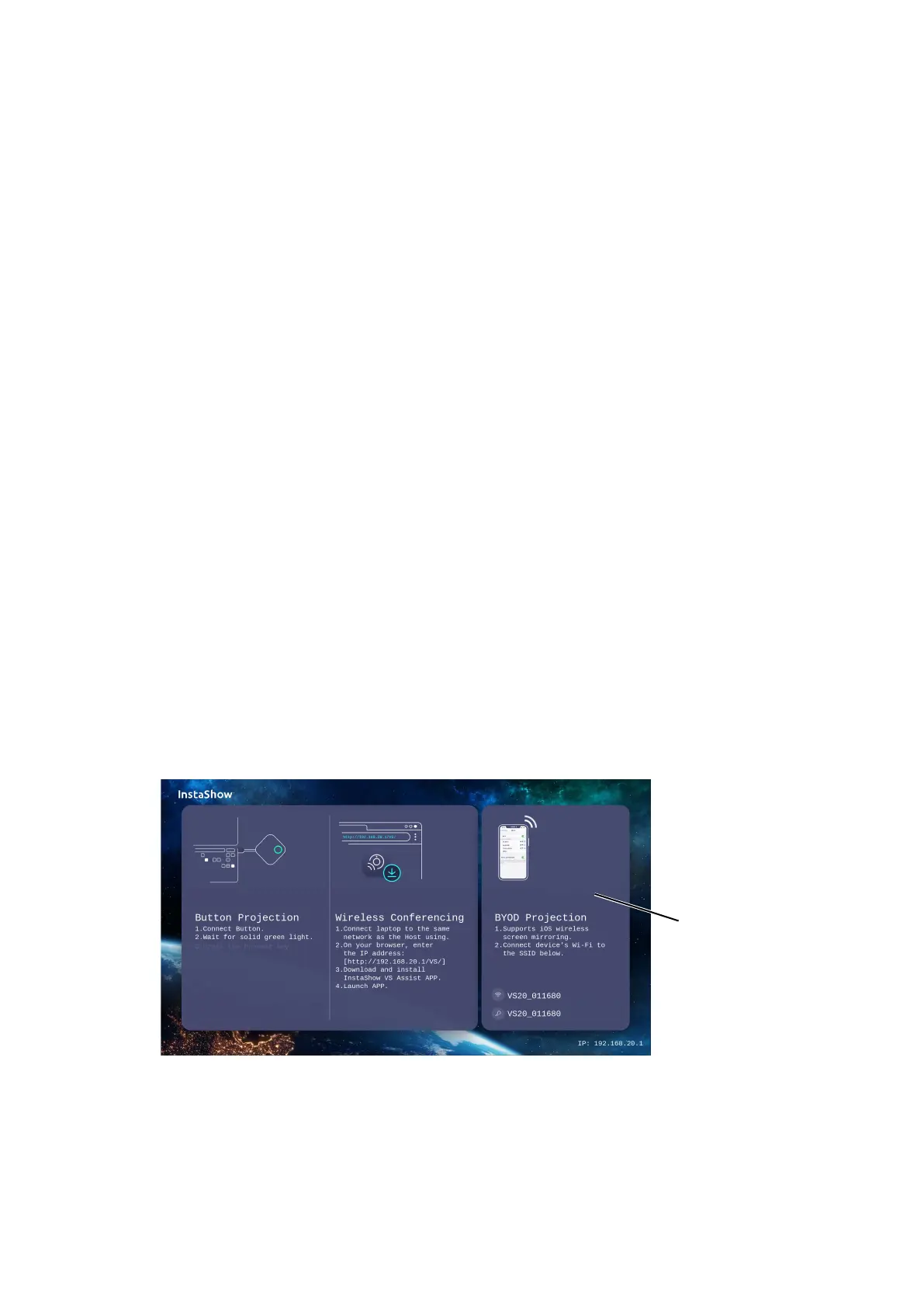
2. Choose the HDMI source corresponding to the Host on the display. You will see the
Guide screen.
Guide
Screen
3. Please follow the instruction on the Guide screen to supply power to the Button. You
can also see Setting up and powering a Button on page 25 for more information. The
LED indicator on the Button is static green when the Button is connected and working
properly.
4. To start a presentation, press the Present key.


 To Next Page