65
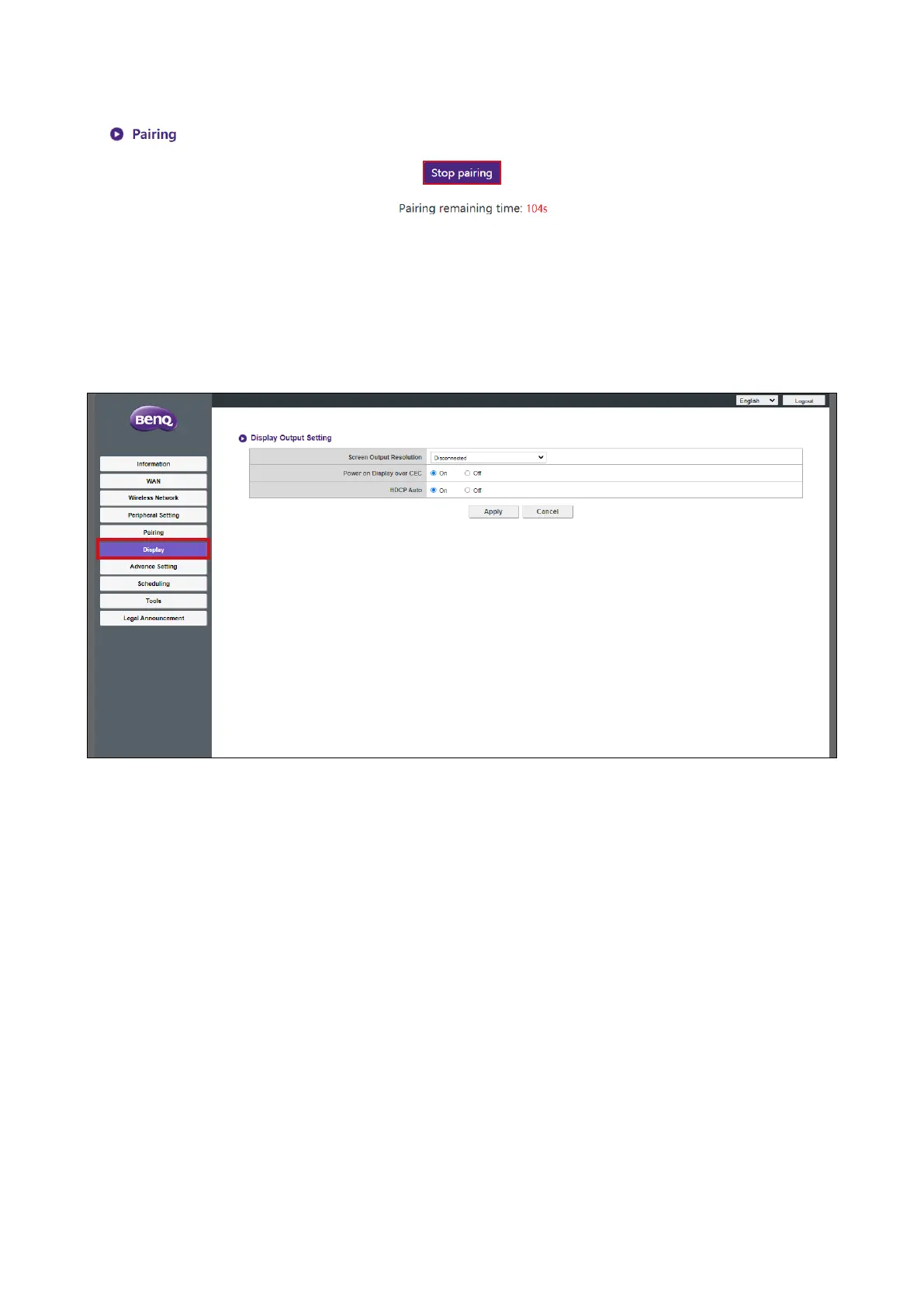
7. You may press Stop pairing anytime to stop the pairing process.
Pairing Status
The Pairing Status sub-menu lists all the Buttons that are already paired to the Host.
Display
Click Display and you will see the Display Output Setting sub-menu.
Display Output Setting
The Display Output Setting sub-menu includes the following settings for the video output
by the Host to the display connected to its HDMI OUT port:
• Screen Output Resolution - This settings configures the output resolution for the video
broadcast by the Host. When Screen Output Resolution is set to Auto the Host will select
the output resolution based on the connected display’s native specifications, or you can
select an output resolution manually.
• Power on Display over CEC - When this setting is enabled, the display connected to the
Host's HDMI OUT port will automatically power on whenever the Host is powered on.
• HDCP Auto - This setting allows you to configure whether or not High-bandwidth Digital
Content Protection (HDCP) is automatically enabled for the content output by the Host.
When set to On the HDCP copy protection will be automatically enabled by the Host
for content that features HDCP copy protection and disabled for content that does not
feature HDCP copy protection. When set to Off the HDCP copy protection will always be
enabled by the Host.
Press Apply to save any change to the Display Output Setting fields.


 To Next Page