47
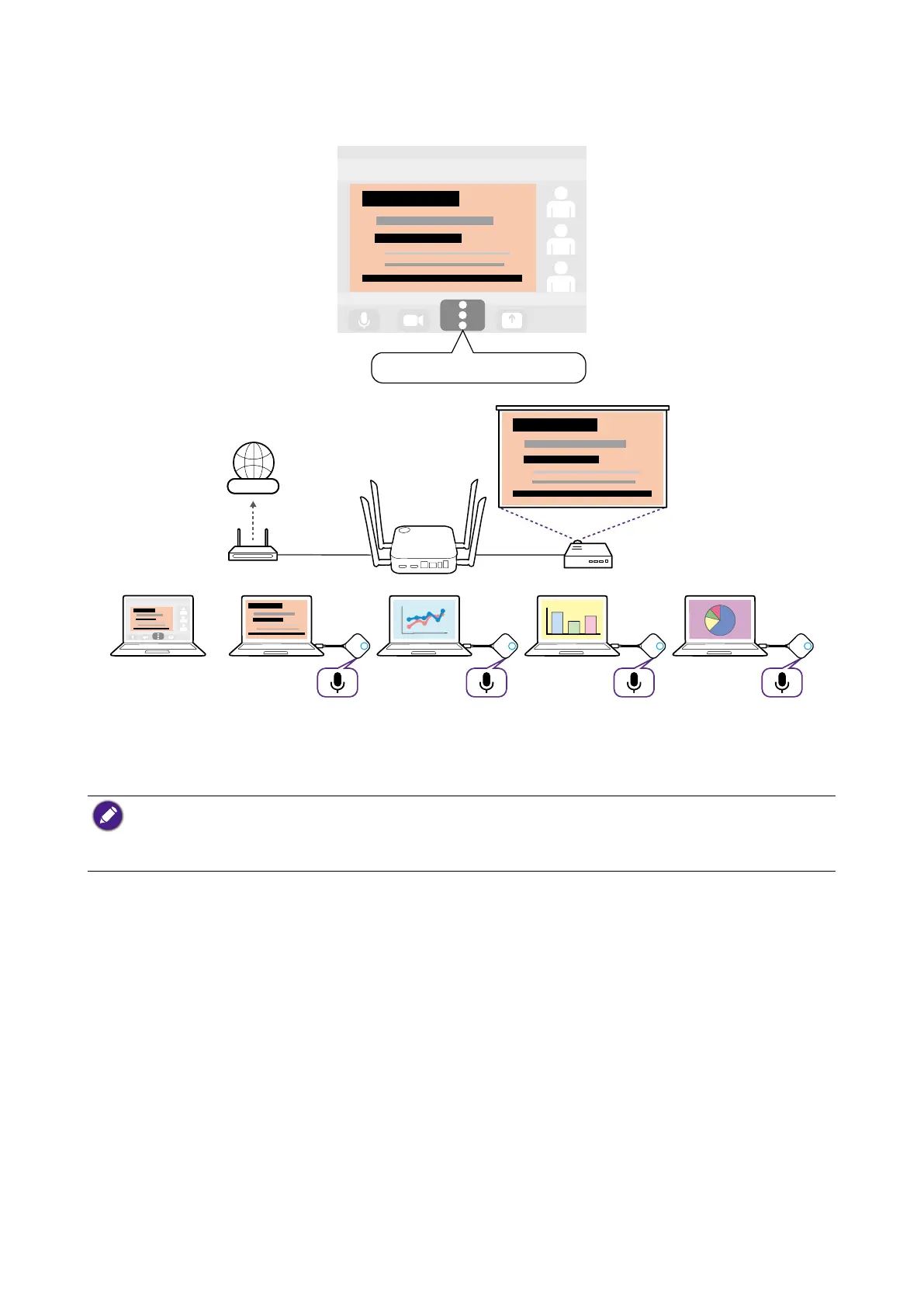
3. Open the microphone input source menu in the videoconferencing application and select
InstaShow Audio.
InstaShow Audio
Internet
For hybrid meetings that feature an external webcam with a built-in microphone connected
to the Host, the resulting microphone array will also include the microphone on the
webcam.
• To disable a single microphone/Button when using a microphone array, use the Mute key located on
the corresponding Button.
• To disable and/or configure the microphone array feature, use to the Peripheral Settings menu in the
web management interface. See Peripheral Settings on page 60 for more information
Connecting another WPS to the Host
For conference rooms that feature another Wireless Presentation System that does not
support videoconferencing, you can connect that WPS to the Host to integrate it into the
hybrid meeting.
To connect another WPS to your host:
1. Follow the steps in Setting up a videoconference on page 39 to begin a
videoconference.
2. Use an HDMI cable to connect the HDMI output port on the other WPS to the HDMI IN
port on the Host.
Once connected you can use the transmitters from the other WPS to present on InstaShow
which will then also be shared with remote participants in the videoconference.


 To Next Page