KB (E4 + E6) 02/2017 page 90/148
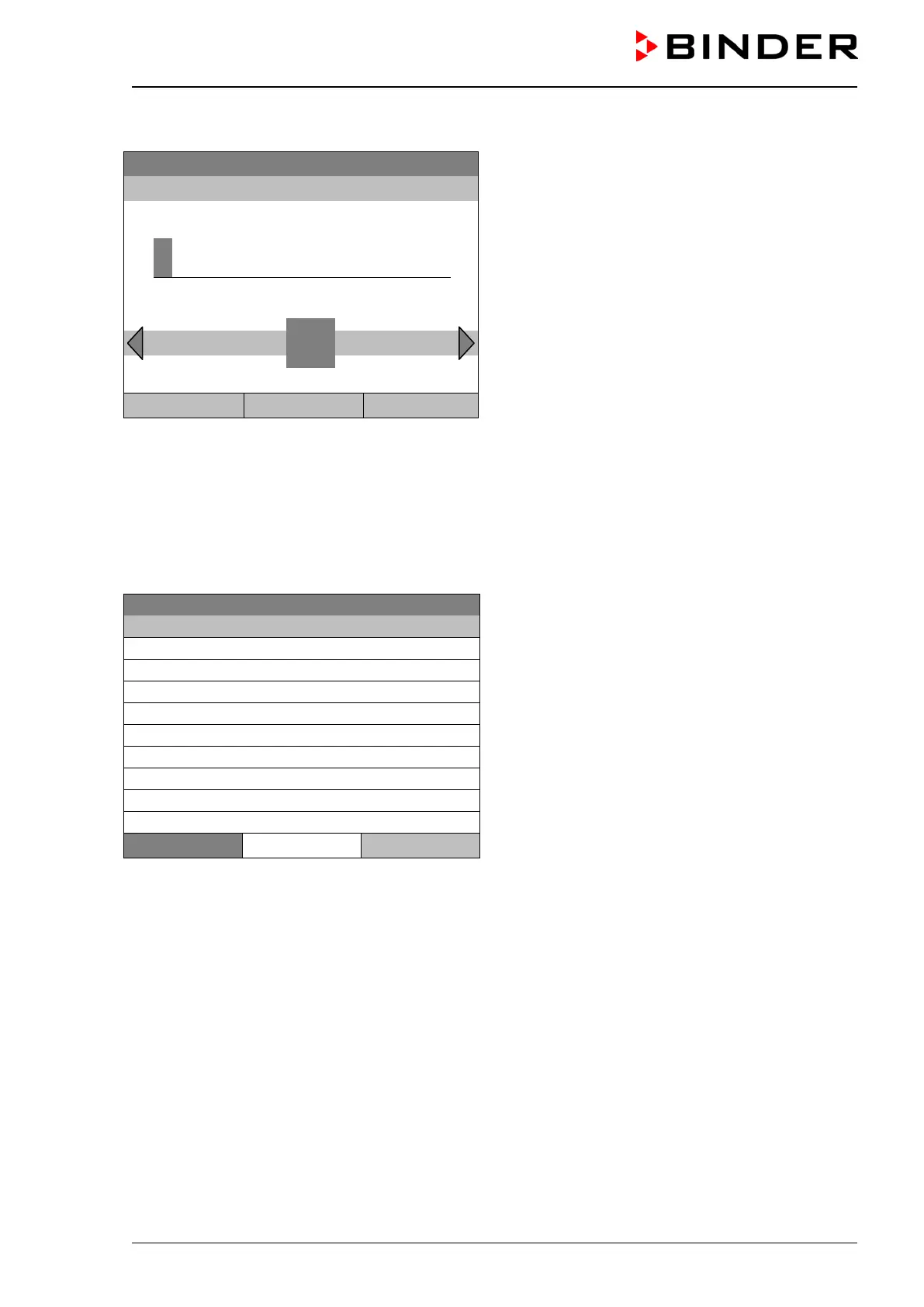
Enter the DNS 1 or DNS 2:
22.08.2012 05:05:06
Entry menu “DNS 1” or “DNS 2”
(example value)
Enter the desired number with the operating button.
Press the “Ok” button to confirm.
1
Ins Pos1 End Ok 0
2 3 4 5 6 7 8 9 ,
Close Ok Home
Go back to the “Network settings” menu with “Close” or to the initial view with “Home”.
12.9 Display of the entire network configuration
To access the overview of the complete network configuration, go to
Menu > Settings > Network settings > Show network settings
08.03.2015 05:05:06
Overview of the network configuration
(sample values)
..\ Show network settings
Home
Go back to the “Network settings” menu with “Close” or to the initial view with “Home”.
12.10 Display and entry of the chamber configuration – for service purpose
Information about the chamber, such as chamber type, name, serial number, firmware version, etc. can
be viewed under Menu > System information (chap. 6.4).
To access the device configuration menu, go to Menu > Settings > Chamber configuration
This menu is password protected and only intended for service purposes.





 To Next Page