UF V (E3) 03/2019 Page 67/116
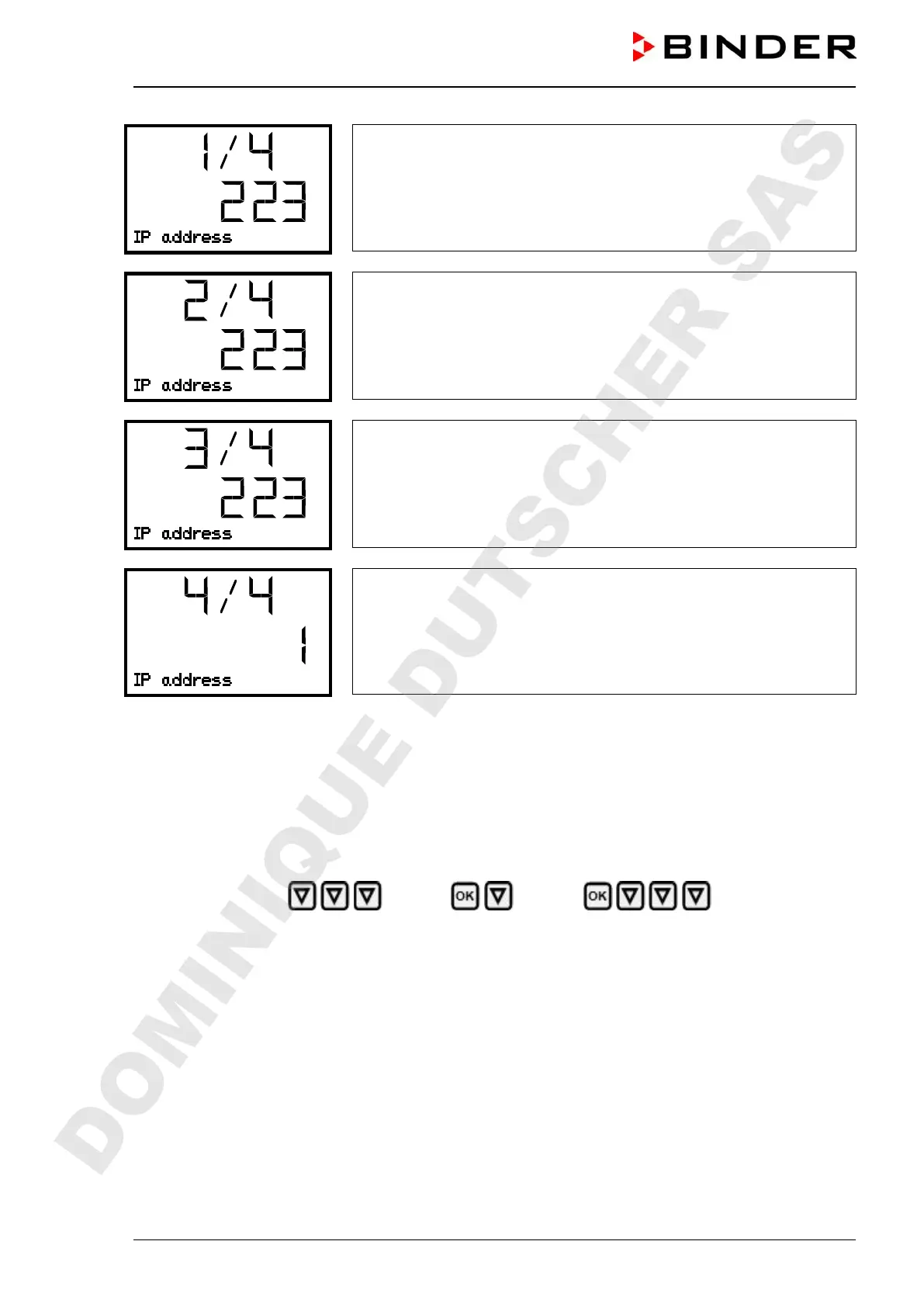
IP address assignment (sample values).
The first section of the IP address is shown. Enter the desired value
with the arrow buttons.
Use the OK button to confirm the entry and proceed to the second
section of the IP address.
IP address assignment (sample values).
The second section of the IP address is shown. Enter the desired value
with the arrow buttons.
Use the OK button to confirm the entry and proceed to the third sec-
tion of the IP address.
IP address assignment (sample values).
The third section of the IP address is shown. Enter the desired value
with the arrow buttons.
Use the OK button to confirm the entry and proceed to the last section
of the IP address.
IP address assignment (sample values).
The forth section of the IP address is shown. Enter the desired value
with the arrow buttons.
Confirm the setting with the OK button.
With the arrow-down button you can now change to the enter the subnet mask.
With the Back button you can go back to the “Ethernet” submenu and, repeatedly pressing it, to Normal
display.
15.2.4 Setting the subnet mask
Access to this function is possible only if manual IP address assignment has been selected (chap. 15.2.1)
Path: Normal display Settings Ethernet Subnet mask
Press the OK button to enable the setting.
The subnet mask entry is done in four steps, corresponding to the number sections: (1).(2).(3).(4)
Principle of entry:
• Use the OK button to select the desired section of the subnet mask 1/4, 2/4, 3/4, 4/4 in the upper dis-
play line
• Use the Arrow buttons to enter the value for the selected section of the subnet mask
For details please refer to the description of the similar procedure in chap. 15.2.3 “Assigning the IP ad-
dress”.
With the arrow-down button you can now change to the enter the standard gateway.
With the Back button you can go back to the “Ethernet” submenu and, repeatedly pressing it, to Normal
display.
DOMINIQUE DUTSCHER SAS


 To Next Page