Results
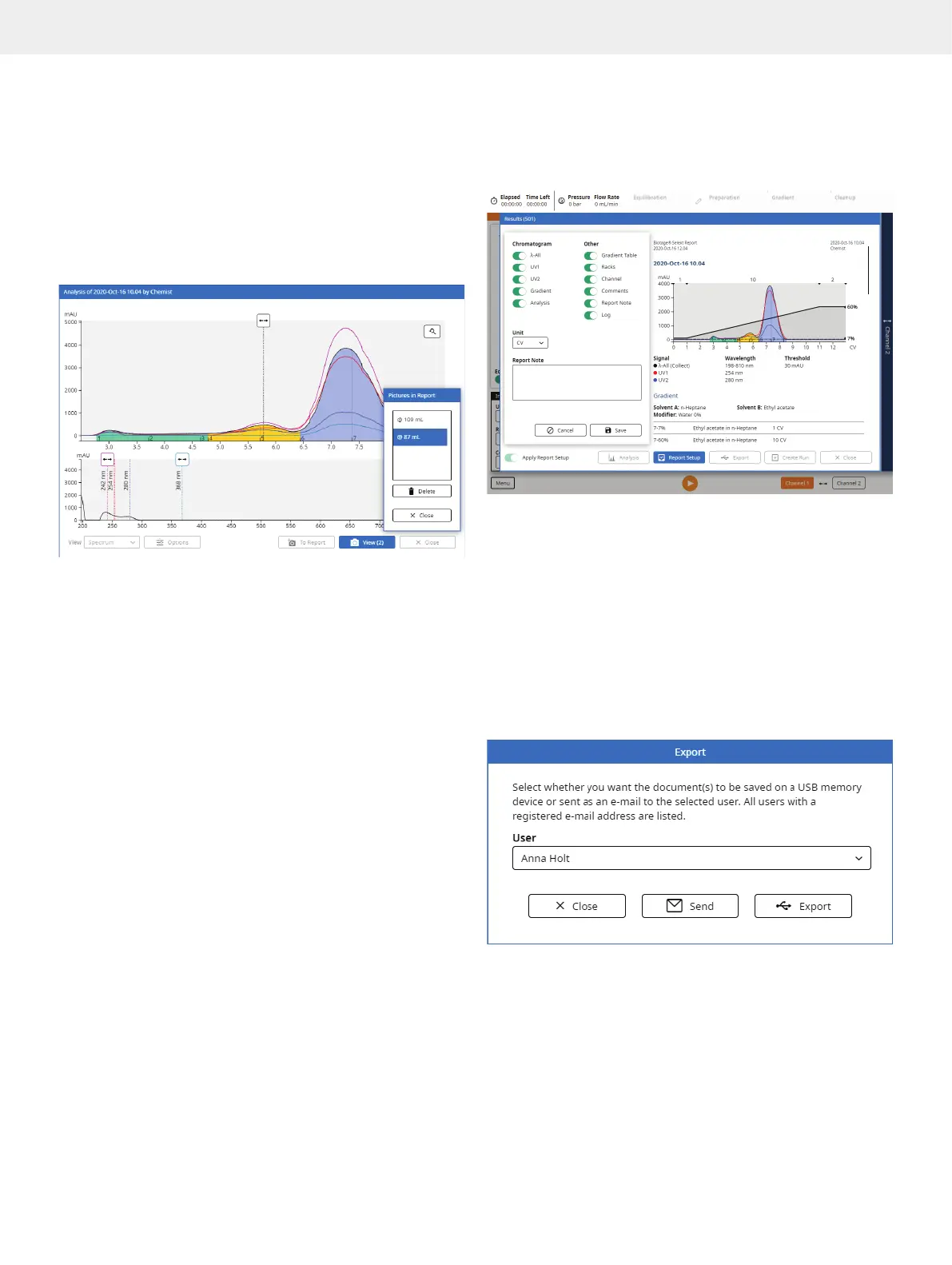
Add Analysis Pictures to the Report
It is possible to add one or more pictures of the chromatogram
with a changed zoom factor and/or enabled/disabled signals
and UV baseline correction to the report. If a Spektra software
license is installed, the spectrum is also included in the pictures.
To add a picture, press To Report in the racks or spectrum view
(see Figure 38 and Figure 41). To view the pictures that have
been taken, press View. To delete a picture, select it in the
Pictures in Report dialog and press Delete (Figure 41).
Figure 41. The Pictures in Report dialog.
Customize the Report
Customize a report by selecting it in the Results view and
pressing Report Setup. In the Report Setup view (see Figure 42),
the following content can be enabled or disabled in the report.
The changes are shown in real time.
»
λ-All: The lambda all signal in the chromatogram.
»
UV1: The UV1 signal in the chromatogram.
»
UV2: The UV2 signal in the chromatogram.
»
EXT: The external detector signal in the chromatogram.
»
Gradient: The gradient in the chromatogram.
»
Analysis: Pictures taken in the analysis view; see
“Add Analysis Pictures to the Report” above.
»
Gradient Table: The gradient table.
»
TLC Data: The TLC data.
»
Racks: Rack illustrations with the fractions.
»
Channel: The channel that was used for the run (1 or 2).
»
Comments: The comments entered before the
run was started and during the run.
»
Report Note: The report note that can been entered
in the Report Note field in the Report Setup view.
»
Log: The run log.
»
Unit: The length unit.
Note that the full Selekt report is not overwritten and can always
be accessed by turning off the Apply Report Setup option.
Add a Report Note
Add a report note by selecting the report and pressing Report
Setup. In the Report Setup view, enter the run note in the Report
Note field and press Save (see Figure 42).
Figure 42. The Report Setup view.
Export the Report
With your system connected to an e-mail server, the report can
either be sent from the system in an e-mail or exported to a USB
memory device. If auto send of reports is enabled in your user
account, the system will automatically send the report when
your run is completed.
Note: When exporting a report, you also get two result files,
one XML file with all raw run data and one SPECTRUM file with
the raw 3D UV spectrum.
Figure 43. When the system is connected to an e-mail server, you can
choose whether you want to send the report in an e-mail or export it to
a USB memory device.



 To Next Page