Biotage
®
Selekt User Manual | © Biotage 2020
Data Administration
»
Strength: The solvent strength value,
a value between 0 and 1.
1,2
»
Max Aspiration Rate: The maximum rate at which
the solvent can be drawn into the pump during
the fill stroke, in mL/min. To achieve the system’s
maximum flow rate (300 mL/min), use 420 mL/min.
If necessary, reduce the flow rate to avoid cavitation.
1
Neue U. D. HPLC Columns Theory, Technology, and Practice, Wiley-VCH
(1997).
2
Dean J. A. Lange’s Handbook of Chemistry, 15th edition, McGraw-Hill
(1999).
Administrate Racks
The software comes with a preconfigured list of Biotage
racks and their settings. If desired, it is possible to lower the
vessel volume for these racks. To change, press Menu, Data
Administration and then Rack Administration.
Rack Parameters
Note that only the vessel volume can be changed.
»
Name: The name of the rack type.
»
Columns: The number of vessel columns in the rack.
»
Rows: The number of vessel rows in the rack.
»
Vessel Volume: The vessel/fractionation
volume in mL. To reset to the predefined
volume, press Reset in the Edit dialog.
Administrate Results
Note: Deleted results cannot be recovered.
One, several, or all results can be selected and deleted in the
Result Administration view. To access the view, press Menu, Data
Administration and then Result Administration. For help finding
the results to be deleted, see “Search the Results” on page 19.
Administrate User Accounts
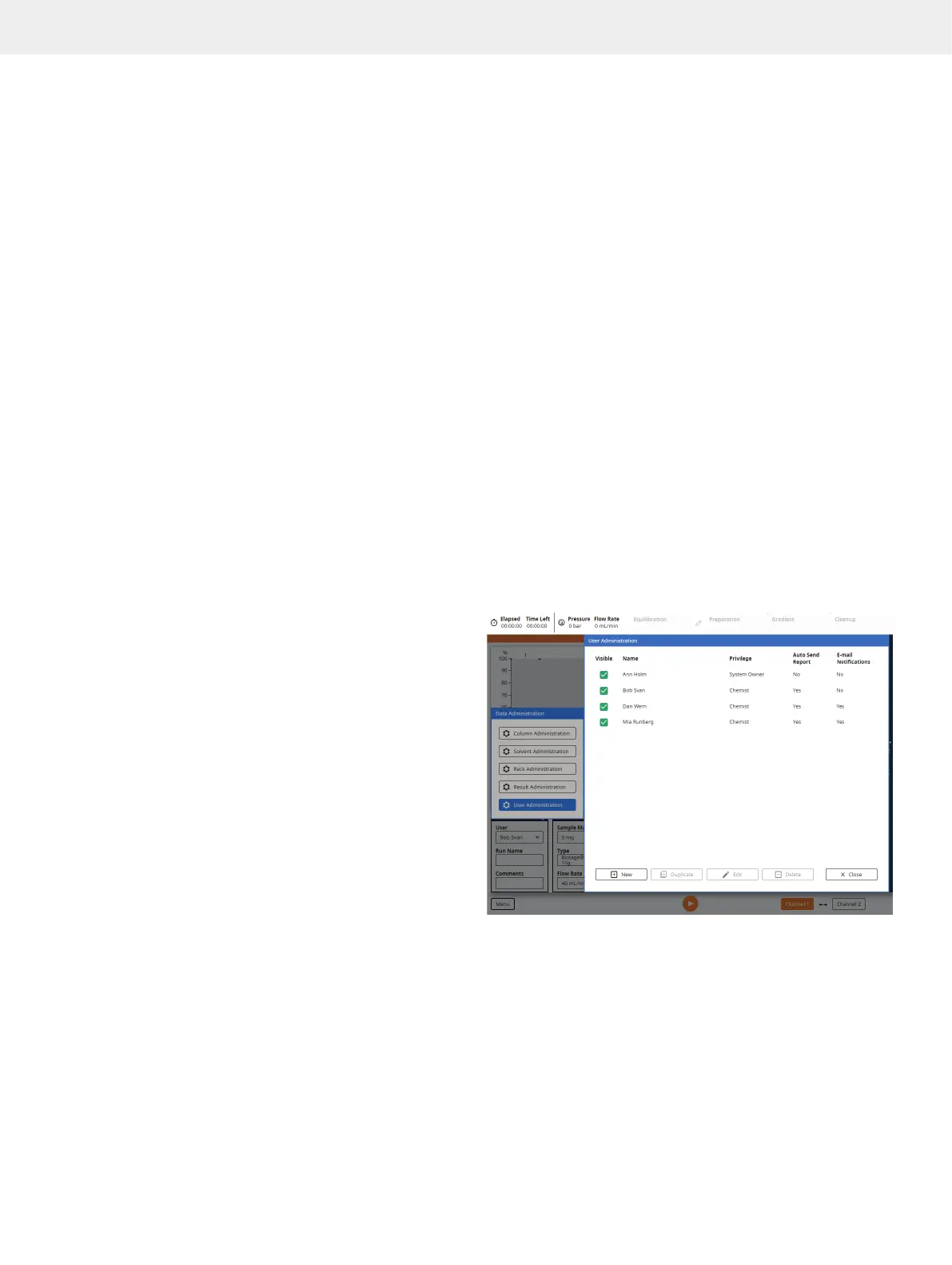
To add, edit, and delete user accounts, press Menu, Data
Administration and then User Administration (see Figure 48).
Note: The first time you log into the Data Administration view,
log in using the user account “System Owner” and the password
“1234”. Before you log out, it is strongly recommended that this
password is changed.
User Parameters
»
Visible: If enabled, the user account is available for use.
»
Name: The user name, which will be used in the user name
selection boxes as well as in the purification reports. If you
change the user name, all reports associated with the
user will be updated. If deleting a user, their reports will
still be accessible but they will not state the user name.
»
Password: It is possible to password-protect a user
account with System Owner privilege. The password
will be used when entering the Data Administration,
System Settings, and Maintenance views.
»
Privilege: A user can have chemist
or system owner privilege:
»
Chemist: The user can set up and run
purifications, and view results.
»
System Owner: The user has both the chemist privilege
(see above) and access to the Data Administration
view (see page 25), System Settings view (see
page 27) and Maintenance view (see page 30).
»
E-mail Address: The user’s e-mail address. If the system
is connected to an e-mail server, this address can be
used for e-mail notifications, auto-send of reports,
and export of reports and current system log.
»
Auto Send Report: If enabled and the system is connected
to an e-mail server, the user will automatically receive the
reports for runs performed by the user when completed.
»
E-mail Notifications: If enabled and the system is connected
to an e-mail server, e-mail notifications will be sent when
user interaction is required for runs performed by the user,
e.g. when a rack has to be replaced, a solvent needs to be
replenished (if monitoring is enabled), a waste reservoir
needs to be emptied (if monitoring is enabled), and a leak
is detected by the optional Biotage Solvent Detector.
Figure 48. The User Administration view.



 To Next Page