System Settings
System Settings
Note: Only users with system owner privilege can change the
system settings.
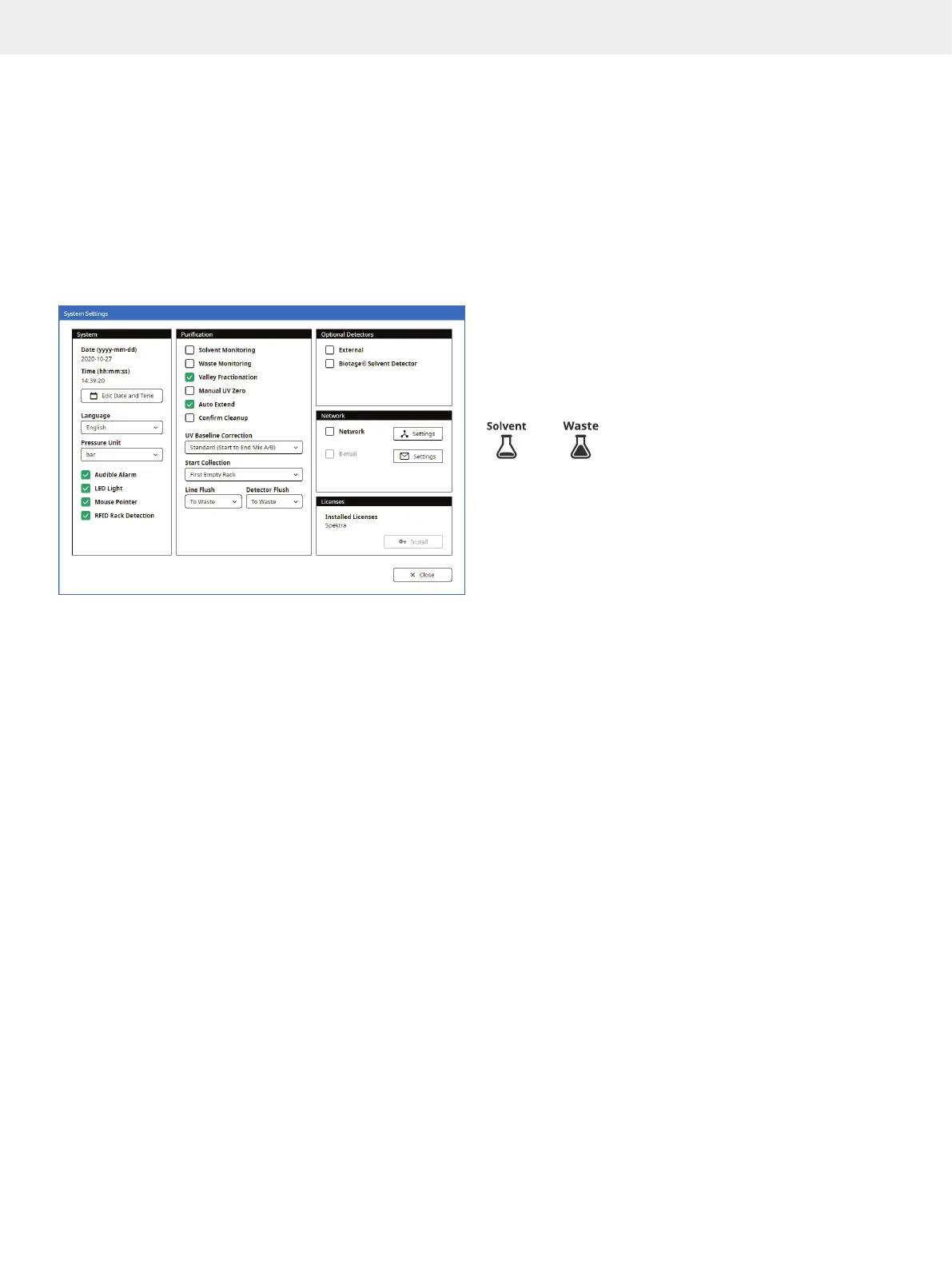
Enter the software’s settings view (see Figure 49) by pressing
Menu and then System Settings. The following system settings
are available.
Figure 49. The System Settings view.
System
»
Date (yyyy:mm:dd): Setting the date correctly ensures
an accurate date stamp for your purification reports.
*
»
Time (hh:mm:ss): Setting the time correctly ensures an
accurate time stamp for your purification reports.
*
»
Language: The language to be used in the
software’s purification mode. English is always
used in the Data Administration, System Settings,
and Maintenance views, and in the reports.
»
Pressure Unit: The unit to be used by the system, bar or psi.
»
Audible Alarm: If enabled, a warning will
sound when an error has occurred.
»
LED Light: If enabled, the light strip underneath the touch
screen is lit when the system is on. The color indicates
the status of the system; see “Lighting” on page 3.
»
Mouse Pointer: When connecting a mouse to one of the
USB ports, you need to enable the mouse pointer.
»
RFID Rack Detection: If enabled, Selekt racks
are automatically identified by the system
when placed on the collection bed.
*
The system has to be restarted for the new configuration to take effect.
Purification
Note: Collected flushes are added to the gradient in the report.
»
Solvent Monitoring: If enabled, the system will notify the
user when a solvent level is below 20% of the set capacity
(see Figure 50). When 10% is left, the system will be paused
and the user will be prompted to refill the solvent.
»
Waste Monitoring: If enabled, the system will notify
the user when the waste level is above 85% of the set
capacity (see Figure 50). When the waste level is at 95%
of the set capacity, the system will be paused and the
user will be prompted to empty the waste reservoir.
Figure 50
<20%
. Level notification for waste and solvent.
»
Valley Fractionation: If enabled, fractionation will
occur when a valley is detected between two peaks
in one of the signals in the chromatogram.
»
Manual UV Zero: If enabled, it is possible to
manually set the current UV absorbance level
to zero AU during the gradient run.
Note: The system automatically performs a UV Zero using
the initial gradient mix before the run is started.
»
Auto Extend: If enabled and the collection criteria are still
met (any signal is above threshold level) when the system
reaches the end of a purification, the system extends the
gradient purification stage of the run with 25% of the total
gradient length using the final conditions of the run.
»
Confirm Cleanup: If enabled, the user will get the option
(through a popup dialog) to manually extend the run before
the system performs the flushes that are enabled in the
system settings and a system decompression (purge).
»
UV Baseline Correction: Whether the baseline
correction is performed using the initial gradient
mix to the end mix A/B (Standard) or using the
initial gradient mix to 100% solvent B (Full).
»
Start Collection: Whether collection is to be started in the
First Empty Vessel, First Empty Row, or First Empty Rack.
The first two options enable rack sharing between runs.
For more information, see “Rack Sharing” on page 12.
»
Line Flush: If enabled, the system flushes the column inlet
line at the end of the run using the run’s weakest solvent.
Select whether to Collect the flush (using the same collection
criteria as during the gradient run) or send it To Waste.
Note: If the automatic line flush is disabled (Off), ensure to
flush the column flow path manually before each run.



 To Next Page