Using the Teleprompter Function
Using a standard RTF or plain TXT file, you can use Blackmagic HyperDeck Shuttle HD as a
teleprompter. Create your file in TextEdit or WordPad and save as a rich text format or plain text
file in any of the 13 supported languages. Once opened with HyperDeck Shuttle HD, you can
adjust the font size and line spacing of your script.
To use the teleprompter:
1 Connect HyperDeck Shuttle HD’s HDMI out to the HDMI display you want to use.
2 Insert an SD card or connect an external USB flash disk containing your script.
3 From the record menu select the codec option. Navigate to ‘teleprompter’ setting
and press set.
The script will appear on your display. From here you can start playback automatically using
the play button, or for additional control use the dial.
Controlling teleprompter playback speed
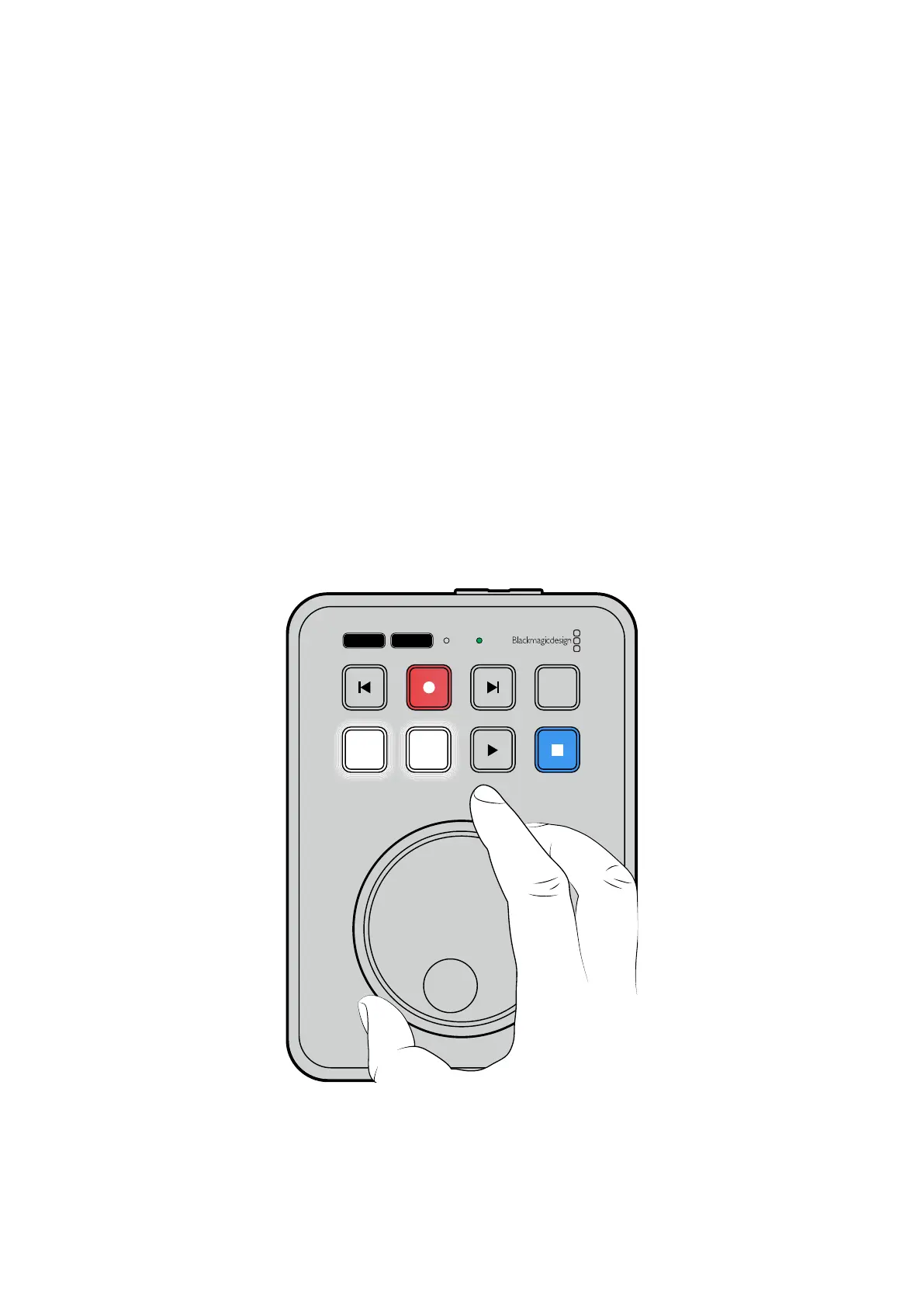
The large dial on HyperDeck Shuttle HD can be used to control playback when in teleprompter
mode much in the same way as it does for media playback. With a script loaded, press the ‘jog’
and ‘scr’ buttons together to turn on variable speed playback. Once selected, turn the dial. The
script will move at a speed relative to the movement of the dial. For example, the faster the dial
is turned, the faster the script will scroll.
JOG SCR
CLIP
MENU SET
DISK SD
For constant speeds, you can use the jog and scroll buttons individually. Once selected,
turning the dial will move the script at a constant low speed in jog mode, or a faster speed in
scroll mode.
To navigate between files on your SD card or external disk, press the forward and back keys.
26Using the Teleprompter Function


 To Next Page
 Loading...