Volume Navigation
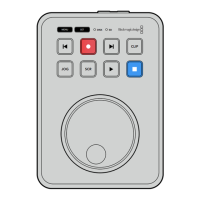
Volume navigation lets you open a file path overlay so you can locate clips on media cards,
disks and network drives. When enabled, the overlay appears on the HDMI output and you can
then navigate through directories using the scroll button, clip button and jog wheel.
1 Open the volume navigation window by pressing the scroll button marked SCR.
JOG SCR
CLIP
MENU SET
DISK SD
Press the scroll button to open the volume navigation window on the HDMI output
2 Scrub or skip through the footage on display until you find a clip from the folder you are
interested in.
3 Press the scroll button to move down through the volumes and the clip button to move up.
To close the volume navigation window press the stop button, or press ‘play’ to close the
window and immediately start playback.
NOTE To view clips that were recorded using a different codec, resolution or frame
rate, set your HyperDeck’s codec and default standard to match.
25Volume Navigation


 To Next Page
 Loading...