HDMI OUT
HDMI IN
EXT DISK
SD CARD
ETHERNET
+
12V DC
2 Your HyperDeck will verify the SD card. This is shown by an illuminated green SD indicator
on the top of the HyperDeck Shuttle HD. Once verified, the indicator will turn off.
JOG SCR
CLIP
MENU SET
DISK SD
JOG SCR
CLIP
MENU SET
DISK SD
That’s all there is to getting started and your HyperDeck Shuttle HD is now ready for recording
and playback!
Keep reading this manual for detailed information about how to record and play back clips,
change settings, and much more.
Recording Video
After confirming that your video source is displayed on the HDMI destination equipment, you
can start recording straight away!
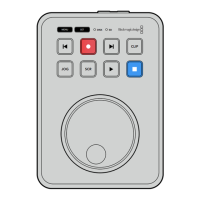
To start recording, press the record button. When recording to an SD card, the SD indicator
will illuminate red and the record and play buttons will also illuminate. When recording to an
external disk, the disk indicator will illuminate red.
JOG SCR
CLIP
MENU SET
DISK SD
To finish recording, press the stop button.
7Recording Video


 To Next Page
 Loading...