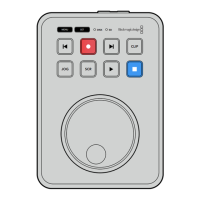
Clip Mode
Clip mode lets you limit playback to a single clip. For example, with clip mode enabled you can
shuttle or skip to a clip and then press play knowing that playback will stop when the clip ends.
JOG SCR
CLIP
MENU SET
DISK SD
When clip mode is selected, pressing play a
second time will loop the current clip
Using the Search Dial
The search dial provides a fast way to move through your clips and select specific moments
to play, or review them frame by frame. This can be important if you need to locate a specific
moment by visually monitoring the clip as you turn the dial. It is also helpful for parking the
playhead at a specific cue point, ready for the clip to be rolled to air during a live broadcast.
Search dial modes include Jog, Scroll and Shuttle.
Jog Plays through the clip frame by frame allowing precise control.
Scroll
Scroll mode lets you quickly move forwards and backwards through
all your recorded media. As you turn the search dial, scroll is locked
to your movement so you have total control over where to position
playback.
The scroll button will also bring up the volume navigation window
which shows you the file path of the video that you are currently
playing. More information about the volume navigation function can be
found in the ‘volume navigation’ section later in this manual.
Shuttle
Press the ‘jog’ and ‘scr’ buttons simultaneously to enter shuttle mode.
Once in shuttle mode you can rewind or fast forward through your
media by turning the dial left or right. As you turn the dial, the media
will shuttle faster until you reach the maximum speed of x50. To slow
the shuttle speed to a stop, turn the dial back to the start position. To
stop at a specific point during shuttle, press the stop button, or press
play to resume playback at the current position. It’s worth noting the
maximum shuttle speed can be lowered using the setup menu. For
more information, see the ‘Settings’ section later in this manual.
9Playback


 To Next Page
 Loading...