Informazioni per gli sviluppatori (inglese)
Blackmagic HyperDeck Ethernet Protocol
The Blackmagic HyperDeck Ethernet Protocol is a text based protocol accessed by connecting
to TCP port 9993 on HyperDeck models that have a built in Ethernet connection. If you are
a software developer, you can use the protocol to construct devices that integrate with our
products. Here at Blackmagic Design our approach is to open up our protocols and we eagerly
look forward to seeing what you come up with!
You can connect to your HyperDeck recorder using the HyperDeck Ethernet Protocol using
a command line program on your computer, such as Terminal on a Mac and putty on a
Windows computer.
The HyperDeck Ethernet Protocol lets you schedule playlists and recordings. The following
is an example of how to play 7 clips from clip number 5 onwards via the HyperDeck Ethernet
Protocol.
On a Mac
1 Open the Terminal application which is located with the applications > utilities folder.
2 Type in “nc” and a space followed by the IP address of your HyperDeck Shuttle HD, another
space and “9993” which is the HyperDeck Ethernet Protocol port number. For example
type: nc 192.168.1.154 9993. The Protocol preamble will appear.
3 Type “playrange set: clip id: 5 count: 7” and press ‘return’.
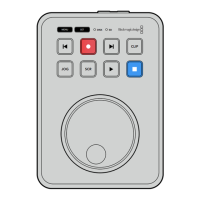
If you look on the timeline on the front panel of the HyperDeck Shuttle HD, you will see in
and out points marked around clips 5 through the end of clip 11.
4 Type “play”. Clips 5 through 11 will now play back.
5 To clear the playrange, type “playrange clear”
6 To exit from the protocol, type ‘quit’.
Protocol Commands
Command Command Description
help or ? Provides help text on all commands and parameters
commands return commands in XML format
device info return device information
disk list query clip list on active disk
disk list: slot id: {n} query clip list on disk in slot {n}
quit disconnect ethernet control
ping check device is responding
preview: enable: {true/false} switch to preview or output
play play from current timecode
play: speed: {-5000 to 5000} play at specific speed
play: loop: {true/false} play in loops or stop-at-end
play: single clip: {true/false} play current clip or all clips
623Informazioni per gli sviluppatori (inglese)


 To Next Page
 Loading...