IP100UHD Firmware Update
Prior to commencing installation of your Multicast system, it is important that the Blustream IP100UHD-TX/RX products
are loaded with the latest firmware. The latest firmware can be found on the Blustream Website:
www.blustream.co.uk/ip100uhd, using the Drivers & Protocols download button - see page 18 of this manual.
Updating the Blustream Multicast product firmware can be acheived in 2 ways:
1) Using the ‘Firmware Update’ feature in the ‘Advanced’ section of the PC program. This is the easiest method.
2) Using the products own Web GUI interface.
The below instructions are a step-by-step guide to upgrading the firmware in each Multicast product for new units
that are yet to be configured. The firmware process must be completed one-by-one due to all products being shipped
with the same standard factory set default IP address. Failure to do so may end up corrupting the firmware in the
products, resulting in product failure.
Prior to upgrading the firmware in Blustream Multicast products using either of the above methods it is important you
first complete the below instructions.
1) In order to communicate with the Blustream Multicast hardware your computer will need to be physically
connected to either:-
a) A PoE network switch using an Ethernet network cable which is in turn connected to the Blustream
IP100UHD-TX/RX product
b) The Blustream IP100UHD product directly which must be powered locally using a 24-56V DC power supply
(sold separately)
2) IMPORTANT: Prior to connecting the Blustream Multicast IP100 product to your network switch/local
power supply, it is recommended that the product is forced into ‘firmware update mode’. Firmware Upgrade
Mode stops the Multicast products from streaming video and activates a status for only updating product firmware.
To activate Firmware Update Mode:
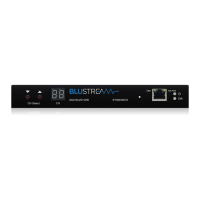
a) Press both the ‘CH SELECT UP’ and ‘CH SELECT DOWN’ buttons located on the product front panel at the same
time. Whilst holding these buttons down...
b) Insert the PoE network cable or local 24-56V DC power supply
c) Do not release the buttons until the product shows ‘PG’ in the status window on the front panel
Product firmware can be updated without ‘Firmware Update Mode’ but you must stop any streaming service to/from
the product before you proceed with the firmware upgrade. Failure to do so may result in loss of firmware transmission
packets due to un-necessary traic on the network.
3) In order to be able to communicate with the Blustream IP products your computer must also be in the same IP
range as the Blustream IP100UHD-TX/RX default IP address. If you are unsure how to update your computer IP range
follow the ‘Changing your computer IP address’ instructions at the rear of this guide.
The default IP address of all new Multicast IP100UHD-TX/RX is:
169.254.100.254


 To Next Page