CM100
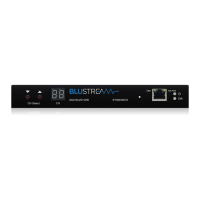
You may need to update both the Control port and Video port of the CM100.
The process is identical for both ports however your computers IP Address will be dierent. Follow the below
instructions and complete each update separately.
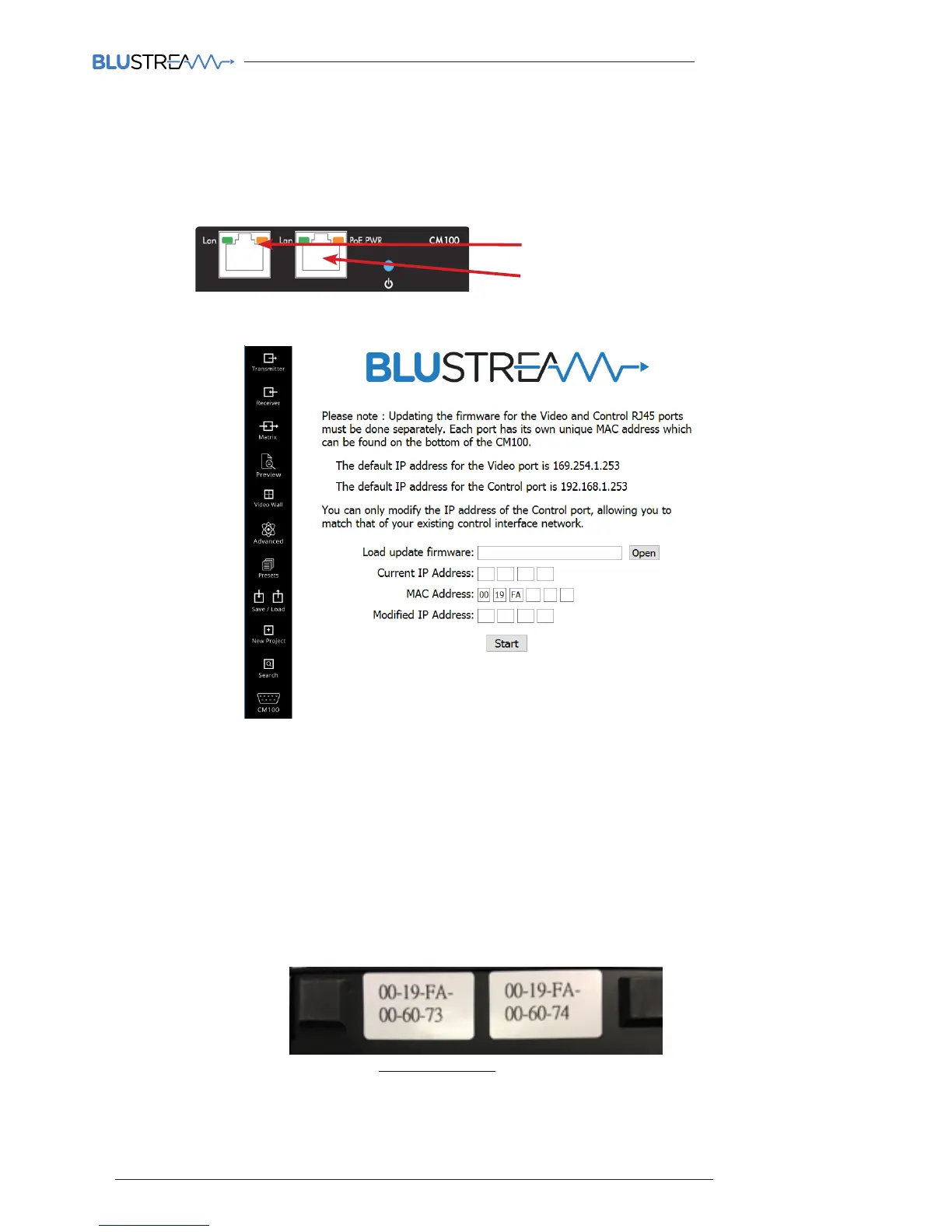
1. Connect your PC’s Ethernet port to the CM100 Ethernet port using a straight through CAT cable.
1) CONTROL LAN Port
2) VIDEO LAN Port
Note: To update the CONTROL port, your computers IP Address must be in the 192.168.1.x range.
To update the VIDEO port, your computers IP Address must be in the 169.254.1.x range.
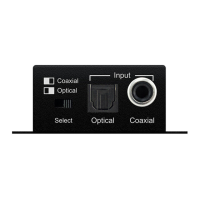
2. Click ‘OPEN’ and select the firmware file from your PC.
For example: c:\Users\user\Desktop\CM100 Firmware
Note: If you are updating the CONTROL port, the firmware will be called ‘CONTROL_xx.hex’
If you are updating the VIDEO port, the firmware will be called ‘VIDEO_xx.hex’
3. In the “Current IP Address” field, enter the IP address of port you wish to update.
Note: The CONTROL port default IP address is 192.168.1.253
The VIDEO port IP address is 169.254.1.253.
4. Enter the MAC address of the port you are connected to.
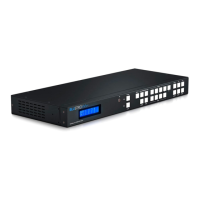
You will find this printed on the sticker on the bottom of the unit.
Note: The CONTROL port MAC Address is shown on the le side of the rear of the CM100.
The VIDEO port MAC Address is shown on the right side of the rear of the CM100.
6. If you are updating the VIDEO port, DO NOT CHANGE the Modified IP Address section.
If you are updating the CONTROL port, and you wish to change the IP Address of the CONTROL port to
suit your network, you can enter the CM100’s new IP Address in the Modified IP Address section
7. Click ‘START’. The program will take around 30 seconds to run and will update the firmware. You will see
a success message when complete
Control LAN Video LAN


 To Next Page