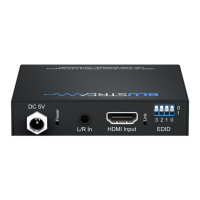
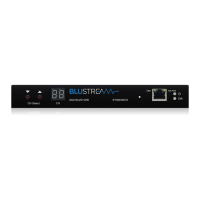
To update the firmware in either of the Transmitter or Receiver Multicast products using the Blustream PC program
please follow the below steps:
1) Open the Blustream PC Program (see page 18 for instructions of how to download this program)
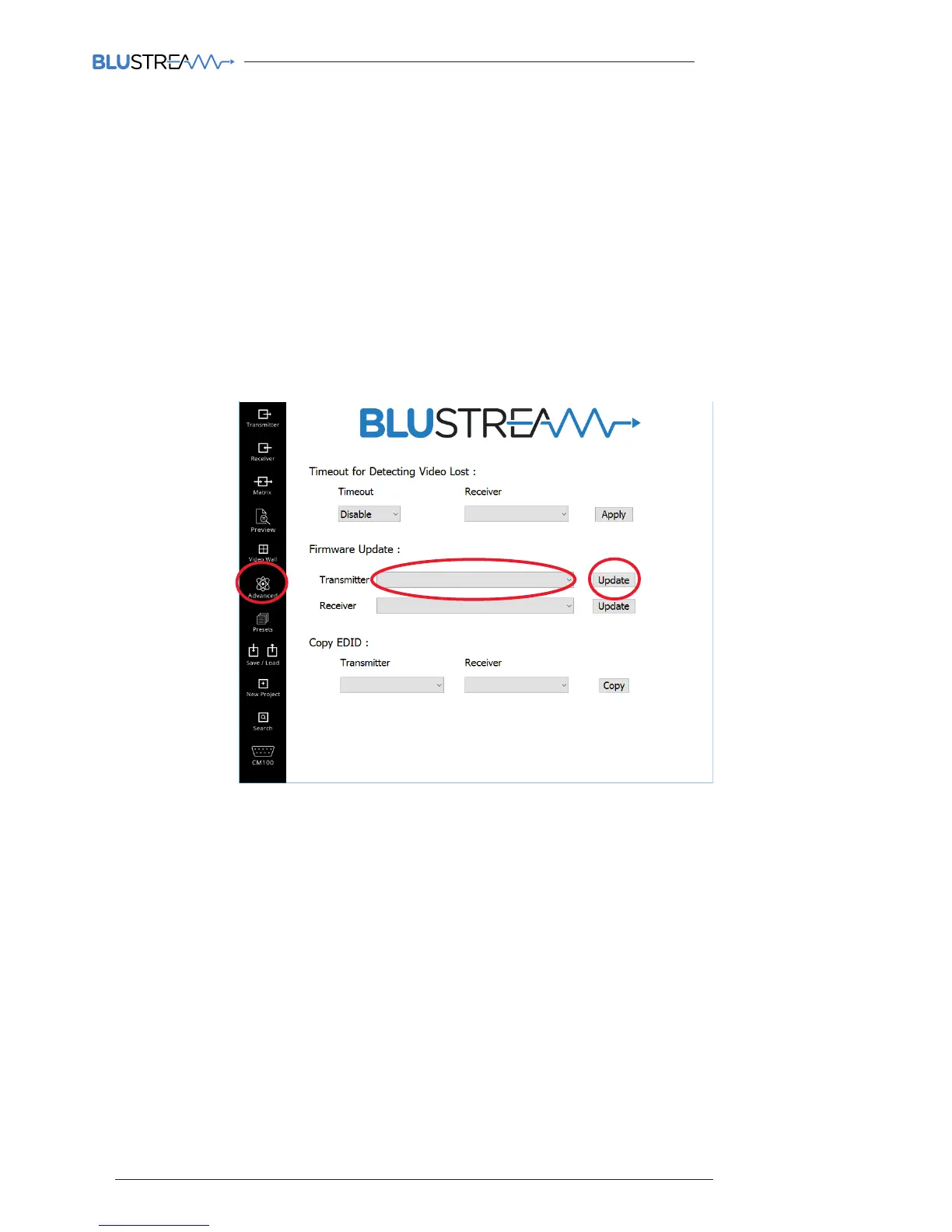
2) Select the ‘ADVANCED’ tab in the side menu. In the following screen you will see the ‘Firmware Update’
option on the Advanced settings page
3) Select the product you wish to update (Transmitter or Receiver) from the drop-down box. If the product is a
new default unit select
‘New Product - Default IP 169.254.100.254’
4) Click the corresponding ‘Update’ button
A warning window will open and request that the product is put into Firmware Update Mode - see page 19
5) Download the most recent IP100UHD-TX or -RX firmware from the Blustreasm website.
Click ‘Browse’ and open the folder in which you have saved the Blustream IP100UHD-TX/RX firmware files.
6) Select the required ‘Transmitter.BIN’ or ‘Receiver.BIN’ file
7) Click ‘Upload’ which will begin the firmware upgrade process
8) Once the upgrade has completed please disconnect the network cable/power and re-connect to reboot the
product. The Transmitter/Receiver display will no longer display ‘PG’ when complete.
Please note:
DO NOT unplug the power or network connection to the IP100UHD-TX/RX as this may result in failure to
upgrade firmware, which may lead to possible failure of the unit.
The firmware upgrade process may take several minutes. Do not connect any other Blustream product that
has the same IP address during this time.
IP100UHD Firmware Update via PC Program


 To Next Page