Page 242 of 479
Note: The device configuration must be same as the existing project to upload new data to the
project. Otherwise the software will show the warning message to create a new project.
6.1.3.7 Automatic Import of Data
The historical data can be imported automatically from the device in defined interval of time. The
following steps to be followed for automatic import.
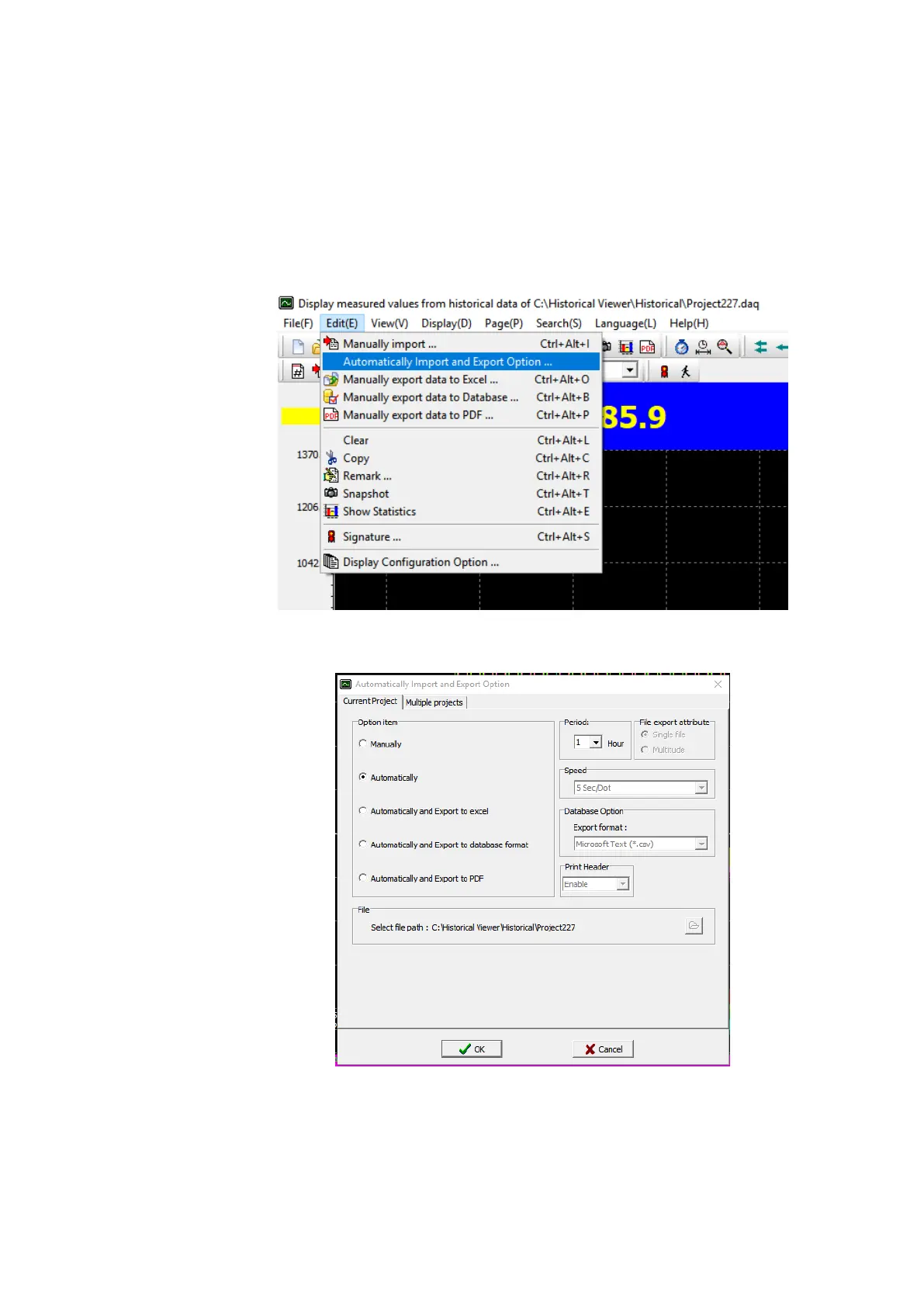
1. After creating a new project or opening an existing project select automatic import and export
option from the Edit menu.
2.
3. Select automatically, set the time interval, File path. The time interval can be set from 1 hour to
24 hours.
4. Now the software will automatically import the data from the device to the project.



 To Next Page