Page 393 of 479
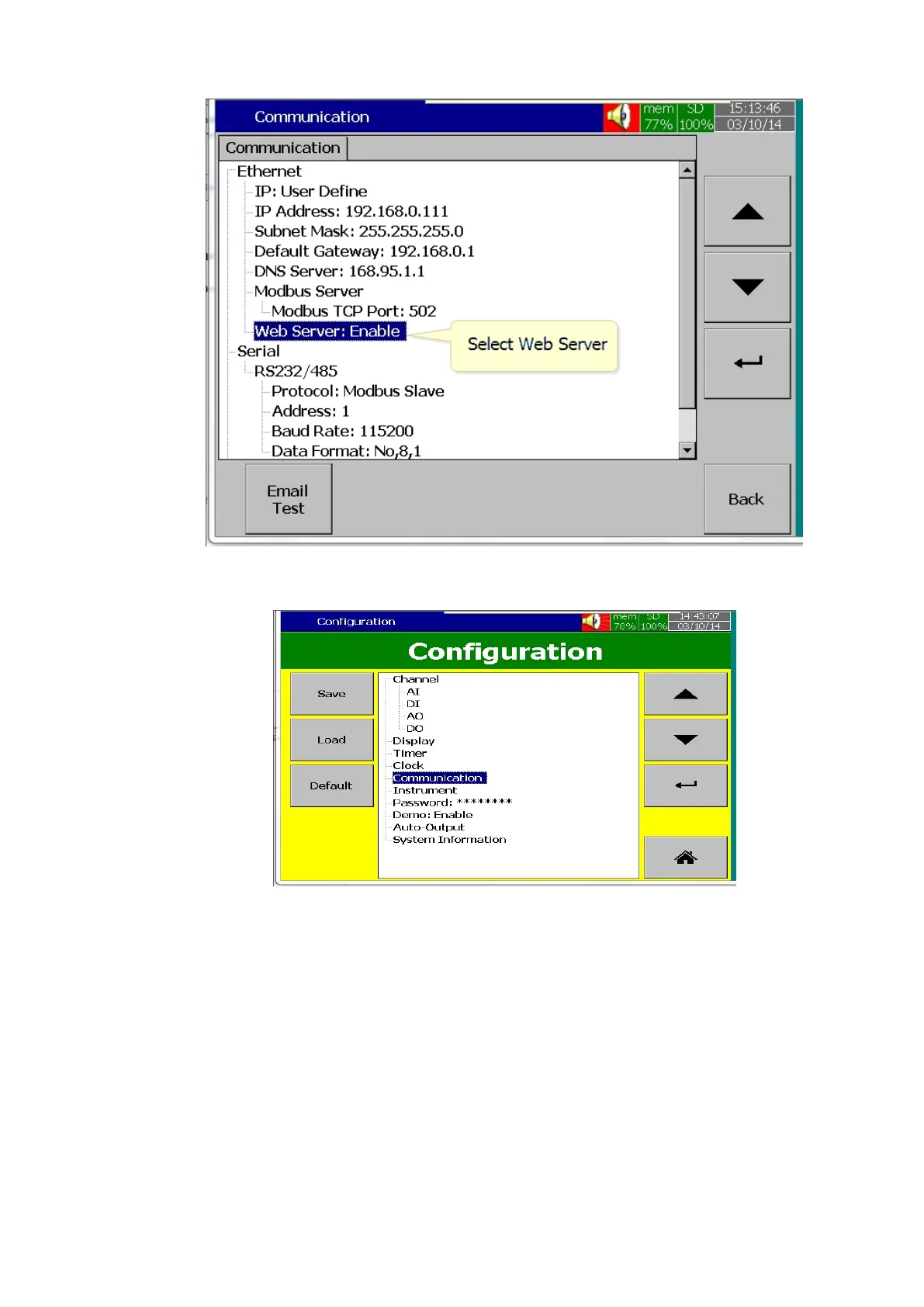
Select Web Server Menu in the Communication screen.
Enable the Web Server for using Web Server application in the Recorder.
After completing the above steps, press the “Back” key, then the “Home” key to return to the
main menu. It will save the configuration settings in the Recorder. Now the Recorder is ready for the Web
Server Applications.
Note: The Web Server update time on the browser is 1 second for real time data and statuses and 5
Seconds for Alarms.
7.3 How to View Recorder Data in PC via Webserver:
❖ Connect Paperless Recorder to the Internet
❖ Open the browser (Internet Explorer 10 or Google Chrome) in the PC



 To Next Page