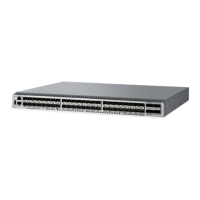
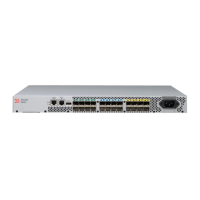
7850-Install-IG101 Installation Guide
Brocade
®
7850 Extension Switch Hardware Installation Guide
Initial Setup and Verification
After the device is installed, you need to power it on and perform some basic configuration, such as configuring the IP
address, setting the date and time, establishing an Ethernet connection, and setting the domain ID.
For instructions on configuring the switch to operate in a fabric containing Extension Switches from other vendors, refer to
the Brocade Fabric OS Web Tools User Guide and Brocade Fabric OS Administration Guide.
Items Required
The following items are required for the initial setup and verification of the device:
•
The device, mounted and connected to a power source, with the required power supply, fan assemblies, transceivers,
and cables installed.
•
A workstation computer with a terminal emulator application installed, such as PuTTY, XShell, or SecureCRT on
Windows.
•
An unused IP address with a corresponding subnet mask and gateway address.
•
A serial cable with an RJ-45 connector.
•
An Ethernet cable that supports 1GbE connectivity.
•
Access to an SFTP server or USB device for uploading (backing up) or downloading the device configuration
(optional).
NOTE
Broadcom recommends the use of a USB drive that has been test validated (verified) by Broadcom. These
drives are not orderable from Broadcom but are generically branded and can be purchased from other suppliers.
These drives should be formatted using FAT32 prior to use.
For a list of USB drives that have been test validated (verified) by Broadcom, refer to the Brocade Fabric OS
Software Upgrade Guide.
Do not connect the switch to the network until the IP address is correctly set.
Providing Power to the Device
Perform the following step to provide power to the device:
Connect the power cords to both power supplies and then to power sources on separate circuits to protect against power
failure. Ensure that the power cords have a minimum service loop of 6 inches available and that they are routed to avoid
stress.
NOTE
Power is supplied to the device when the first power supply is connected and turned on.
The 100GbE QSFP port status LEDs are a bluish-white color during power on and diagnostics. The status
LEDs revert to the normal green and amber status colors once Fabric OS is running.
Establishing a First-Time Serial Connection
Perform the following steps to log on to the device through a serial connection:
1. Connect the device with the workstation.
Connect the serial cable to the serial port on the device and to an RS-232 serial port on the workstation.
If the serial port on the workstation is RJ-45 instead of DB9-RS-232, remove the adapter on the end of the serial cable
and insert the exposed RJ-45 connector into the RJ-45 serial port on the workstation.
7850-Install-IG101
48



 To Next Page