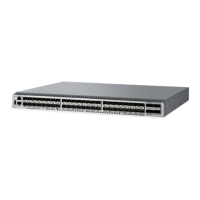
7850-Install-IG101 Installation Guide
Brocade
®
7850 Extension Switch Hardware Installation Guide
Table 13: FC Port (SFP+) Status LED Patterns during Normal Operation
LED Color Hardware Status Recommended Action
No light The port has no incoming power, or there is
no light or signal carrier detected.
Verify that the power LED is on, and check
the transceiver and cable.
The device may be currently initializing. Allow 60 seconds for initialization to
complete.
The connected device is configured in an
offline state.
Verify the status of the connected device.
Steady green The port is online (connected to an external
device) but has no traffic.
No action is required.
Slow-flashing green (on for 1 second; then
off for 1 second)
The port is online but is segmented
because of a loopback cable or
incompatible device connection.
Verify that the correct device is attached to
the switch.
Fast-flashing green (on for 1/4 second; then
off for 1/4 second)
The port is online, and an internal loopback
diagnostic test is running.
No action is required.
Flickering green The port is online with traffic flowing
through the port.
No action is required.
Steady amber The port is receiving light or signal carrier,
but it is not online yet.
No action is required.
Slow-flashing amber (on for 2 seconds;
then off for 2 seconds)
The port is disabled because of diagnostics
or the portDisable command.
Reset the port.
The portCfgPersistentDisable
command is persistent across reboots.
Fast-flashing amber (on for 1/2 second;
then off for 1/2 second)
The transceiver or port is faulty. Replace the transceiver or reset the port
from the workstation.
Alternating green/amber The port is beaconing. No action is required.
Ethernet Port (SFP+) Status LEDs
On the Brocade 7850 Extension Switch, you find 16 bicolor LEDs (green/amber) for the 16 Ethernet SFP ports (GbE
ports 0–15).
Use the following table to interpret the Ethernet SFP+ port status LEDs.
Table 14: Ethernet SFP+ Port Status LED Patterns during Normal Operation
LED Color Hardware Status Recommended Action
No light The port has no incoming power, or there is
no light or signal carrier detected.
Verify that the power LED is on, and check
the transceiver and cable.
Steady green The port is online (connected to an external
device) but has no traffic.
No action is required.
Steady amber The port is receiving light or signal carrier,
but it is not online yet.
No action is required.
Flickering green The port is online with traffic flowing
through the port.
No action is required.
7850-Install-IG101
70



 To Next Page