PULSE Multi-analyzer System Type 3560-B/C/D/E – Installation and IDAe Hardware20
Define a New Configuration
The default ‘Factory configuration’ can be chosen when setting up your PULSE system for
the first-time. If the ‘Factory configuration’ is to be used without any adjustments to name
and settings, click Connect to attempt a connection to the front-end. Continue with either
the Front-end Configuration Check on page 22 for single-frame setups or the Multiple
Frame Setup page under “Using the Connect Option with Multiple Frames” on page 34 for
multi-frame setups.
If changes are required to the default configuration such as name and/or PC IP address, set
the cursor in the Name field, type in a personalised name and click New. The Select Front-
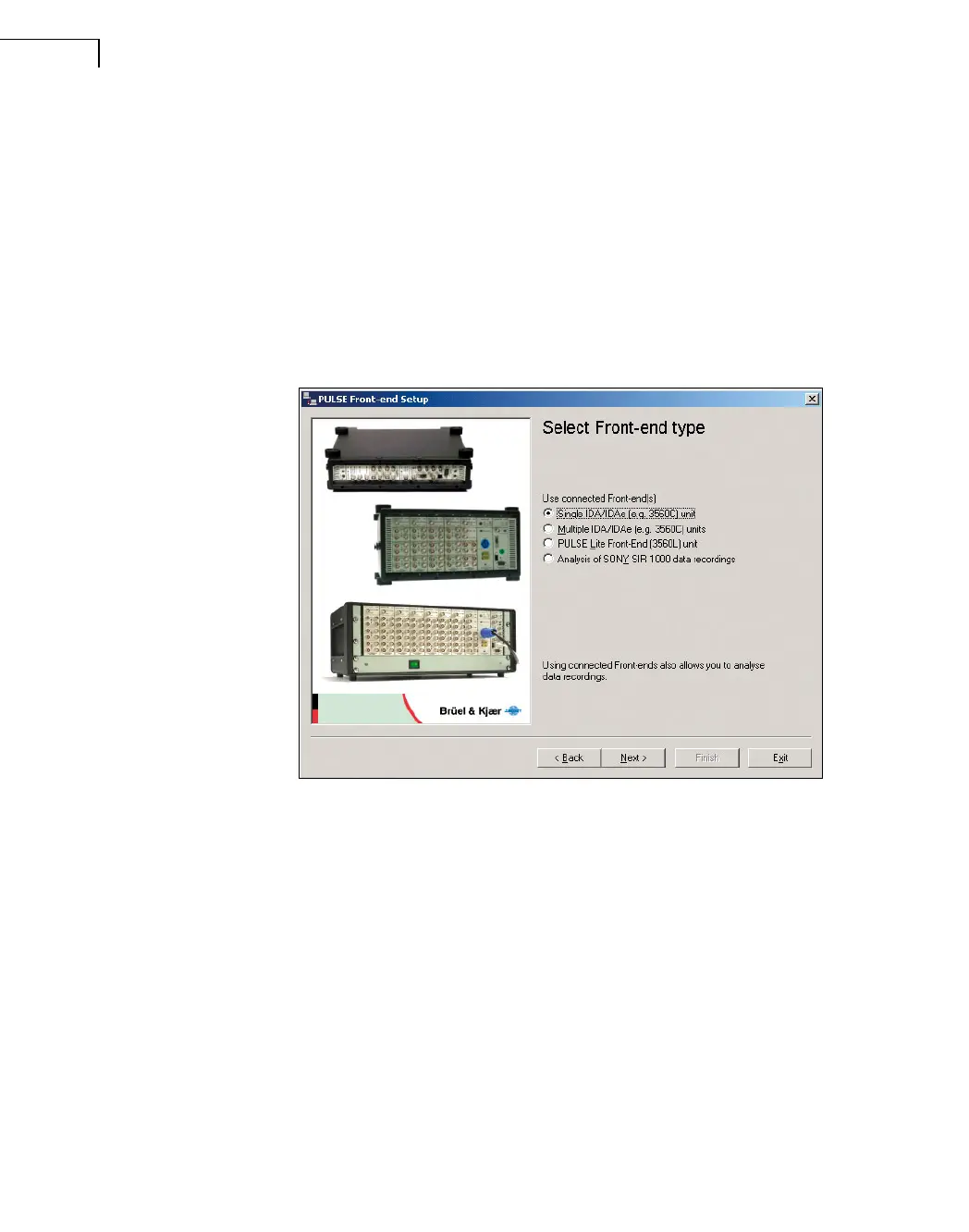
end Type page (Fig.2.10) will be shown.
Fig.2.10
Choosing your front-end
This page gives you options in the types of PULSE system front-ends. Choose one of the
following:
• Single IDA/IDAe (e.g. 3560-C) unit: if you want to configure a single Type 3560-B/C/D/
E unit
• Multiple IDA/IDAe (e.g. 3560-C) units: if you want to configure a front-end with two or
more Type 3560-B/C/D/E units
The next step in configuration depends on the front-end setup:
• For single-frame setups (single Type 3560-B/C/D/E unit) without changes to the PC IP
address, continue configuration using “Single Frame Setup”, section 2.7.3
• For single-frame setups with changes to the PC IP address or DHCP settings, you will be
prompted to reboot your PC. After rebooting, continue configuration using “Single Frame
Setup”, section 2.7.3
• For multi-frame setups (multiple Type 3560-B/C/D/E units) without changes to the PC IP
address, continue configuration using “Multiple Frame Setup”, section 2.7.4



 To Next Page
 Loading...