25
Read-only Shares
By default, new shares are set with read & write access, but you may change the attribute to “Read-only” in “Shared
Folder Attributes”. Read-only shares and HFS+ formatted USB hard drives will have “Read-only” added to the shared
folder description.
Hidden Shares
To hide a shared SMB folder, select “Hidden Share (SMB Only)” and click OK. To open a hidden folder, click Start - Search
programs and files and enter “\\LinkStation’s name\Shared folder names$\” for the name. Example: If the LinkStation’s
name and shared folder name is “LSXXX001” and “share”, you should enter “\\LSXXX001\share$\” in the search box.
Note: AFP or FTP folders cannot be hidden.
Adding Users
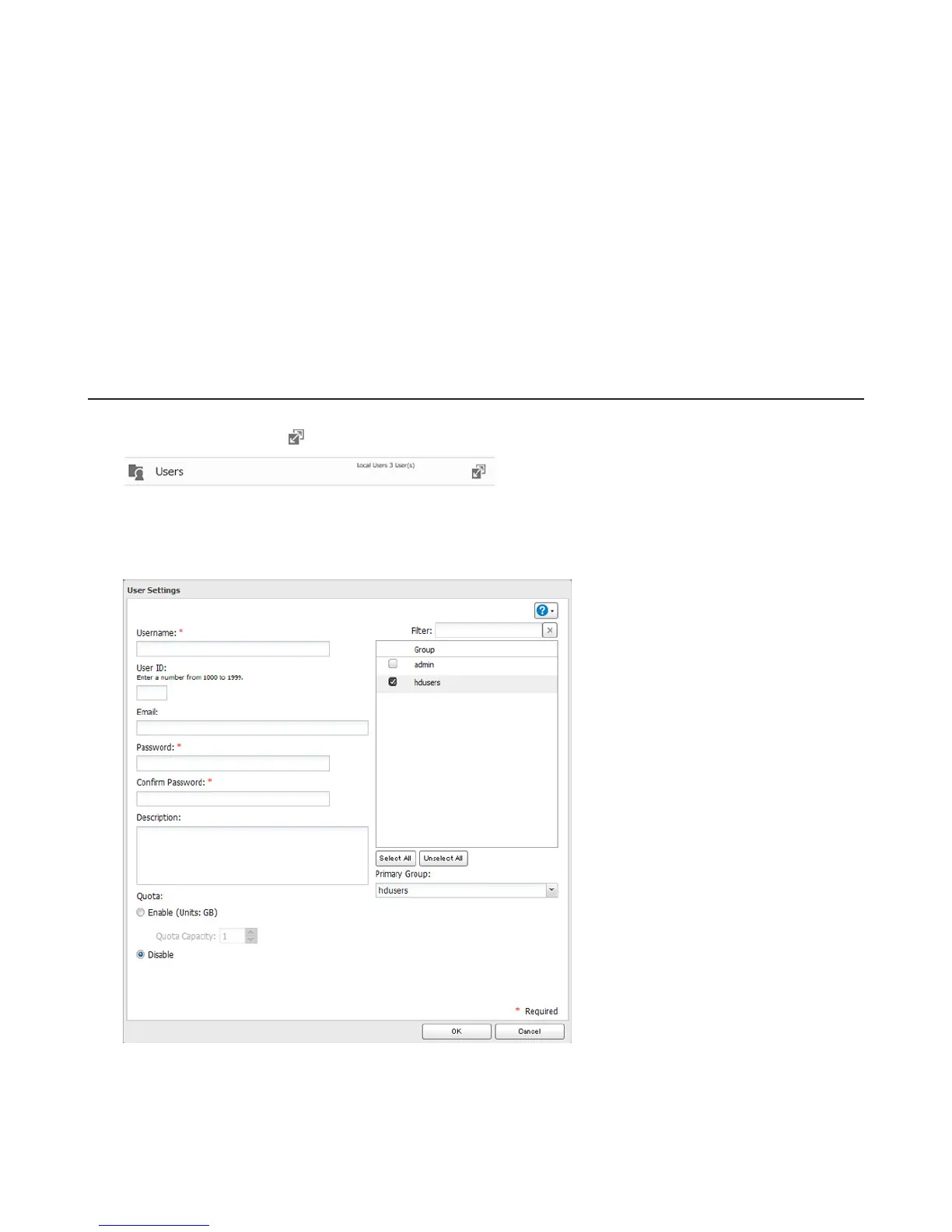
1 In “File Sharing”, click the icon to the right of “Users”.
2 Click Create User.
3 Enter the desired settings, then click OK.
Notes:
• Usernames may contain up to 128 characters, including hyphens (-), underscores (_), periods (.), !, #, &, @, $, *, ^,
and %. Do not use a symbol as the first character.
• For Windows 8, use a local username instead of your Windows Live ID.















 To Next Page