82
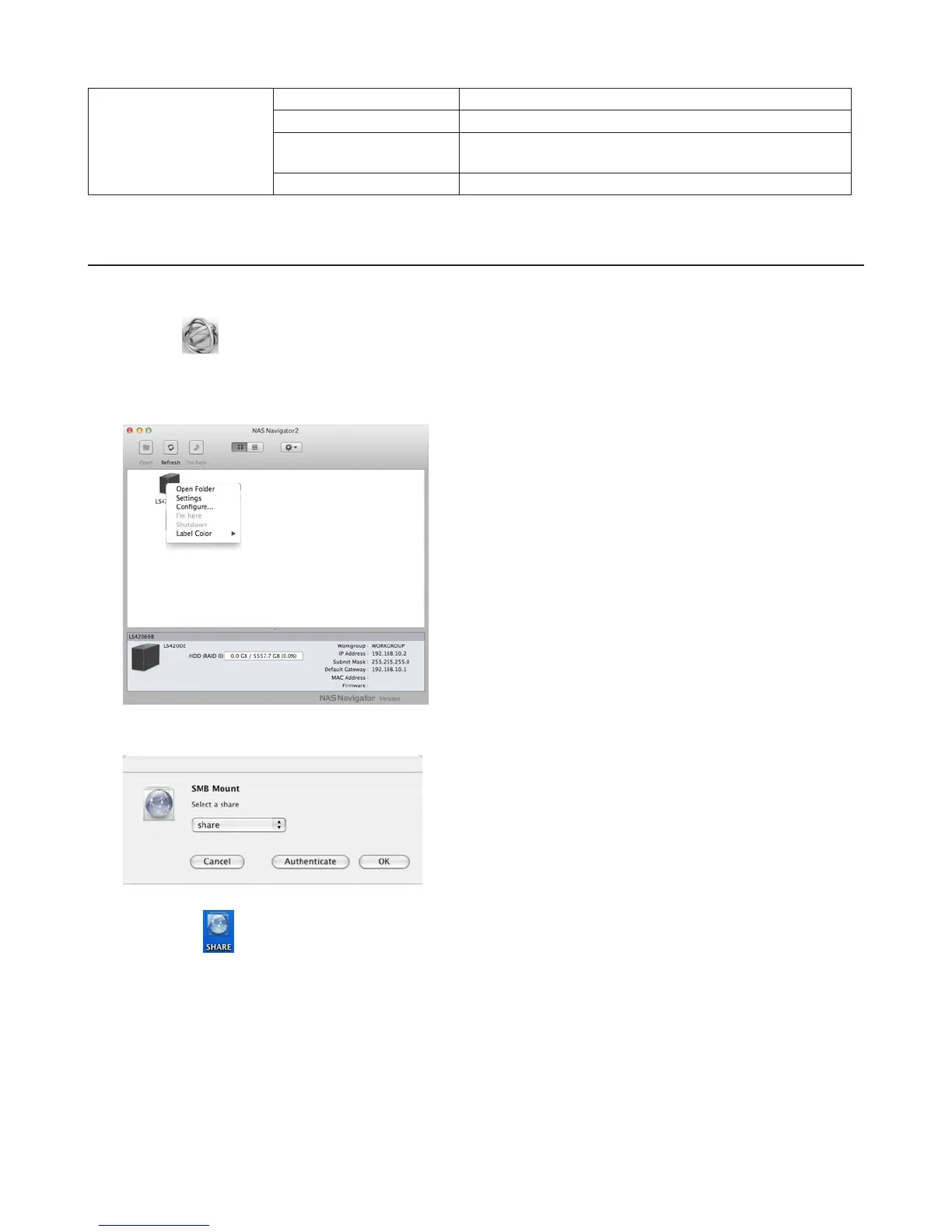
To display these options,
hold down the control
key and select your
LinkStation’s icon.
Open Folder Opens the LinkStation’s shared folder.
Settings Opens Settings for the selected LinkStation.
Configure
Opens a window that lets you configure the NAS’s IP
address or open Settings.
Label Color Selects the color of the name displayed below the icon.
Mount as Network Drive
You can map a shared folders as a network drive from NAS Navigator2.
1 Click the icon in the Dock. NAS Navigator2 will launch.
2 Click the LinkStation icon while holding down the control key, then select Open Folder.
Enter a username and password with the rights to access the shared folder.
3 Select the shared folder that you want to mount, then click OK.
4 A drive icon will appear on the desktop. The shared folder is now mounted as a network drive.
Note: To dismount the share, drag the share icon to the trash.















 To Next Page