67
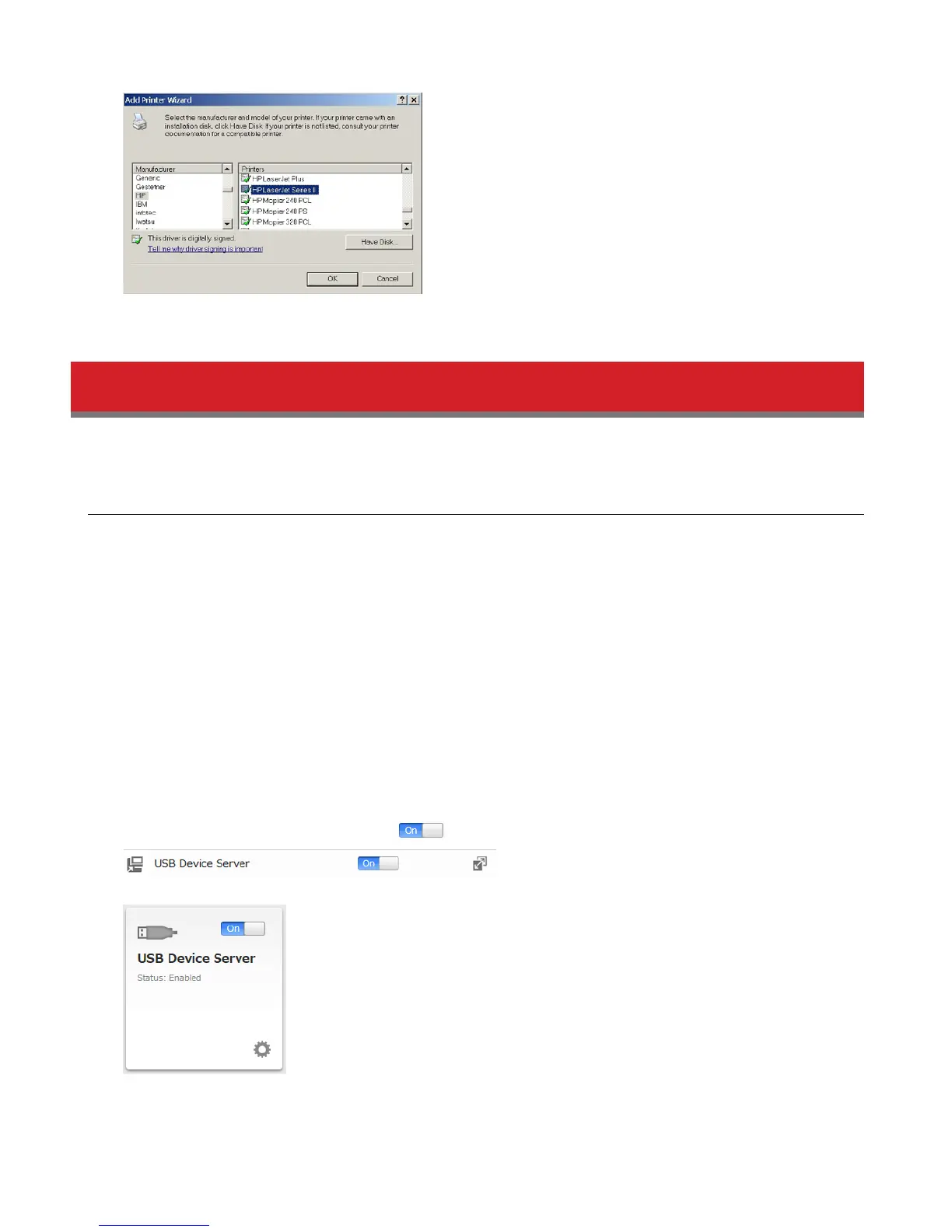
9 Register the printer.
USB Device Server
The USB device server lets you use USB devices connected to the LinkStation with multiple computers.
Configuration
1 Install the driver and software by connecting the USB device to the computer.
Remove the USB device after installation is completed.
2 Connect the USB devices to the LinkStation’s USB port.
Note: With the USB device server enabled, you may connect a single USB hub to the LinkStation. Up to 15 USB
devices may be connected to the hub. Don’t connect more than on bus-powered drive at a time. Use a separate
AC power connection for each device if possible. Connecting more than one bus-powered device at a time may
damage both the LinkStation and the devices.
3 In Advanced Settings, navigate to File Sharing - Folder Setup and select the USB device connected to the
LinkStation.
Note: USB device server and DLNA are not compatible. Disable DLNA protocol support if using USB device server.
4 Move the USB device server switch to the position to enable the USB device server.
You can also enable the USB device server from Easy Admin.
Note: When the USB device server is enabled, other functions that use the USB port won’t be available.
5 To install Network-USB Navigator, click USB Device Server in Easy Admin or navigate to Services - USB Device Server -















 To Next Page