41
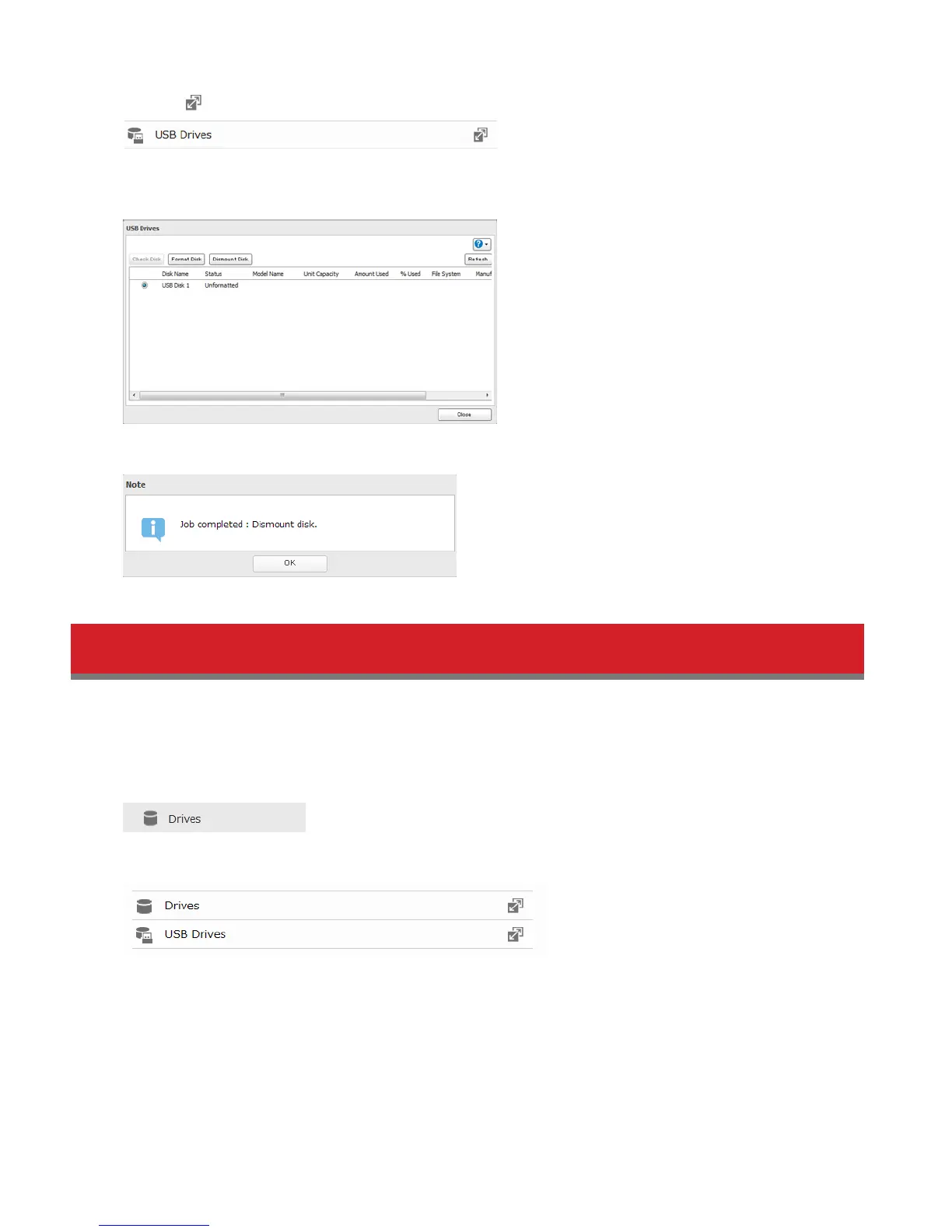
2 Click the icon to the right of “USB Drives”.
3 Select the drive to dismount and click Dismount Disk. The “Confirm Operation” screen will open. Enter the displayed
number, then click OK.
4 When the following message is displayed, it is safe to unplug the drive.
Note: To remount the drive, unplug it and then plug it back again.
Checking Drives
A disk check tests the data on a drive in the LinkStation or connected via USB for integrity. Errors are fixed automatically.
With large drives, a disk check may run for many hours. Shared folders cannot be accessed during a disk check. Do not
turn off the LinkStation until the disk check is finished. Use the procedure below to run a disk check.
1 In Advanced Settings, click Drives.
2 Select Drives to check an internal drive or USB Drives to check an external drive.
3 Select the drive to test, then click Check Disk.















 To Next Page