9
• An autoplay screen may appear with Windows 8, Windows 7, or Windows Vista. Click Run LSNavi.exe then. If “A
program needs your permission to continue.” is displayed, then click OK or Continue.
• If your computer does not have a CD or DVD drive, you may download the LinkNavigator software from www.
buffalotech.com.
• Temporarily disable your anti-virus software and software firewall. Re-enable the software after setup is com-
plete.
3 Click Begin Installation.
4 Follow the steps on the screen to install NAS Navigator2.
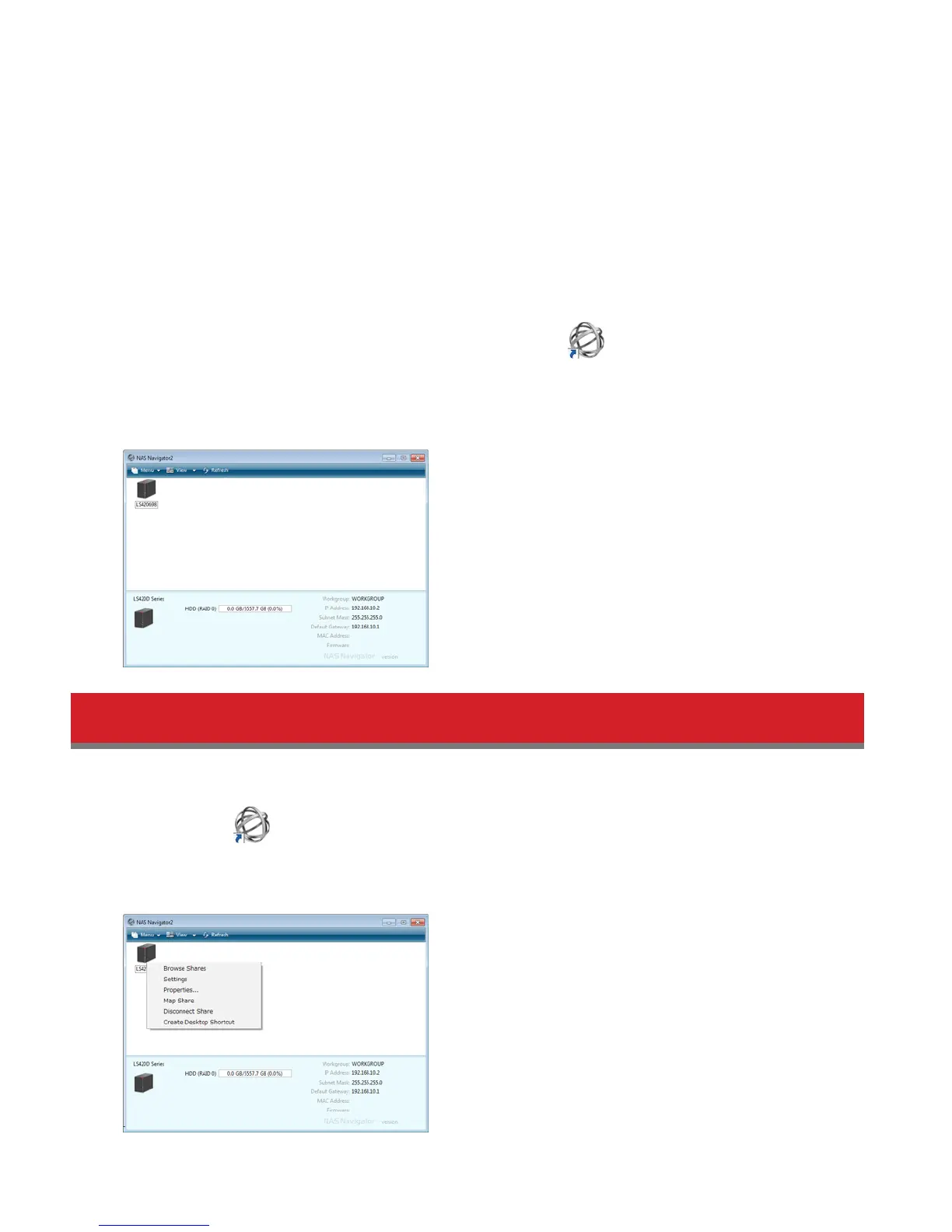
5 Click Finish. NAS Navigator will open. You can also open it by clicking icon.
Click Software to install additional software.
6 In NAS Navigator2, double-click your LinkStation’s icon. This will open the shared folder of the LinkStation. For Mac
OS, the LinkStation is mounted as a drive icon on the desktop or is displayed in the sidebar of the Finder.
Changing Admin Password and Adding a Shared Folder
After initial setup, changing your password and creating other shared folders are recommended.
1 Double-click the icon. NAS Navigator2 will start.
2 Right-click on your LinkStation’s icon and select Settings. On the Mac, select the LinkStation’s icon while holding
down the control key, then select Settings.















 To Next Page