20
WebAccess
Account
Not logged in R R - - - -
User with read &
write access
R/W R R/W R R/W R
User with read-only
access
R/W R R/W R R R
Group with read &
write access
R/W R R/W R R/W R
Group with read-
only access
R/W R R/W R R R
Other users R/W R R/W R - -
R: Read only, R/W: Read and write, -: Cannot access
10 Continue with the procedure at http://buffalonas.com/manual/setup/en/.
Note: If you change your BuffaloNAS.com name after WebAccess has been configured, WebAccess may no longer
work properly. If this happens, disable and then re-enable WebAccess.
FTP
By default, the LinkStation’s shares are only accessible by users connected to the same network or router as the
LinkStation. The optional FTP server allows users outside the local network to access the LinkStation.
Note: FTP is intended for users who already have FTP client software and have experience with it.
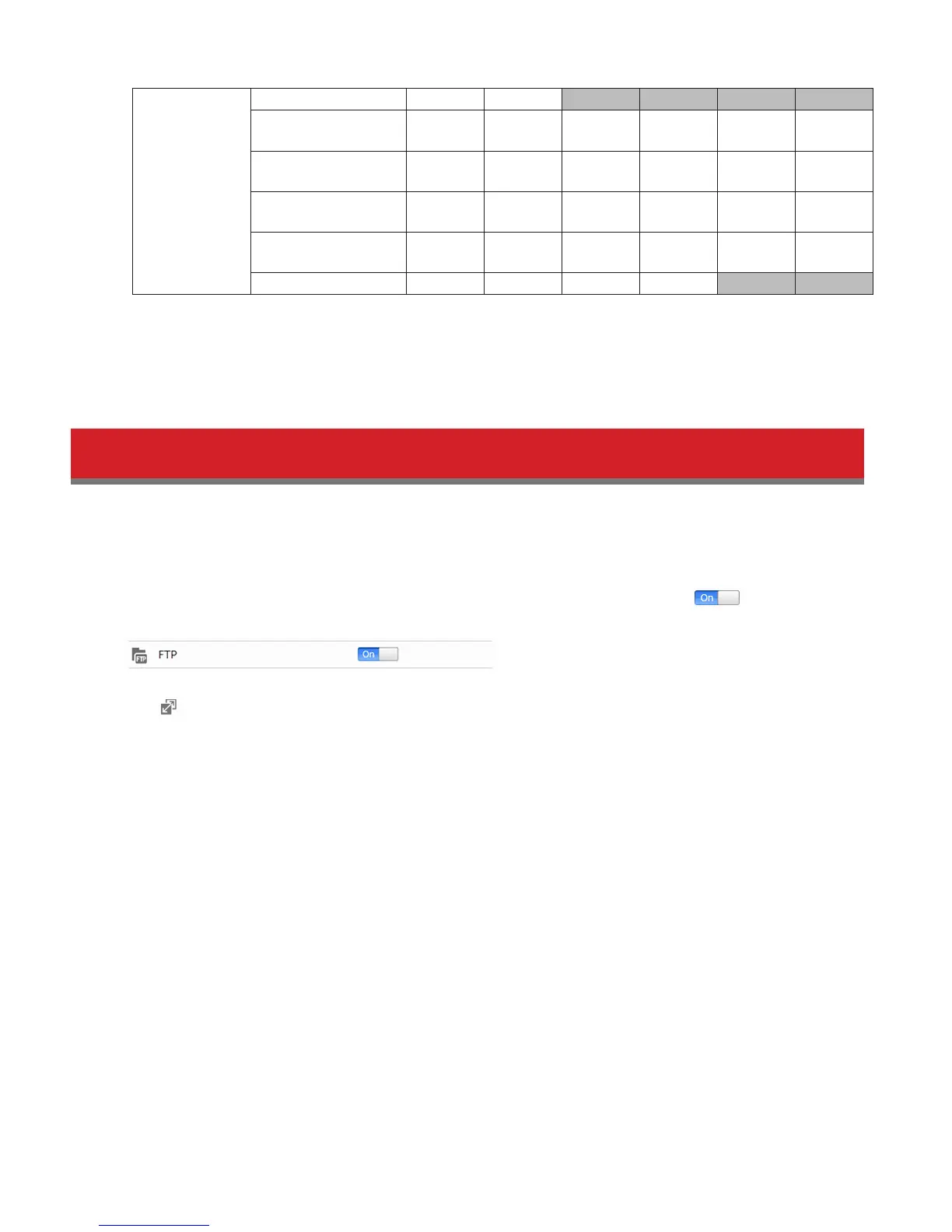
1 In Advanced Settings, navigate to File Sharing - Folder Setup. Move the FTP switch to the position to
enable FTP.
2 Click to the right of “Folder Setup”.
3 Choose a folder to enable remote FTP access on.
4 Click Edit.
5 Select read-only or read & write for the shared folder’s attribute, check “FTP” under “LAN Protocol Support”, and
click OK.















 To Next Page