123
To install a newer software version:
1. Navigate to the Software Updater landing page once again.
2. Drag & drop your update package into the marked area within the browser or click Upload file to open a file explorer
and browse for the file on your system. The updater will automatically upload and unpack the update package.
3. When the file upload is successful, click Install to begin the installation process.
4. The updater will automatically apply all the updates to your core.
5. When completed click Reboot to reboot your core.
Tip: to view more information, click on the Advanced button in the header at any time. This will open a drawer on the right side of
the window to display additional detail, without interrupting the update process.
Note: Surface panels automatically check for, and install updates on power up, when connected to a core. IO box & AoIP device
updates will be described later in this guide.
Once updated, create a new show and perform a full system power cycle.
Ensure the Recover LED on the front of the is either solid green or off before you do this.
Once power cycled ensure the recover LED remains in an off state, if it is flashing then updates are still been applied. Wait for it to go
solid green or off before completing another power cycle.
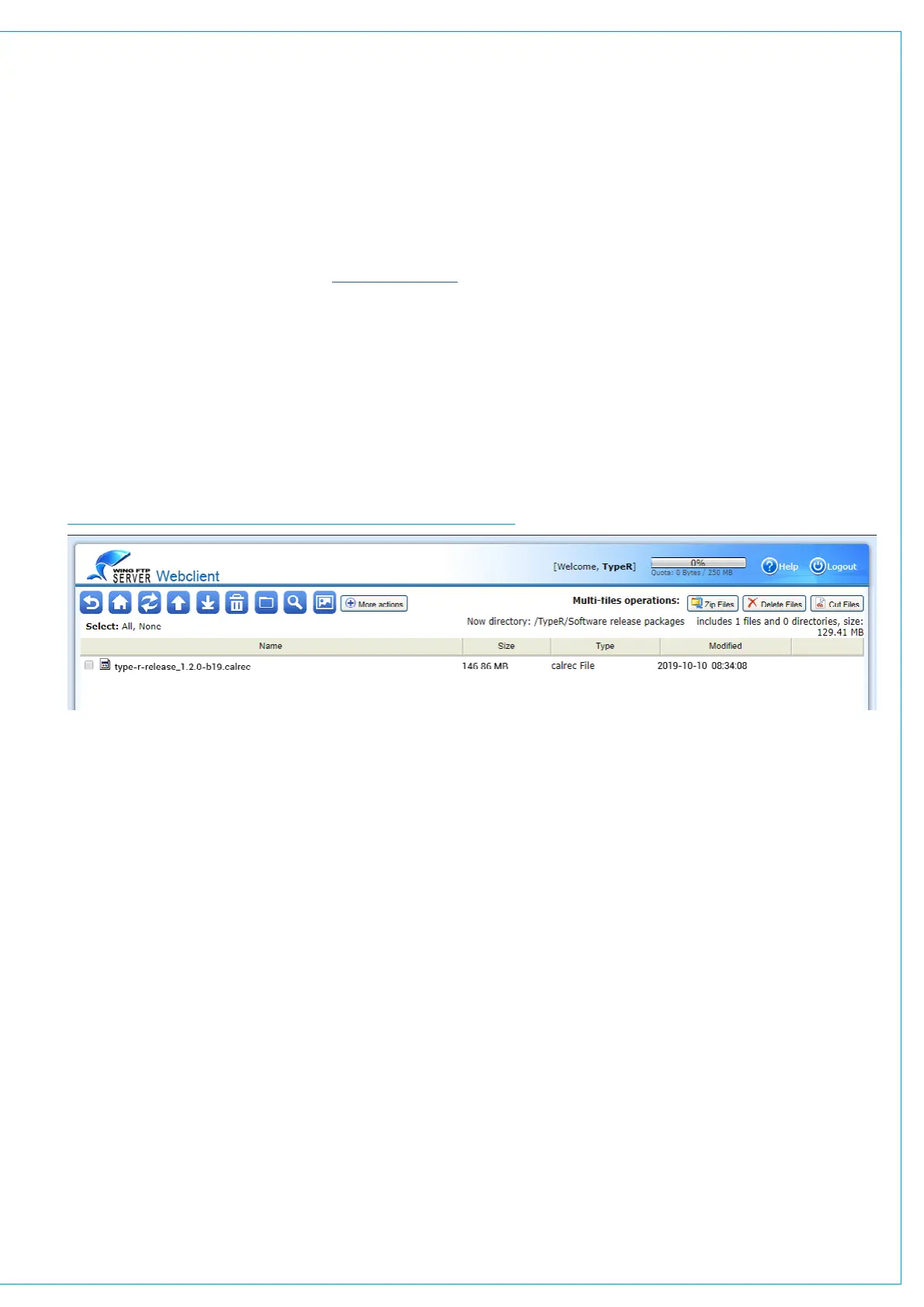
Software releases for Type R are made available online via an FTP server. To access this and check the latest software version,
follow these steps:
1. In Google Chrome, navigate to http://ftp.calrec.com and login with the following case-sensitive credentials
(an internet connection is required):
Account: TypeR
Password: tYoarEdQ
2. Double-click on the Type R folder to open it, then open the Software release packages folder. Each software
release package will be displayed with the release version number in the file name and a .calrec file extension.
3. If a software version newer than the version installed on your system is available, double-click on the release package to
download it to your PC.
FTP SERVER SHOWING SOFTWARE RELEASE PACKAGE FOLDER


 To Next Page