21
Assist may be accessed via the front-facing Setup port by navigating to 172.16.255.25 in Google Chrome, however the Setup
port may not be connected to a local area network (LAN) and in a studio install scenario may not therefore be readily accessible to
an operator or engineer’s PC. It is therefore recommended that the PC accessing Assist is now connected to the network switch
that serves the surface panels instead. By default, all user interfaces may be accessed via the rear network interfaces, using either
a “Management” or a “Studio A” subnet. The “Management” subnet resides in the 172.29/16 address space and provides
access to all applications and services running on the core. The “Studio A” subnet resides in the 172.17/16 address space
and provides access to the Assist, Core Configure & Calrec Connect a p p l i c a t i o n s , a s w e l l a s t h e c o n s o l e c o n t r o l s e r v i c e .
Note: Type R is designed to support a Touch Interface if the PC provides this.
To use either subnet configure your PC’s ethernet adaptor as follows:
• Management - IP address 172.29.0.1, subnet mask 255.255.0.0
• Studio A - IP address 172.17.0.1, subnet mask 255.255.0.0
Note: Default “Studio B” and “Studio C” subnets will be added in a later version
To create a new Show follow these steps:
1. Open Google Chrome, type 172.16.255.25 into the address bar and press enter to navigate to the Assist
landing page.
2. In the menu on the left-hand side, navigate to Shows & snapshots then Shows in the sub-menu.
3. In the footer menu select New, the Create a Show dialogue will be displayed.
Select the Default_Show template show and click Next.
4. Fill in the form to label and describe your Show, then click Create New Show.
You will be automatically redirected to the Fader layout screen.
5. From here you may begin to configure your mixer with DSP paths, routing etc.
However we would recommend that you continue to complete the setup before doing this.
Please refer to the Type R Assist Manual or Type R Assist and Console Operation Manual for more guidance.
8. ACCESS ASSIST SETUP AND CREATE A NEW SHOW
9. CONNECT TO ASSIST FROM THE STUDIO OR MANAGEMENT SUBNETS
Application
Setup Port
(front of core)
Management subnet
(back of core)
Studio A subnet
(surface panels)
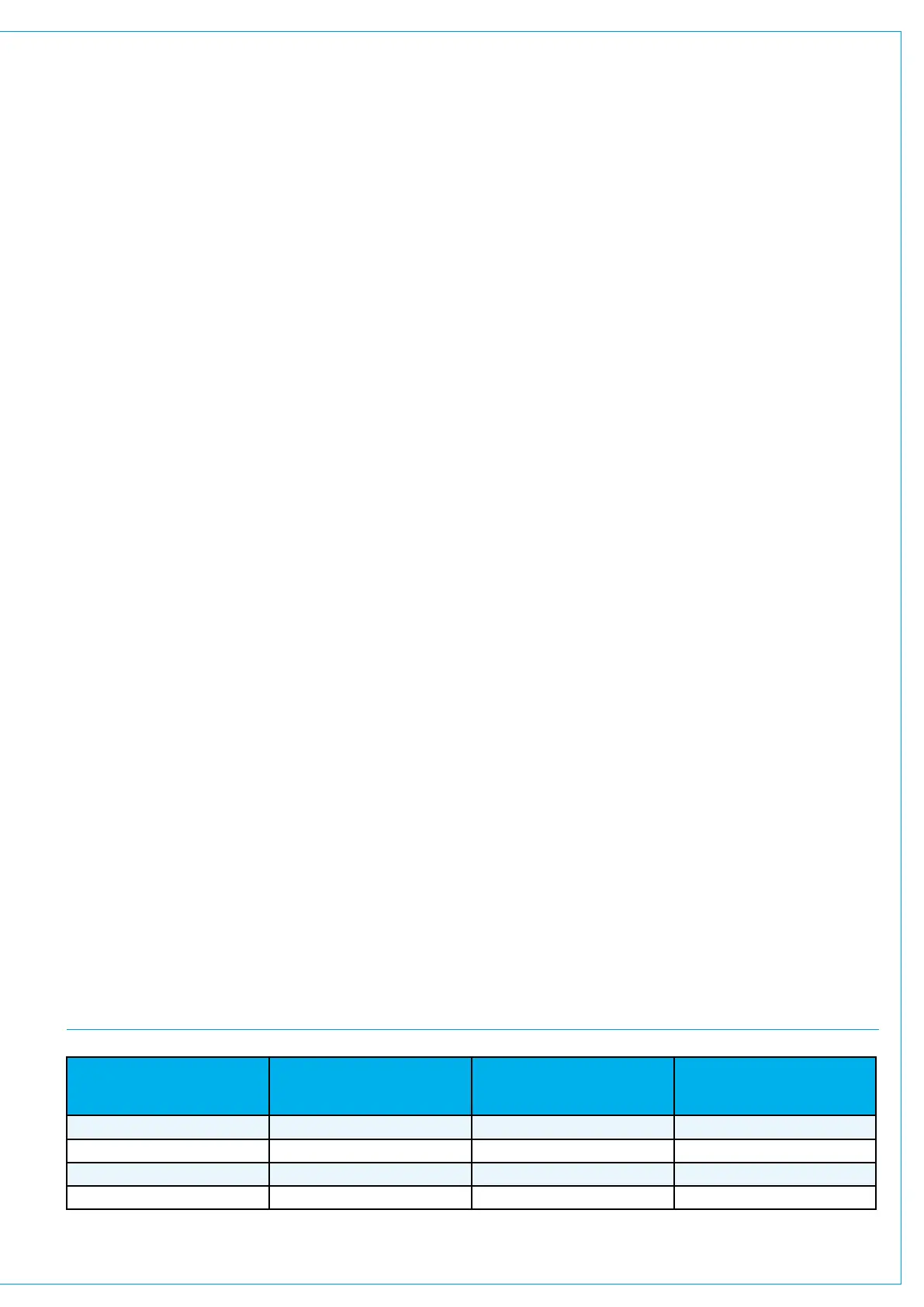
Assist 172.16.255.25 172.29.1.1 172.17.1.1
Calrec Connect 172.16.255.60 172.29.1.21 172.17.1.21
Software Updater 172.16. 255.40 172.29.1.22 172.17.1.22
Configure 172.16.255.19 172.29.1.23 172.17.1.23
To access the Assist, Core Configure & Calrec Connect applications, from the various connection points in the system type the
corresponding IP address shown in the table below into the Google Chrome address bar address bar.
IP ADDRESSES FOR ACCESS TO ASSIST, CONNECT, SOFTWARE UPDATER & CONFIGURE USER INTERFACES


 To Next Page