26 TYPE R Radio Production System Start Up Guide
3. Enter 172.16.255.60 in the Google Chrome address bar and press enter to navigate to Calrec Connect.
4. Select Devices in the menu on the left and select the corresponding entry for the connected IO box / device or core.
5. In the settings area to the right, select the Interfaces tab.
6. Edit the IP address and subnet mask settings of eth1 and eth2 to your preferred values.
Note: Please refer to “AoIP Network Interfaces - Suggested Settings” on page 30 of this document for
suggested settings and reference tables.
7. Connect the next IO device and repeat steps 3, 4 & 5.
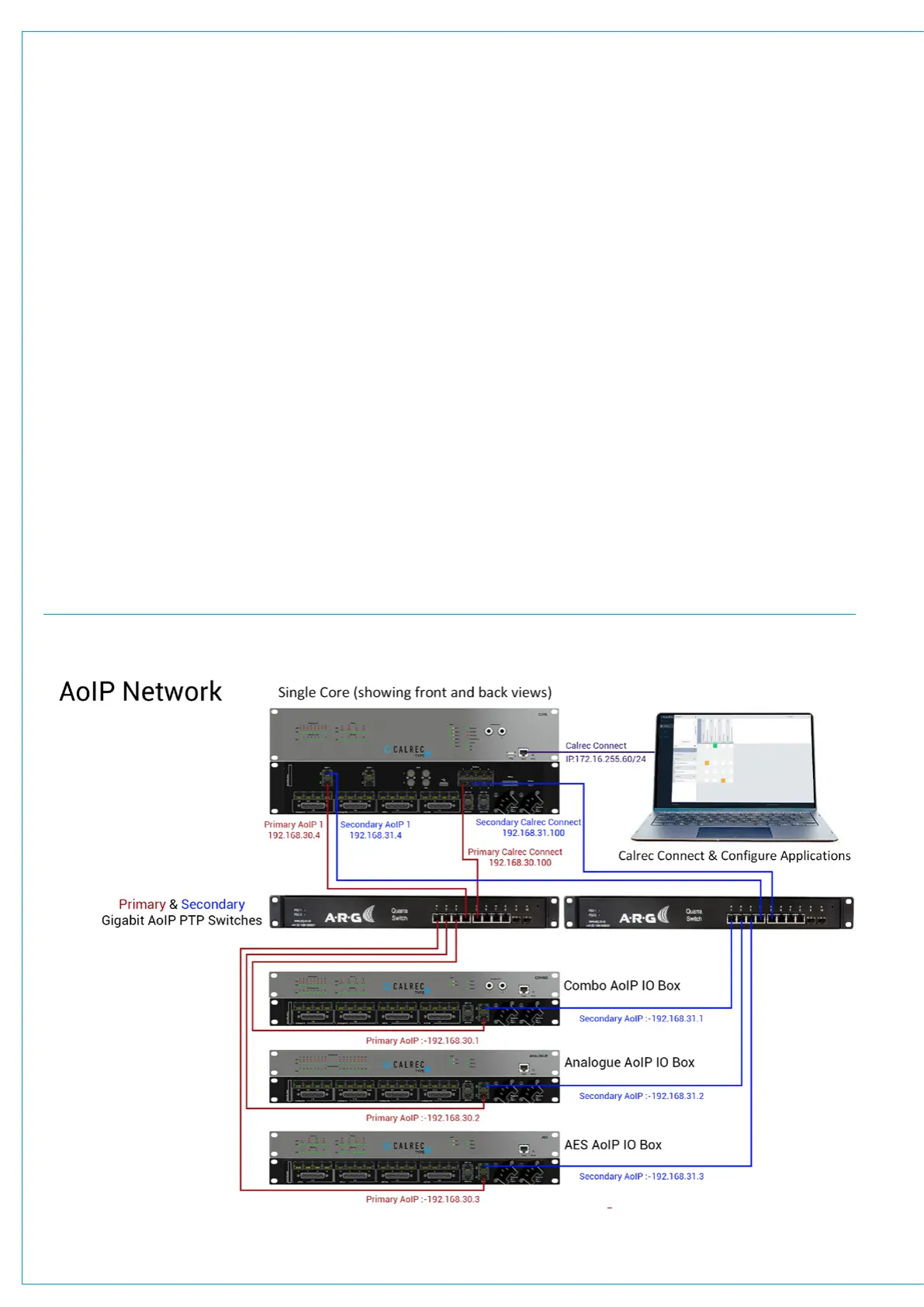
Once all IO box & core AoIP device network interfaces are known to be set with unique IP addresses, they may all be connected to
the same network. All IO boxes in the same subnet should be discovered and displayed in Calrec Connect as shown on the next
page for the Type R Core which has two AoIP device interfaces and a Combo AoIP device which has one AoIP device. Transmitter
and receiver streams may now be configured have Audio Inputs and Outputs patched to those streams and routed between
devices.
Please refer to the Further Reading section at the back of this guide for links to additional guidance about using Calrec Connect.
EXAMPLE OF CONNECTING MULTIPLE IO BOXES TO THE CORE VIA REDUNDANT AOIP SWITCHES



 To Next Page