199
Image Quality Settings
1
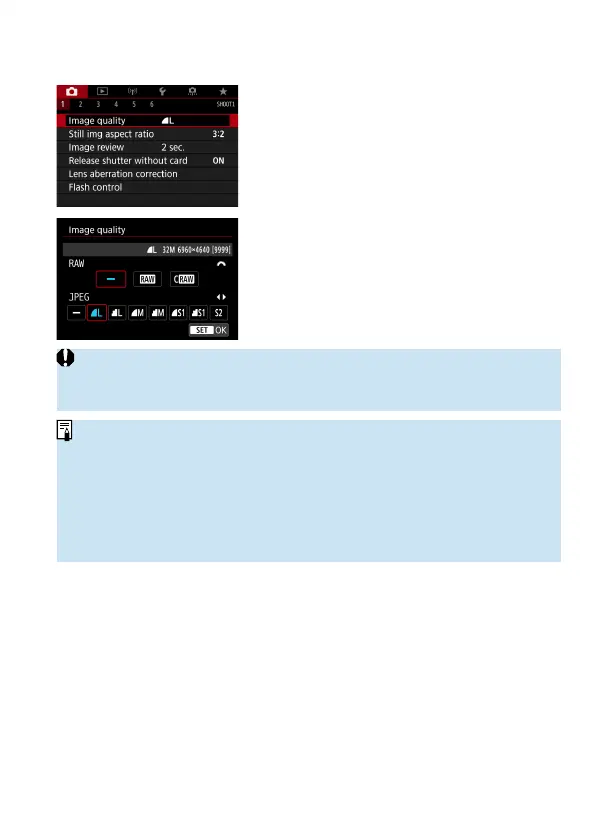
Select [z: Image quality].
2
Set the image quality.
To select the RAW quality, turn the
<
6
> dial, and to select the JPEG
quality, press the <
Y
> <
Z
> keys.
Press <
0
> to set it.
o
Number of shots available as indicated by [****] on the image quality setting
screen always applies to a setting of [3:2], regardless of the actual aspect
ratio setting (
=
202).
o
If [–] is set for both the RAW image and JPEG image,
73
will be set.
o
If you select both RAW and JPEG, each time you shoot, the image will be
recorded simultaneously to the card in both RAW and JPEG at the image-
recording qualities that were set. The two images will be recorded with the
same fi
le numbers (fi le extension: .JPG for JPEG and .CR3 for RAW).
o
b
is in
7
(Fine) quality.
o
Meaning of image quality icons:
1
RAW,
F
Compact RAW, JPEG,
7
Fine,
8
Normal,
3
Large,
4
Medium,
6
Small.


 To Next Page