71
Viewing the Screen as You Shoot (Live View
Shooting)
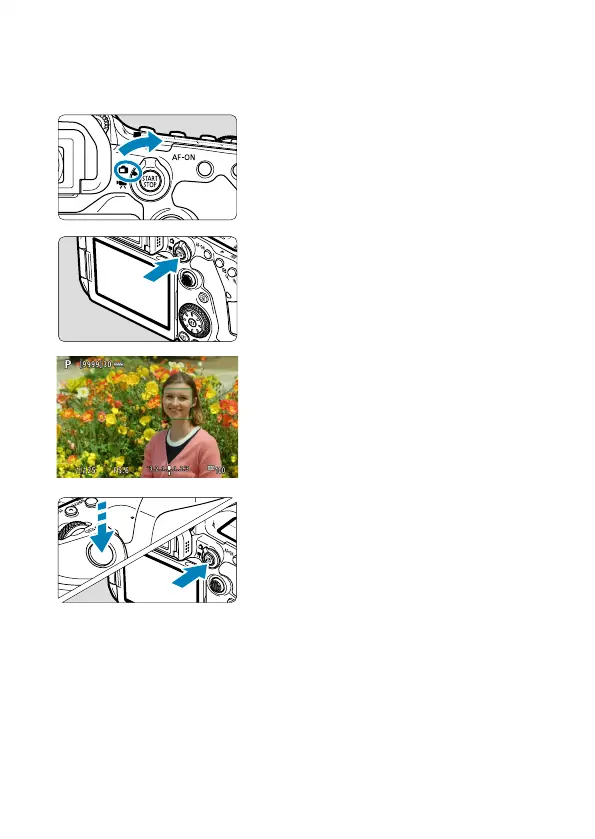
1
Set the Live View shooting/Movie
shooting switch to <A>.
2
Display the Live View image.
Press the <
0
> button.
The Live View image will be displayed
in the brightness level closely matching
that of the actual image to be captured.
3
Focus on the subject.
Press the shutter button halfway to
focus.
If <
D
> blinks, press the <
D
> button to
raise the built-in fl ash.
You can also tap on the screen to select
the face or subject (
=
72).
4
Take the picture.
Press the shutter button completely.
Press the <
0
> button to exit Live View
shooting.


 To Next Page