Starting up Digital Photo Professional
1-5
1
Displaying Thumbnail Images and Performing Basic Edits in the Main Window
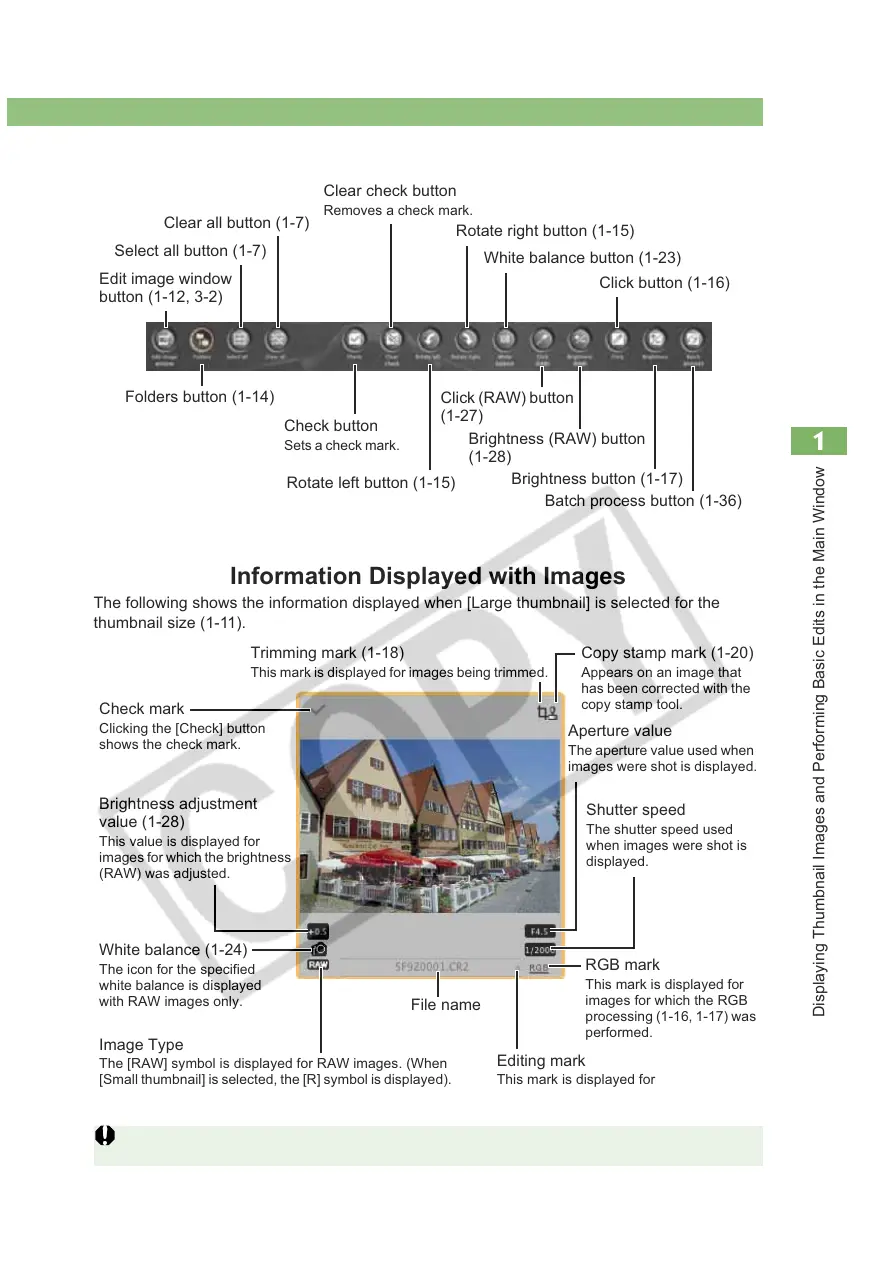
Toolbar
Information Displayed with Images
The following shows the information displayed when [Large thumbnail] is selected for the
thumbnail size (1-11).
The [RAW] mark is not displayed for PowerShot Pro1 RAW images.
Edit image window
button (1-12, 3-2)
Folders button (1-14)
Clear all button (1-7)
Clear check button
Removes a check mark.
Rotate right button (1-15)
Click (RAW) button
(1-27)
Rotate left button (1-15)
Check button
Sets a check mark.
Select all button (1-7)
Batch process button (1-36)
Brightness button (1-17)
Brightness (RAW) button
(1-28)
White balance button (1-23)
Click button (1-16)
Brightness adjustment
value (1-28)
This value is displayed for
images for which the brightness
(RAW) was adjusted.
White balance (1-24)
The icon for the specified
white balance is displayed
with RAW images only.
Image Type
The [RAW] symbol is displayed for RAW images. (When
[Small thumbnail] is selected, the [R] symbol is displayed).
No symbol is displayed for JPEG and TIFF images.
File name
RGB mark
This mark is displayed for
images for which the RGB
processing (1-16, 1-17) was
performed.
Aperture value
The aperture value used when
images were shot is displayed.
Shutter speed
The shutter speed used
when images were shot is
displayed.
Editing mark
This mark is displayed for
unsaved images being edited.
Trimming mark (1-18)
This mark is displayed for images being trimmed.
Check mark
Clicking the [Check] button
shows the check mark.
Copy stamp mark (1-20)
Appears on an image that
has been corrected with the
copy stamp tool.








 To Next Page