Editing RAW Images
2-15
2
Performing Detailed Edits in the Edit Window
Adjusting with the Color Wheel (1-26)
You can select a desired color from the color wheel to adjust the white balance. You can also
specify the hue in the range of 0 to 359 (in 1-stop increments), and the saturation in the range
of 0 to 255 (in 1-stop increments).
Registering Adjusted White Balance
(Personal White Balance)
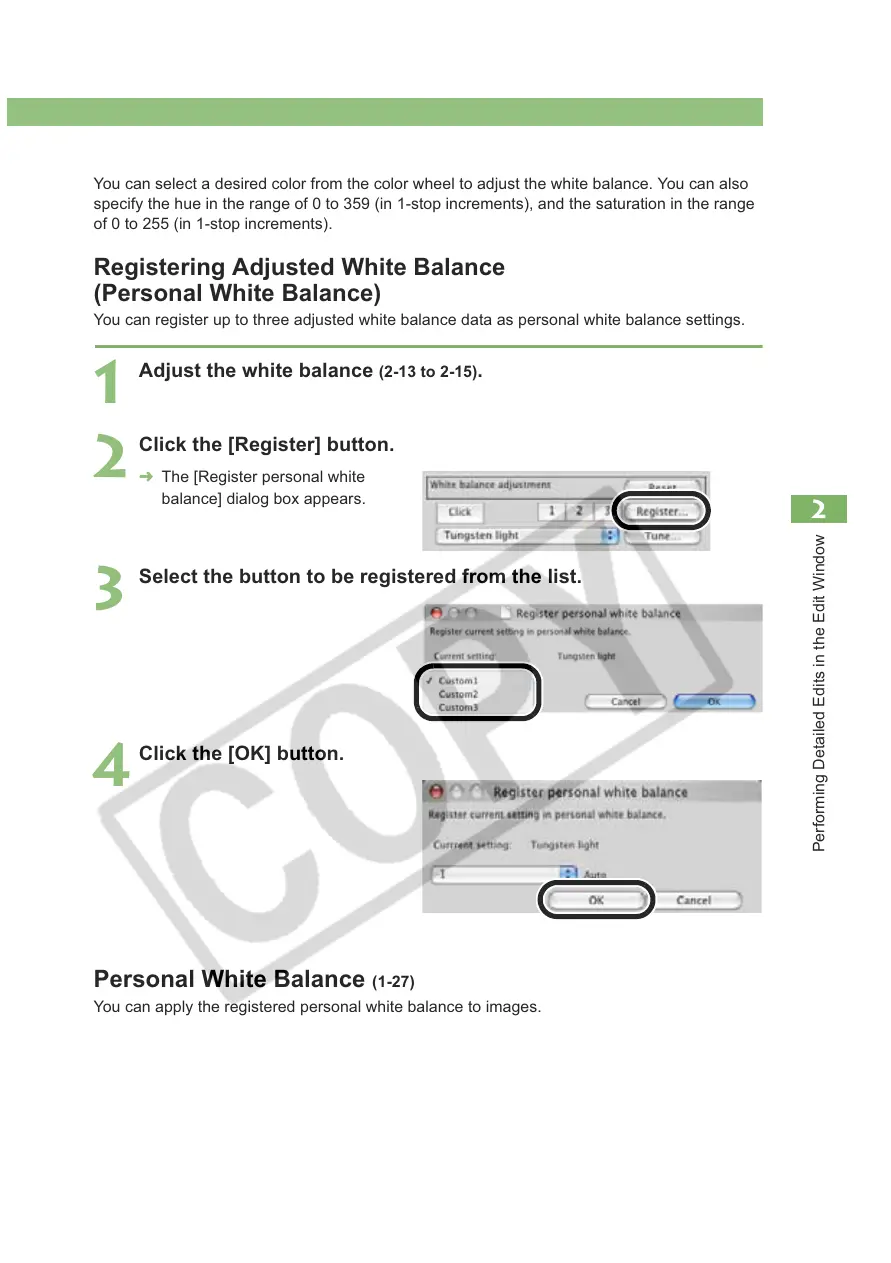
You can register up to three adjusted white balance data as personal white balance settings.
Personal White Balance (1-27)
You can apply the registered personal white balance to images.
1
Adjust the white balance (2-13 to 2-15).
2
Click the [Register] button.
¿ The [Register personal white
balance] dialog box appears.
3
Select the button to be registered from the list.
4
Click the [OK] button.








 To Next Page