1-15
1
Displaying Thumbnail Images and Performing Basic Edits in the Main Window
Editing Images
You can perform various edits on the RAW, JPEG, and TIFF images that are supported by
Digital Photo Professional.
You can rotate a selected image by 90-degree increments left or right.
1
Select an image (1-7).
2
Edit the image (1-15 to 1-21).
O You can apply edits to other images by copying and pasting the edit data to the other
images (1-31).
O You can revert edited images to the last saved settings or shot settings (1-32).
3
Save the edited image (1-33).
Before quitting Digital Photo Professional, you must save the edited images (1-33).
O When multiple images are selected, the edits are applied to all the selected images.
O The editing data can be saved in a separate file (1-30).
O The edited images can be transferred to retouching software (1-39).
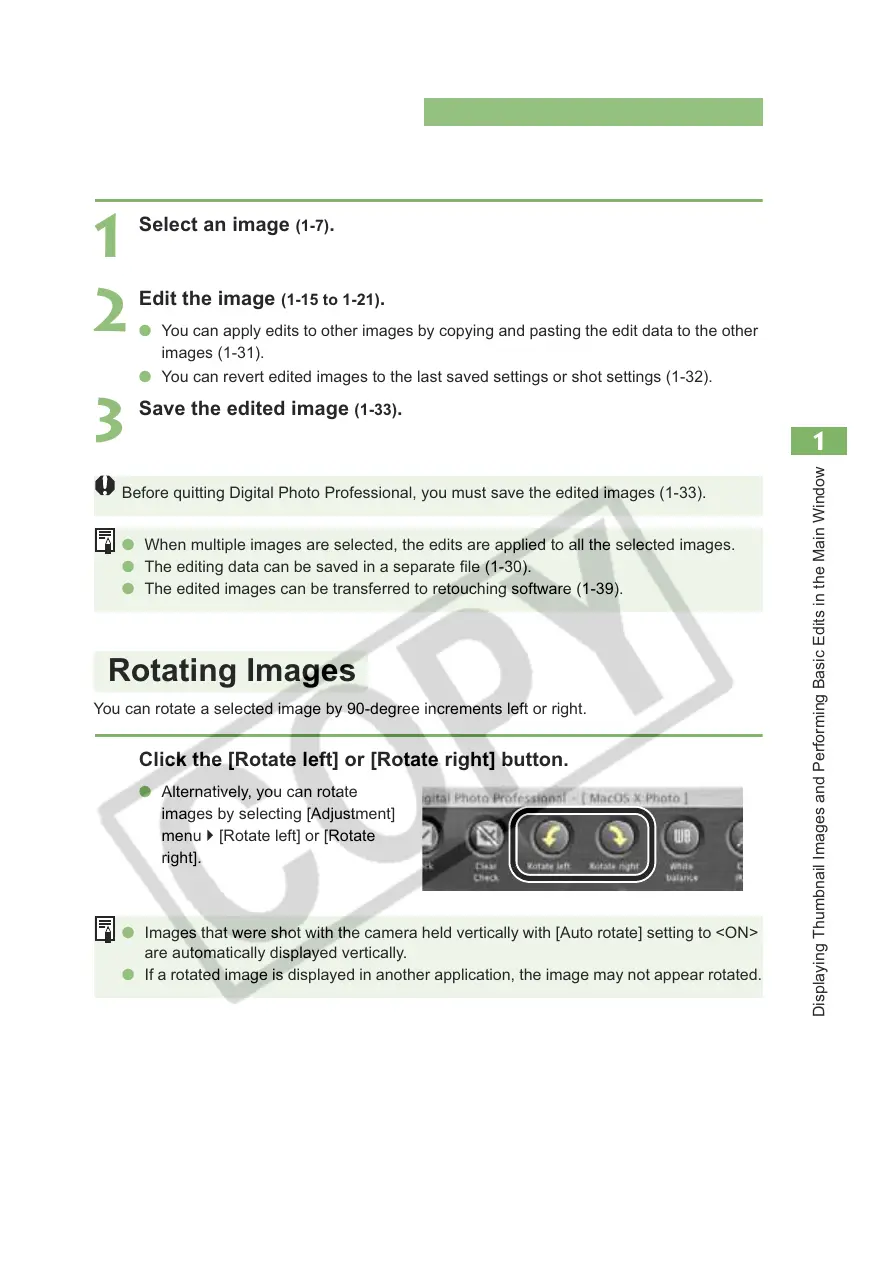
Click the [Rotate left] or [Rotate right] button.
O Alternatively, you can rotate
images by selecting [Adjustment]
menu ` [Rotate left] or [Rotate
right].
O Images that were shot with the camera held vertically with [Auto rotate] setting to <ON>
are automatically displayed vertically.
O If a rotated image is displayed in another application, the image may not appear rotated.
Rotating Images








 To Next Page