2-7
2
Performing Detailed Edits in the Edit Window
Editing Images
You can perform various edits on the RAW, JPEG, and TIFF images that are supported by
Digital Photo Professional.
1
Display the image on the edit window (2-2).
O When multiple images are displayed, click the image for which you wish to edit to
place it on the top window.
2
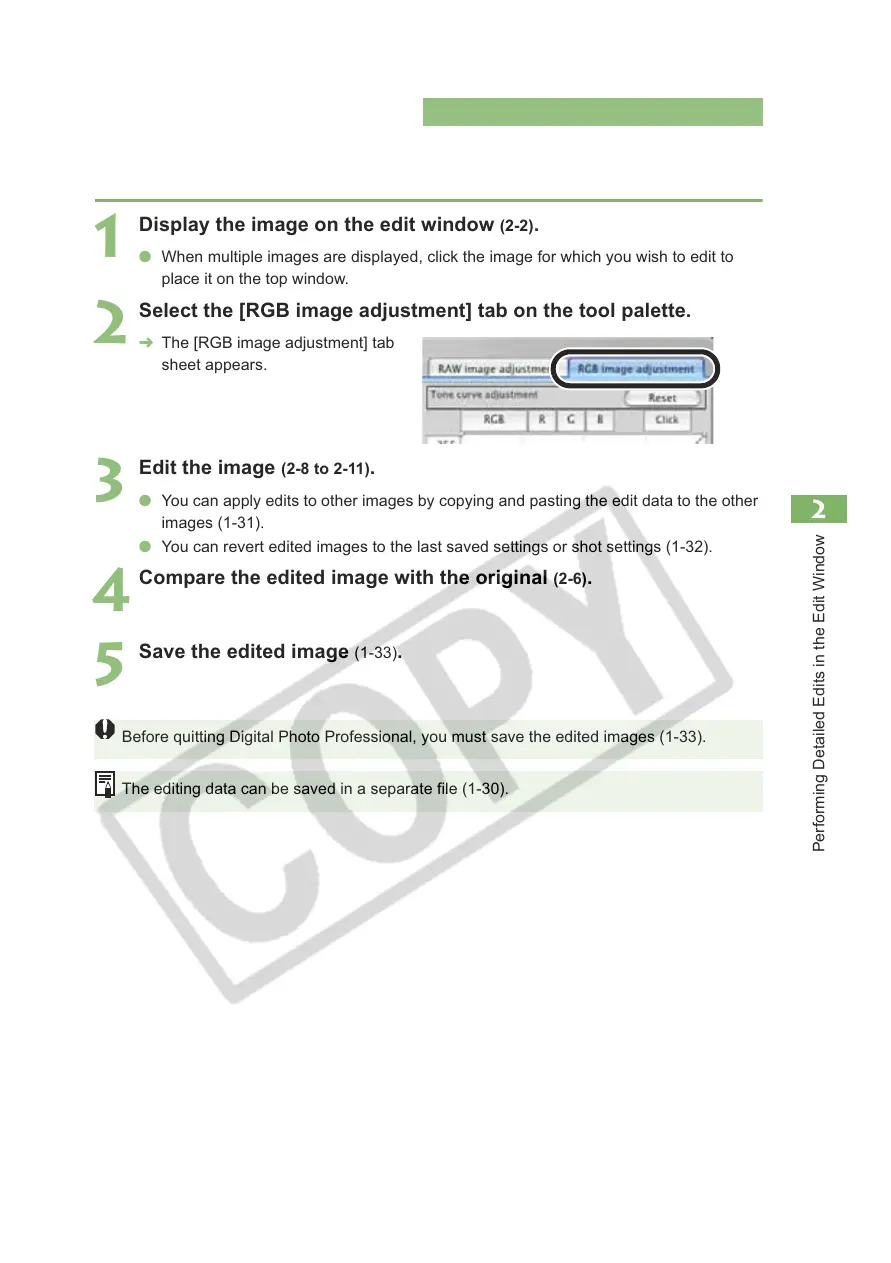
Select the [RGB image adjustment] tab on the tool palette.
¿ The [RGB image adjustment] tab
sheet appears.
3
Edit the image (2-8 to 2-11).
O You can apply edits to other images by copying and pasting the edit data to the other
images (1-31).
O You can revert edited images to the last saved settings or shot settings (1-32).
4
Compare the edited image with the original (2-6).
5
Save the edited image (1-33).
Before quitting Digital Photo Professional, you must save the edited images (1-33).
The editing data can be saved in a separate file (1-30).








 To Next Page