Editing Images
1-18
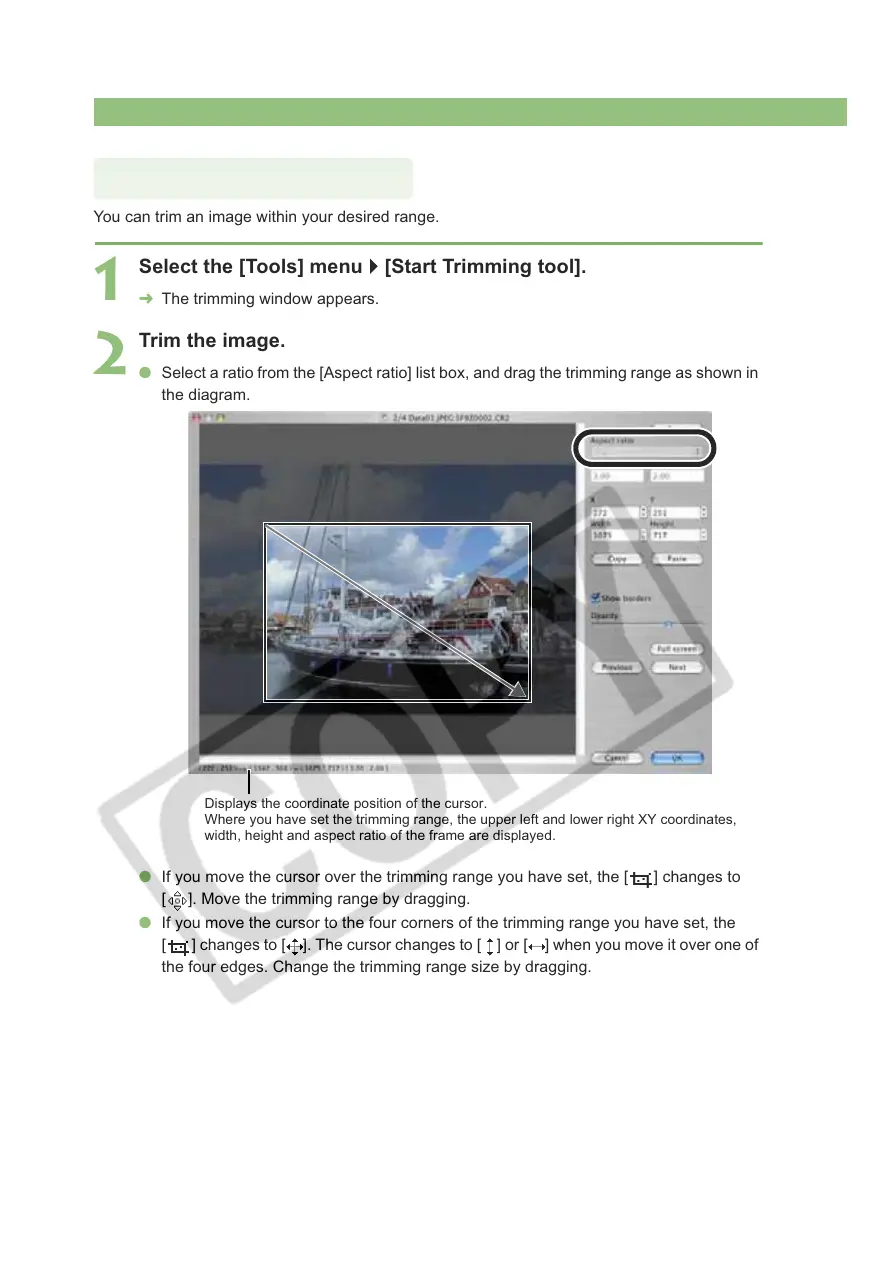
You can trim an image within your desired range.
1
Select the [Tools] menu ` [Start Trimming tool].
¿ The trimming window appears.
2
Trim the image.
O Select a ratio from the [Aspect ratio] list box, and drag the trimming range as shown in
the diagram.
O If you move the cursor over the trimming range you have set, the [ ] changes to
[ ]. Move the trimming range by dragging.
O If you move the cursor to the four corners of the trimming range you have set, the
[ ] changes to [ ]. The cursor changes to [ ] or [ ] when you move it over one of
the four edges. Change the trimming range size by dragging.
Trimming an Image
Displays the coordinate position of the cursor.
Where you have set the trimming range, the upper left and lower right XY coordinates,
width, height and aspect ratio of the frame are displayed.








 To Next Page