Editing Images
1-19
1
Displaying Thumbnail Images and Performing Basic Edits in the Main Window
3
Click the [OK] button.
O You can also set the [Aspect ratio] and switch between Full screen/Normal screen from
the menu that appears by clicking on the image while pressing <control> key.
O You can [reset] (returns settings to the original settings) by pressing the <esc> key on
the keyboard.
O For the shortcut key list, see 4-7.
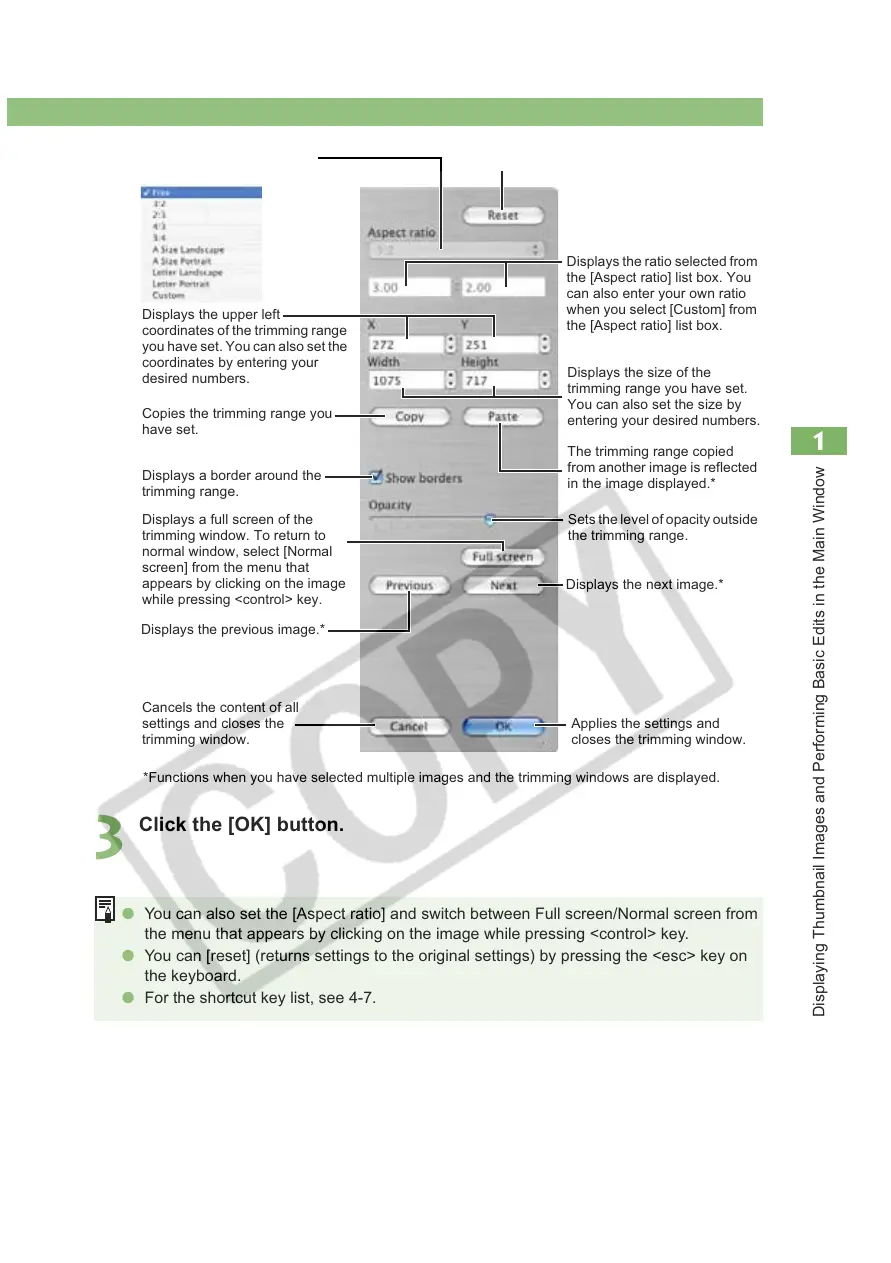
Select the vertical/horizontal
ratio of the trimming range.
Applies the settings and
closes the trimming window.
Cancels the content of all
settings and closes the
trimming window.
Sets the level of opacity outside
the trimming range.
Displays the size of the
trimming range you have set.
You can also set the size by
entering your desired numbers.
Displays the upper left
coordinates of the trimming range
you have set. You can also set the
coordinates by entering your
desired numbers.
Copies the trimming range you
have set.
Displays a border around the
trimming range.
Displays a full screen of the
trimming window. To return to
normal window, select [Normal
screen] from the menu that
appears by clicking on the image
while pressing <control> key.
Displays the previous image.*
Returns settings to the original settings.
The trimming range copied
from another image is reflected
in the image displayed.*
Displays the ratio selected from
the [Aspect ratio] list box. You
can also enter your own ratio
when you select [Custom] from
the [Aspect ratio] list box.
Displays the next image.*
*Functions when you have selected multiple images and the trimming windows are displayed.








 To Next Page