Editing Images
1-20
You can copy a section of an image and paste (“stamp”) it on top of an area you want to correct
in the same image.
1
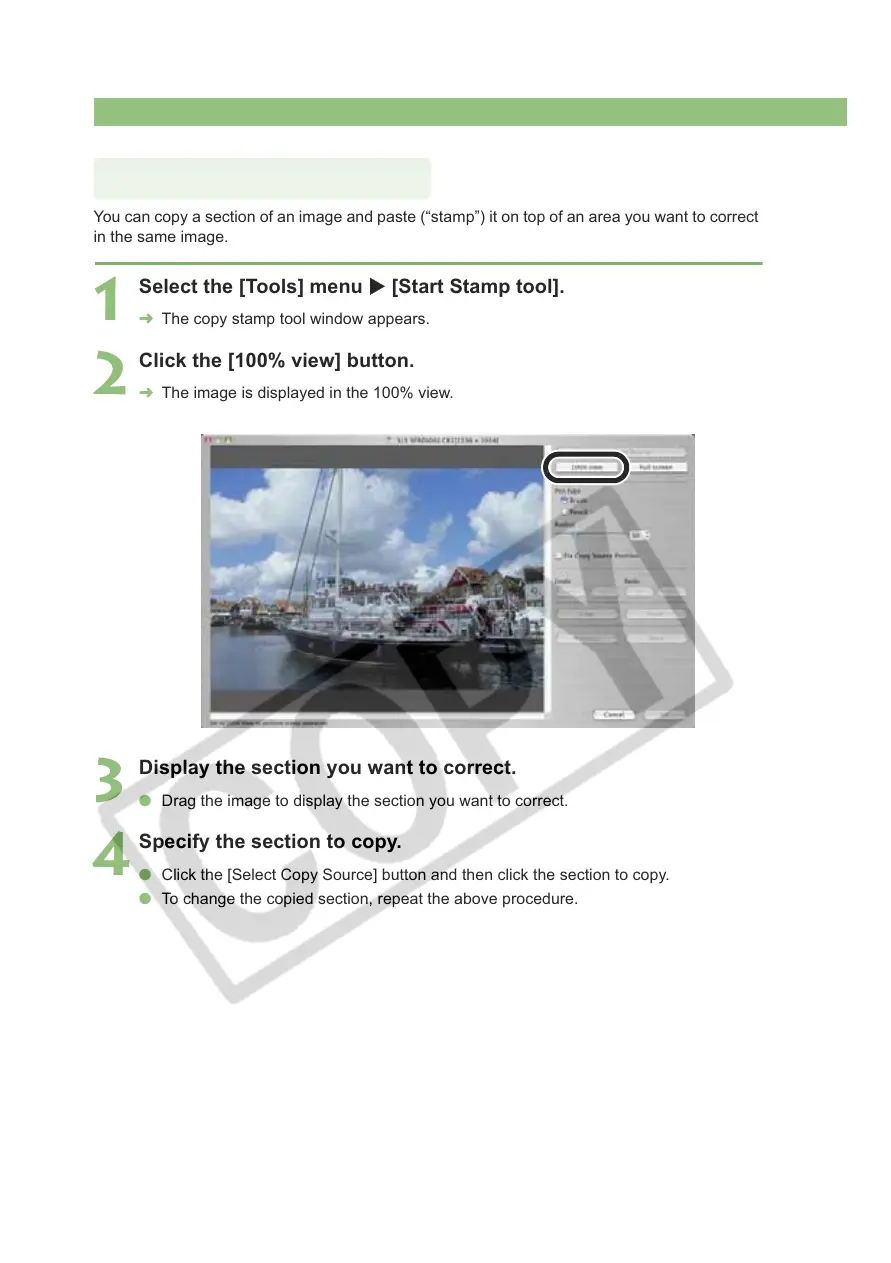
Select the [Tools] menu X [Start Stamp tool].
¿ The copy stamp tool window appears.
2
Click the [100% view] button.
¿ The image is displayed in the 100% view.
3
Display the section you want to correct.
O Drag the image to display the section you want to correct.
4
Specify the section to copy.
O Click the [Select Copy Source] button and then click the section to copy.
O To change the copied section, repeat the above procedure.
Correcting an Image








 To Next Page