2-2
Displaying the Edit Window
You can enlarge a single image and perform detailed edits on it in the edit window. You can
display multiple images in the edit window and edit them while comparing each of them. Up to
36 images can be displayed in the edit window.
O This chapter describes the functions that you can operate in the edit window only. For
instructions on operating the functions common to those in the main window, refer to the
page described with each function.
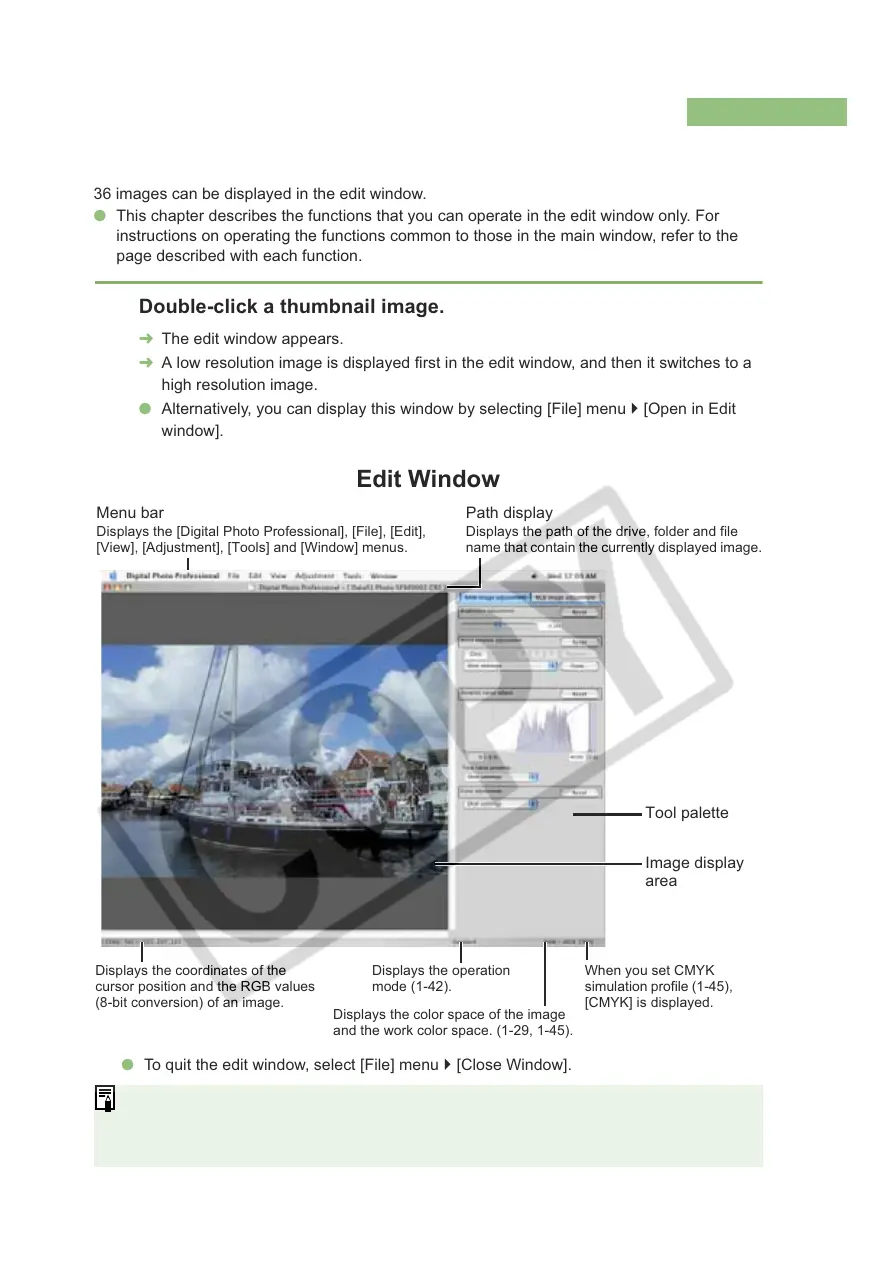
Edit Window
Double-click a thumbnail image.
¿ The edit window appears.
¿ A low resolution image is displayed first in the edit window, and then it switches to a
high resolution image.
O Alternatively, you can display this window by selecting [File] menu ` [Open in Edit
window].
O For some images, it may take some time to switch to the high resolution image.
O You can select whether the tool palette is displayed as another window or displayed
within the same window (1-44).
Menu bar
Displays the [Digital Photo Professional], [File], [Edit],
[View], [Adjustment], [Tools] and [Window] menus.
Path display
Displays the path of the drive, folder and file
name that contain the currently displayed image.
O To quit the edit window, select [File] menu ` [Close Window].
Tool palette
Displays the operation
mode (1-42).
Displays the coordinates of the
cursor position and the RGB values
(8-bit conversion) of an image.
Displays the color space of the image
and the work color space. (1-29, 1-45).
When you set CMYK
simulation profile (1-45),
[CMYK] is displayed.
Image display
area








 To Next Page