Saving Edited Images
1-38
You can change file names in a single operation.
1
Select the images for which you want to change the file names
(1-7).
2
Select the [Tools] menu X [Start Rename tool].
¿ The rename tool window appears.
3
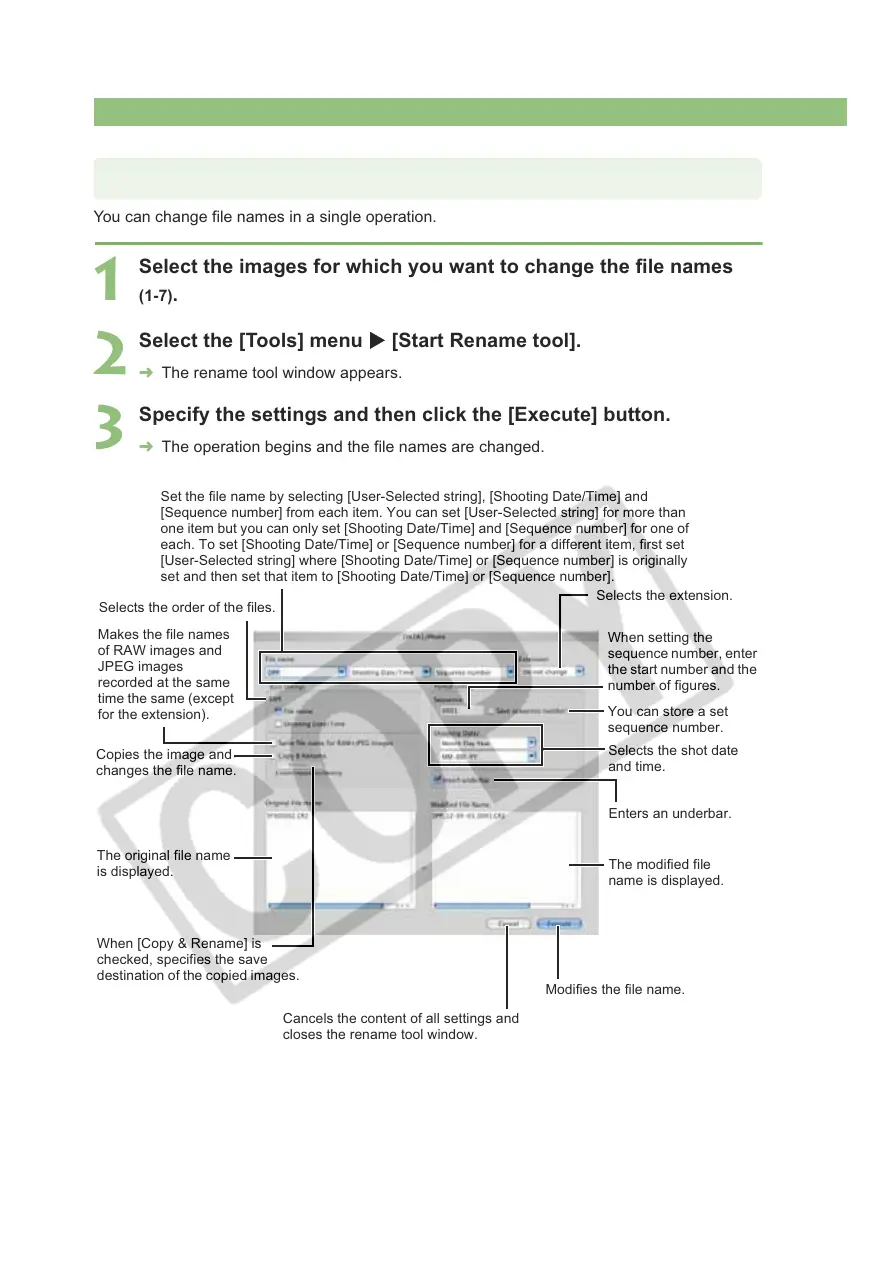
Specify the settings and then click the [Execute] button.
¿ The operation begins and the file names are changed.
Changing File Names in a Single Operation
Set the file name by selecting [User-Selected string], [Shooting Date/Time] and
[Sequence number] from each item. You can set [User-Selected string] for more than
one item but you can only set [Shooting Date/Time] and [Sequence number] for one of
each. To set [Shooting Date/Time] or [Sequence number] for a different item, first set
[User-Selected string] where [Shooting Date/Time] or [Sequence number] is originally
set and then set that item to [Shooting Date/Time] or [Sequence number].
Selects the extension.
Selects the order of the files.
Makes the file names
of RAW images and
JPEG images
recorded at the same
time the same (except
for the extension).
Copies the image and
changes the file name.
When [Copy & Rename] is
checked, specifies the save
destination of the copied images.
When setting the
sequence number, enter
the start number and the
number of figures.
You can store a set
sequence number.
Selects the shot date
and time.
Enters an underbar.
The original file name
is displayed.
The modified file
name is displayed.
Modifies the file name.
Cancels the content of all settings and
closes the rename tool window.








 To Next Page