2-5
2
Performing Detailed Edits in the Edit Window
Selecting the Image Display Mode
You can change the size and method in which images are displayed.
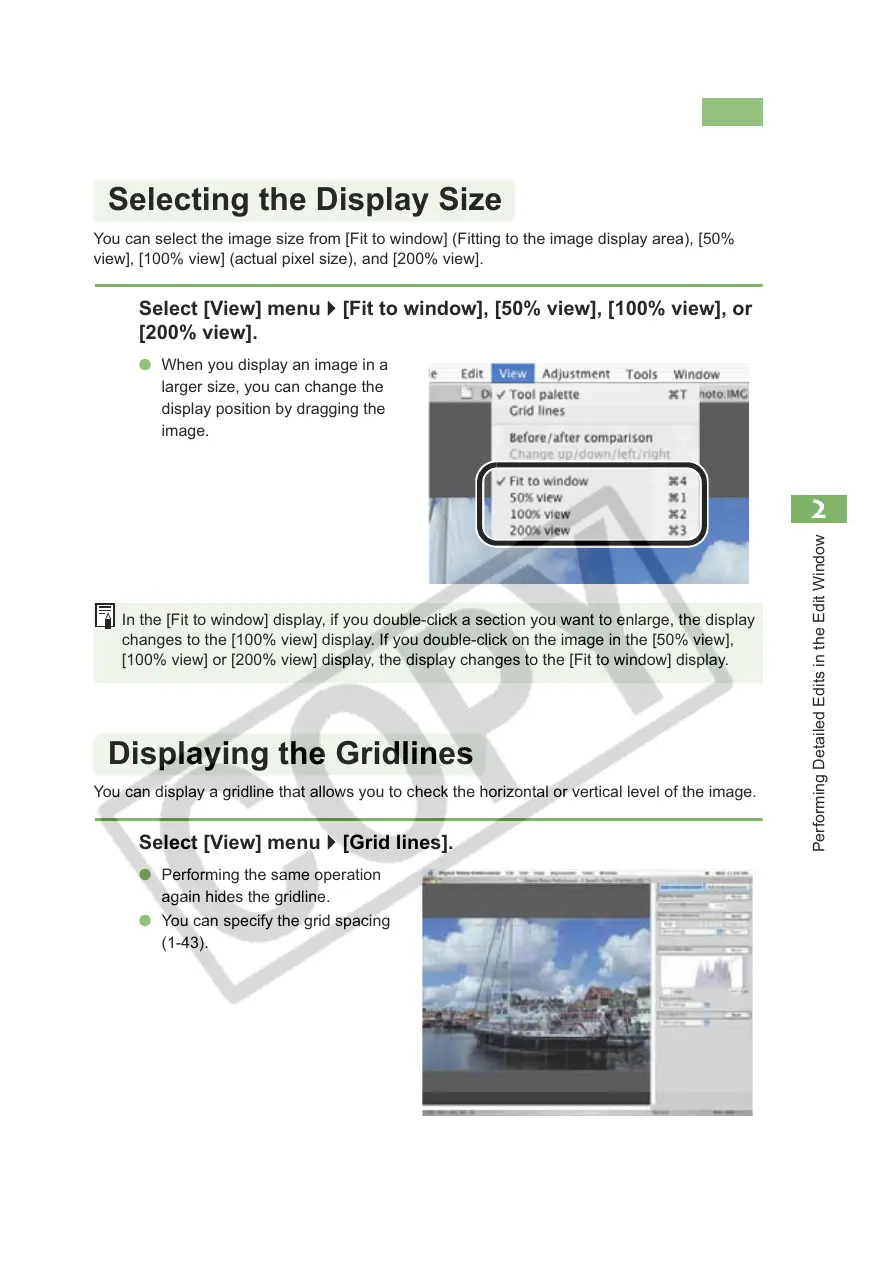
You can select the image size from [Fit to window] (Fitting to the image display area), [50%
view], [100% view] (actual pixel size), and [200% view].
You can display a gridline that allows you to check the horizontal or vertical level of the image.
Select [View] menu ` [Fit to window], [50% view], [100% view], or
[200% view].
O When you display an image in a
larger size, you can change the
display position by dragging the
image.
In the [Fit to window] display, if you double-click a section you want to enlarge, the display
changes to the [100% view] display. If you double-click on the image in the [50% view],
[100% view] or [200% view] display, the display changes to the [Fit to window] display.
Select [View] menu ` [Grid lines].
O Performing the same operation
again hides the gridline.
O You can specify the grid spacing
(1-43).
Selecting the Display Size
Displaying the Gridlines








 To Next Page