Editing RAW Images
2-14
Click White Balance Function
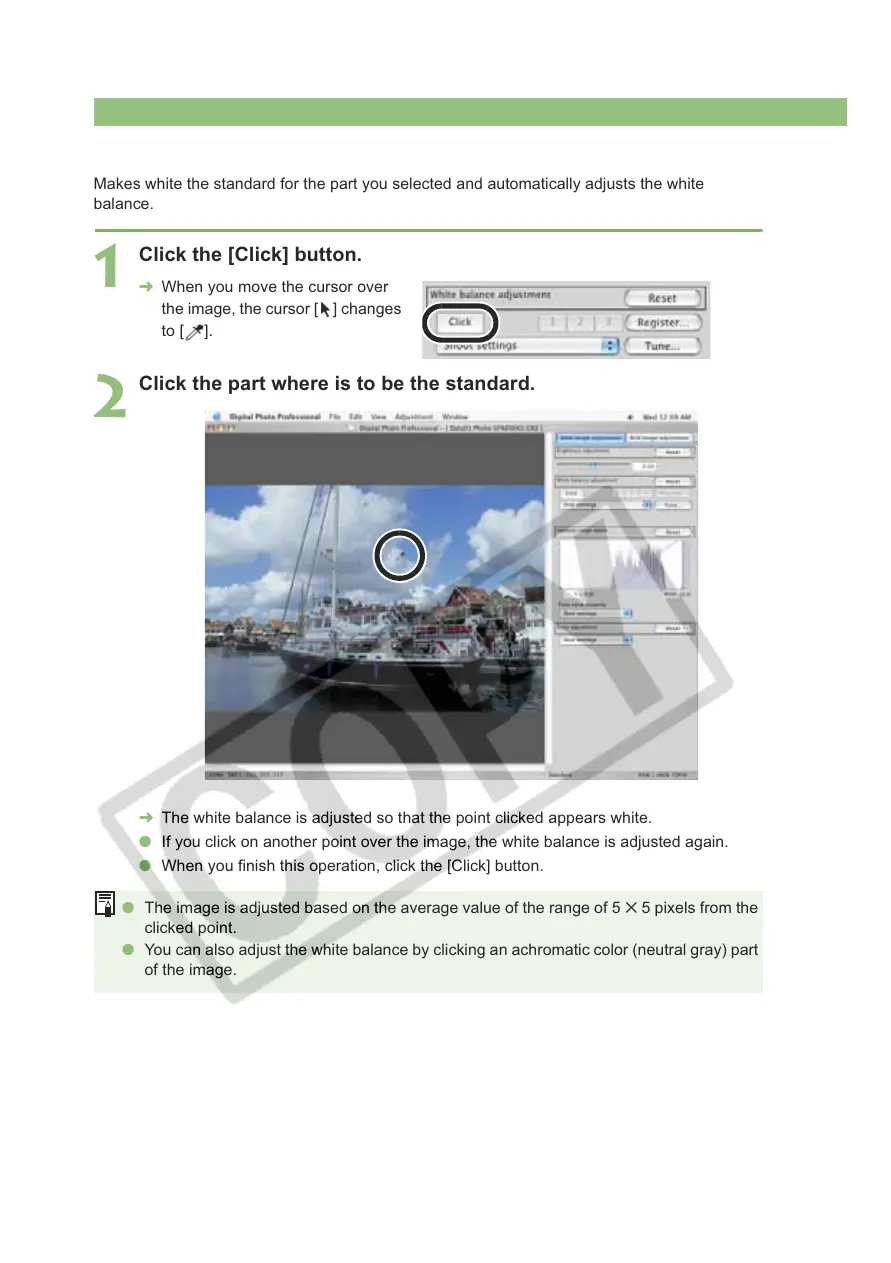
Makes white the standard for the part you selected and automatically adjusts the white
balance.
1
Click the [Click] button.
¿ When you move the cursor over
the image, the cursor [ ] changes
to [ ].
2
Click the part where is to be the standard.
¿ The white balance is adjusted so that the point clicked appears white.
O If you click on another point over the image, the white balance is adjusted again.
O When you finish this operation, click the [Click] button.
O The image is adjusted based on the average value of the range of 5 5 pixels from the
clicked point.
O You can also adjust the white balance by clicking an achromatic color (neutral gray) part
of the image.










 To Next Page