Editing RAW Images
1-27
1
Displaying Thumbnail Images and Performing Basic Edits in the Main Window
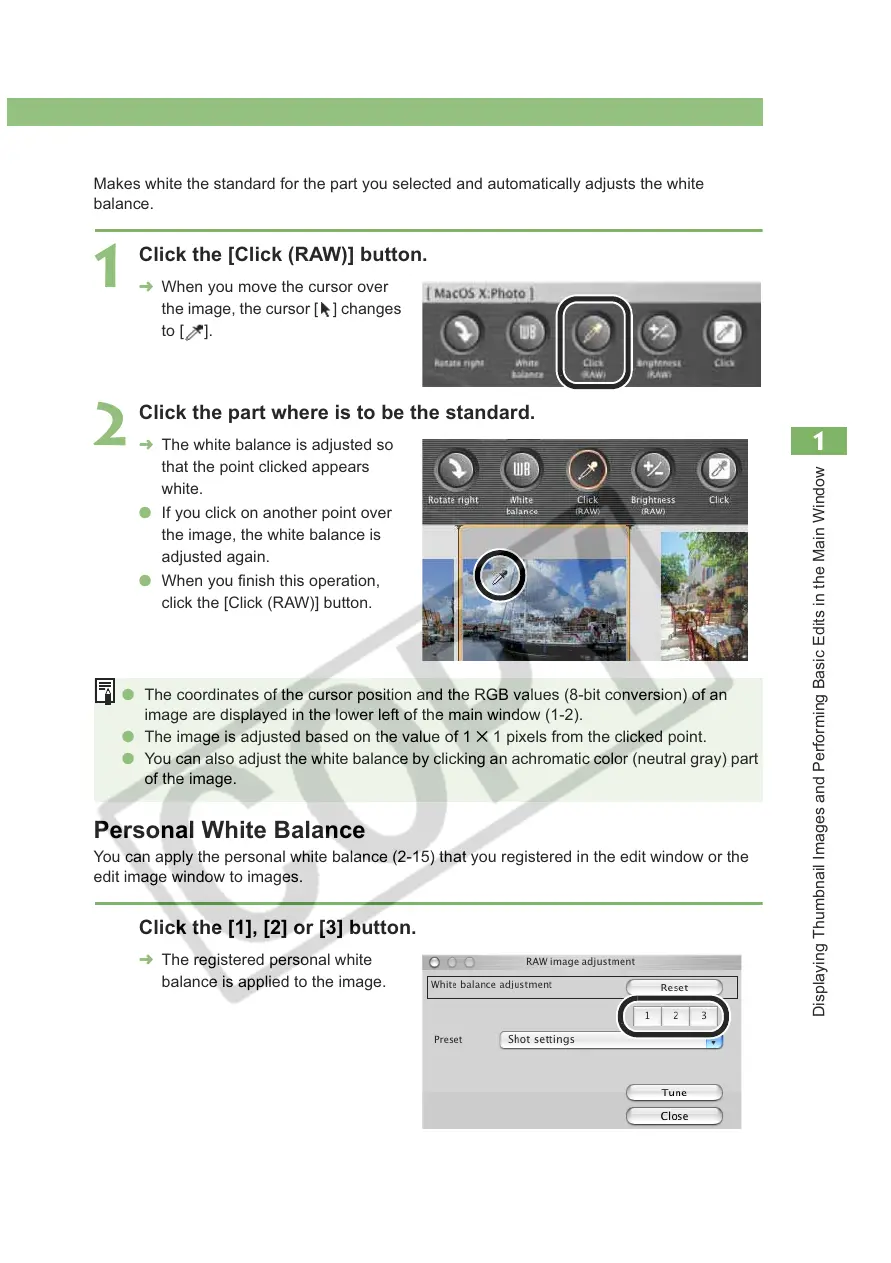
Click White Balance Function
Makes white the standard for the part you selected and automatically adjusts the white
balance.
Personal White Balance
You can apply the personal white balance (2-15) that you registered in the edit window or the
edit image window to images.
1
Click the [Click (RAW)] button.
¿ When you move the cursor over
the image, the cursor [ ] changes
to [ ].
2
Click the part where is to be the standard.
¿ The white balance is adjusted so
that the point clicked appears
white.
O If you click on another point over
the image, the white balance is
adjusted again.
O When you finish this operation,
click the [Click (RAW)] button.
O The coordinates of the cursor position and the RGB values (8-bit conversion) of an
image are displayed in the lower left of the main window (1-2).
O The image is adjusted based on the value of 1 1 pixels from the clicked point.
O You can also adjust the white balance by clicking an achromatic color (neutral gray) part
of the image.
Click the [1], [2] or [3] button.
¿ The registered personal white
balance is applied to the image.








 To Next Page