Specifying the Preferences
1-45
1
Displaying Thumbnail Images and Performing Basic Edits in the Main Window
O If you change the setting for [Default setting of Work color space], the changed setting is
applied after restarting Digital Photo Professional. However, the changed setting is not
applied to images with the [RGB] mark (1-5) that have been edited (1-16 to 1-17, 2-8 to
2-11) before the setting is changed. You should change the setting for each of the
images using [Work color space] from the [Adjustment] menu (1-29).
O To select a monitor or printer profile, you need to have previously installed the monitor
and printer profiles to be used on the computer. For details on the monitor and printer
profiles to be used, please refer to the user manual of each device.
The specified color space is added to the ICC profile that is embedded in TIFF or JPEG
images that have been converted from RAW images and saved (1-34, 1-36).
A color space is the reproducible color range (the characteristics of color gamut). Digital
Photo Professional supports the color space of sRGB, Adobe RGB, and Wide Gamut RGB.
sRGB : Widely used for the standard color space of monitors, digital cameras,
and scanners.
Adobe RGB : A wider color space than sRGB. Mainly used for printing for business
purposes.
Wide Gamut RGB : A wider color space than Adobe RGB.
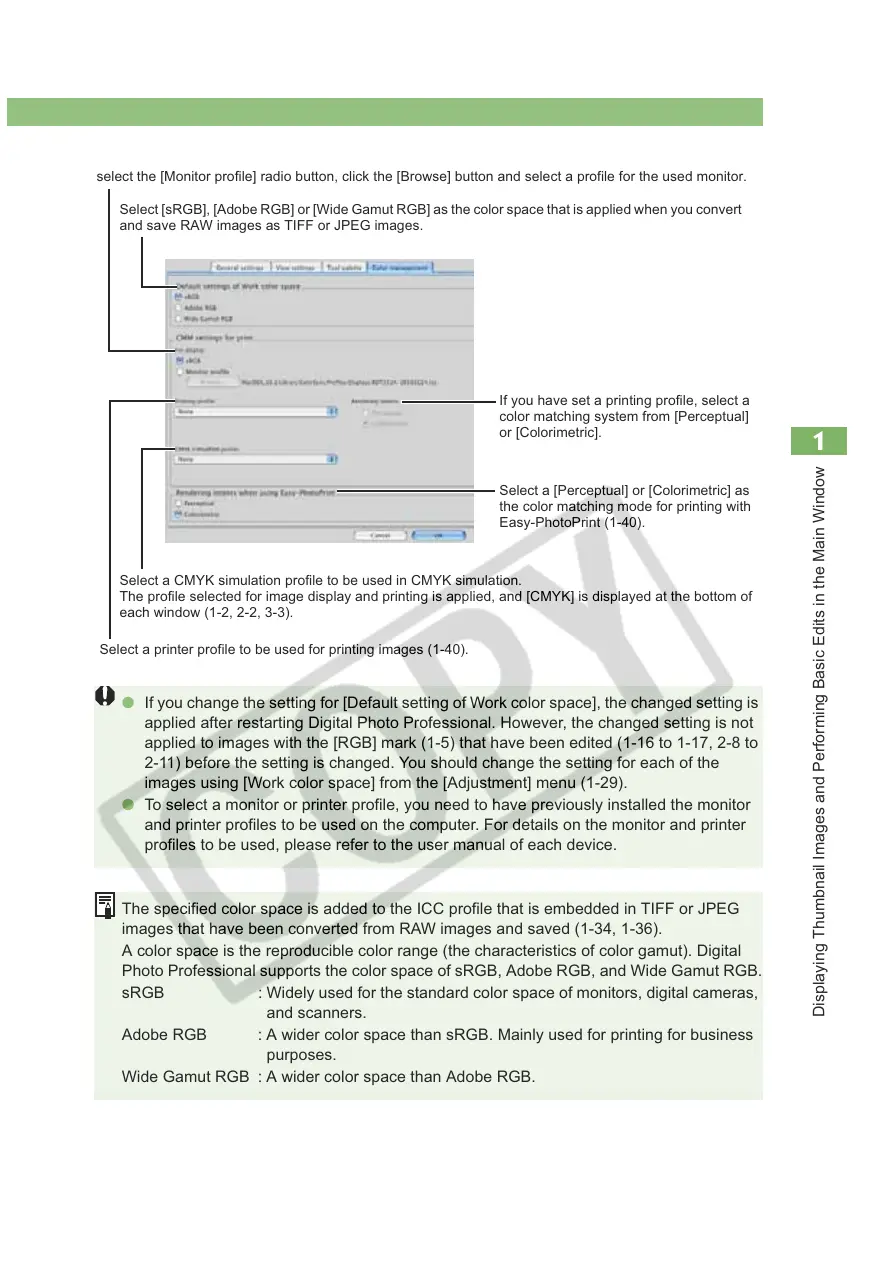
Select [sRGB], [Adobe RGB] or [Wide Gamut RGB] as the color space that is applied when you convert
and save RAW images as TIFF or JPEG images.
Select a CMYK simulation profile to be used in CMYK simulation.
The profile selected for image display and printing is applied, and [CMYK] is displayed at the bottom of
each window (1-2, 2-2, 3-3).
Select [sRGB] or [Monitor profile] as the color space for the monitor where the images will be displayed. If you
select the [Monitor profile] radio button, click the [Browse] button and select a profile for the used monitor.
Select a printer profile to be used for printing images (1-40).
If you have set a printing profile, select a
color matching system from [Perceptual]
or [Colorimetric].
Select a [Perceptual] or [Colorimetric] as
the color matching mode for printing with
Easy-PhotoPrint (1-40).








 To Next Page