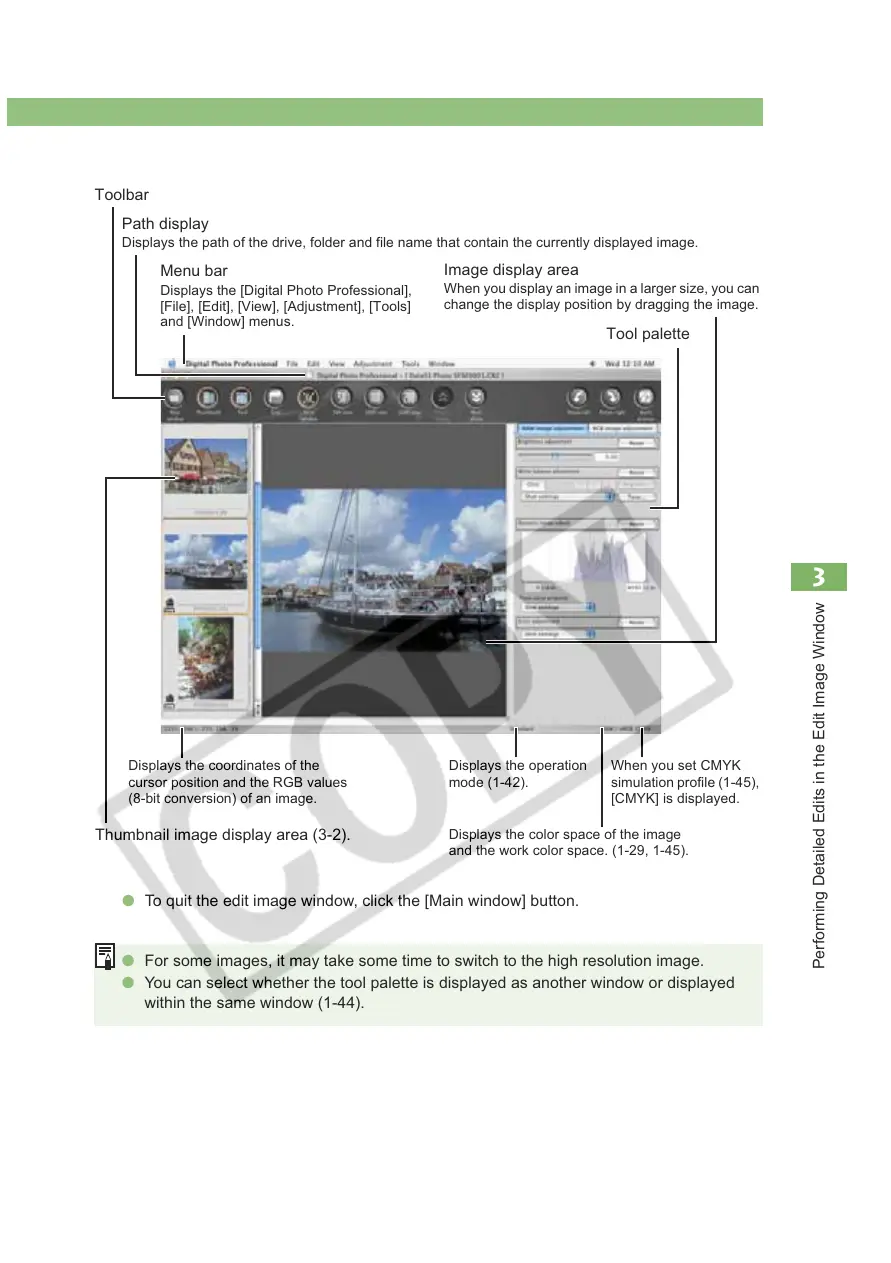
Displaying the Edit Image Window
3-3
3
Performing Detailed Edits in the Edit Image Window
Edit Image Window
O For some images, it may take some time to switch to the high resolution image.
O You can select whether the tool palette is displayed as another window or displayed
within the same window (1-44).
Toolbar
Path display
Displays the path of the drive, folder and file name that contain the currently displayed image.
Menu bar
Displays the [Digital Photo Professional],
[File], [Edit], [View], [Adjustment], [Tools]
and [Window] menus.
O To quit the edit image window, click the [Main window] button.
Thumbnail image display area (3-2).
Displays the coordinates of the
cursor position and the RGB values
(8-bit conversion) of an image.
Displays the color space of the image
and the work color space. (1-29, 1-45).
When you set CMYK
simulation profile (1-45),
[CMYK] is displayed.
Displays the operation
mode (1-42).
Image display area
When you display an image in a larger size, you can
change the display position by dragging the image.
Tool palette








 To Next Page